How to Multistream From Your Phone to Twitch, Kick, and Custom RTMP
Send one phone IRL feed to Twitch, Kick, YouTube, and a custom RTMP, RTMPS, or SRT endpoint with VISP Direct and no OBS output.
By VISP Team ·
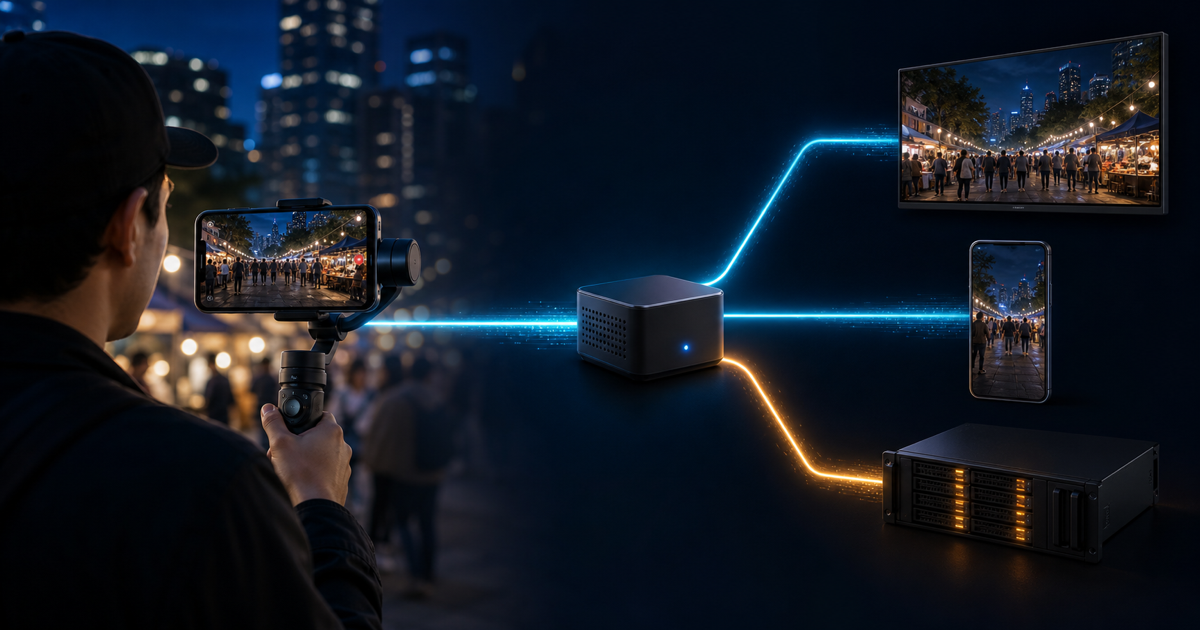
You can send one phone IRL feed to Twitch, Kick, or YouTube and a custom streaming endpoint without making the phone upload a separate copy for every destination. VISP Direct receives the phone contribution once, then creates an independent output for each selected destination.
The custom destination can be an RTMP or RTMPS ingest supplied by another live platform, an event service, or your own public media server. It can also be an SRT receiver. OBS does not need to own the public output, although it can still read the original phone feed for monitoring or recording.
This setup is useful when the phone already contains the complete show and you want wider distribution. It is not a replacement for OBS scenes, local audio, or a producer who needs to change the program before it goes public.
What the custom output changes
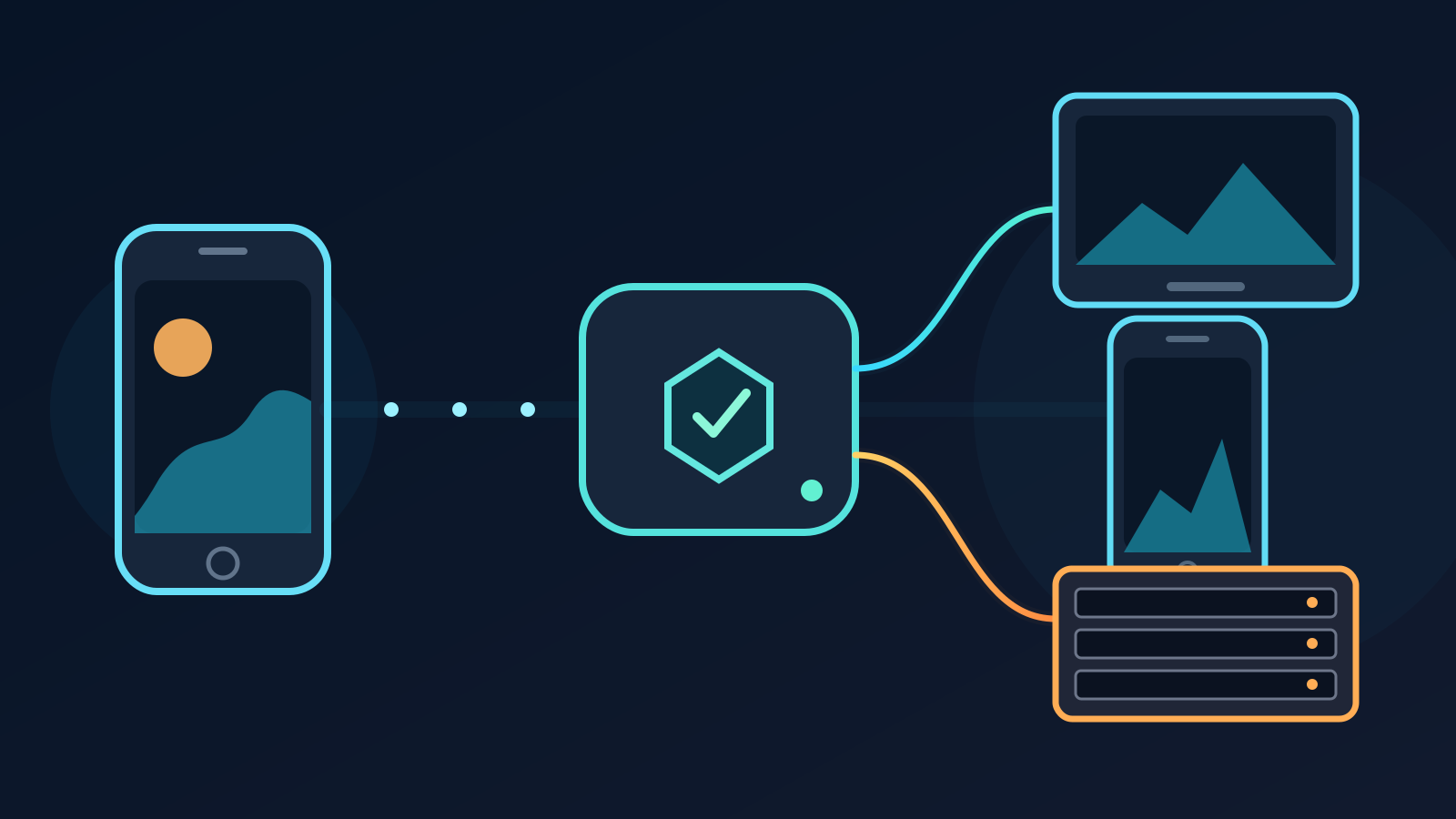
The phone sends one H.264 and AAC contribution to VISP. Direct decodes that contribution and creates a separate H.264 and stereo AAC distribution encode for every enabled output. RTMP and RTMPS destinations use an FLV container. SRT destinations use MPEG-TS.
This distinction matters for capacity planning:
- adding a destination does not add another upload from the phone;
- every destination consumes relay CPU, outbound bandwidth, and one forwarder slot;
- one destination can fail or retry without stopping the others; and
- OBS reads the original contribution, not any distribution encode sent by Direct.
VISP Direct therefore differs from a service that copies an already platform-ready stream unchanged. The phone still encodes its contribution, and the relay performs one distribution encode per destination. The VISP Direct guide explains that boundary and the relay capacity check that runs before publishing starts.
When to use a built-in or custom destination
Use the built-in Twitch, Kick, and YouTube destinations when one of those accounts is the target. VISP requests the required provider permission, obtains the publish destination at stream start, and keeps the stream key away from the phone and browser.
Use a custom destination when the receiving service gives you a complete RTMP, RTMPS, or SRT publisher URL and does not have a built-in VISP connection. Common examples include:
- a second live platform that accepts a custom RTMP publisher;
- a private event or ticketed broadcast service;
- a public SRT gateway run by a production partner; or
- a media server that records, monitors, or redistributes the program.
Do not add Twitch or Kick manually just because they also use RTMPS. Their built-in VISP destinations handle provider authorization and current ingest details. Kick's official mobile streaming guide shows why a manual workflow is more fragile: the app needs both the exact server URL and the channel stream key.
Pick RTMP, RTMPS, or SRT from the receiver's instructions
Do not convert one protocol URL into another by changing its prefix. Use the exact publisher URL supplied by the receiver.
RTMPS is the normal choice for a compatible public platform. It protects the connection with TLS. The URL usually contains a server path and a stream key. Treat the whole value as a secret.
RTMP is accepted when the receiver requires it. It does not add TLS to the connection, so prefer RTMPS when the same service offers both.
SRT is useful for a production-controlled receiver. SRT supports caller and listener roles, packet recovery, latency settings, stream IDs, and optional passphrases. The receiving operator must give you a complete URL with the correct public host, port, and options. Haivision documents the SRT URI format and the role of Stream ID in access control.
VISP accepts an SRT destination only when the URL has an explicit port and
either a path or a streamid parameter. It forwards an MPEG-TS program to that
URL. VISP does not discover the receiver's preferred latency, passphrase, or
Stream ID, so copy those values from the receiver instead of guessing.
Add the custom destination in VISP
Create and change endpoint credentials in the web dashboard. The phone app can then enable a saved destination for its own publishing device. Stop the device before adding an output or changing its endpoint. An enabled output can be stopped while the device remains live.
- Stop the publishing device so you can add the new output safely.
- Get the complete publisher URL from the receiving service. If the service shows a server and key separately, follow its documentation to construct the final URL.
- Open Direct output in the VISP dashboard.
- Under Custom destinations, choose Add custom destination.
- Enter a short name and the complete RTMP, RTMPS, or SRT URL.
- Save the destination, then enable it for the correct publishing device.
- Enable the built-in Twitch, Kick, or YouTube outputs needed for the same session.
- Start a short test and watch every destination state independently.
VISP validates the host before storing the destination. The host must resolve
to a public IP address. Loopback, private, link-local, multicast, and reserved
addresses are rejected, so localhost, 127.0.0.1, and a home address such as
192.168.1.20 cannot be custom Direct targets. Put a receiver on a properly
secured public endpoint if VISP must reach it over the internet.
The current destination validation code also rejects credentials in the URL authority and requires an RTMP path. Use the path or query format documented by the destination service.
What VISP stores and what it shows later
A publish URL often contains the stream key, an SRT passphrase, or another credential. VISP encrypts the complete custom URL at rest. After saving, the dashboard and phone show only the destination name, protocol, host, and explicit port. The secret path and query string are not returned to those clients.
That display is intentionally insufficient for recovering a lost key. To rotate the credential, get a new URL from the receiving service and enter it as the replacement URL in the dashboard.
VISP validates the destination again when the output starts. If DNS later resolves the host to a private address, the output fails instead of connecting. The custom Direct output implementation decrypts the URL only while resolving the relay destination and reports a generic start error rather than returning the secret.
The custom URL configures media delivery only. VISP does not know the title, category, visibility, scheduled event, or chat rules of an arbitrary endpoint. Set that metadata at the receiving service and verify its public page there.
Multistream without overloading the relay
Every Direct output uses one forwarder slot. Twitch plus Kick plus one custom RTMPS endpoint needs three slots. A separate portrait output needs another slot. The phone still sends one contribution, but the relay performs more encoding and sends more outbound data.
If the relay cannot reserve all required slots, VISP blocks the new publish or marks an individual output unavailable rather than pretending that every destination started. The exact capacity belongs to the relay deployment, so do not plan around a fixed number from a screenshot or an old article.
Start with the outputs that matter. A destination added for a hypothetical future use still consumes real resources when enabled. Add it only after the receiver and the audience need it.
For a no-PC production, read How to Stream to Twitch Without a PC at Home. If OBS scenes, alerts, a local host, or a final recording matter, use the phone as a remote camera in OBS instead and let OBS own the public program.
Check Twitch and Kick rules before the simulcast
A working output does not grant permission to ignore platform policy. Review the rules again before each new destination mix.
Twitch's current Simulcasting Guidelines FAQ says the Twitch experience cannot be degraded compared with another service. It also prohibits using Twitch to direct viewers to another concurrent live stream and prohibits combined cross-platform activity, such as merged chat, in the Twitch program. A private chat view on the creator's phone is different because viewers do not see it.
Kick's current Partner Program multistreaming guide requires partners to enable Kick's Multistreaming toggle when they also stream to another long-form live platform. The guide also describes the current payout effect. VISP cannot switch that account setting for you.
These rules can change independently of VISP. The linked provider pages, not a saved checklist, are the source to review before going live.
Test the complete destination path
The VISP state proves that its forwarder connected or failed. It does not prove that the destination made the stream public with the correct metadata and player behavior.
Run this preflight before an event:
- Use a private, unlisted, or low-stakes test where the receiving service offers one.
- Confirm the selected phone, camera, orientation, microphone, bitrate, and frame rate.
- Start with one built-in destination and the custom destination.
- Watch both public players from muted devices on a separate connection.
- Confirm audio, aspect ratio, captions or burned-in graphics, and title at each destination.
- Disconnect and reconnect the phone once to test recovery.
- Stop the custom receiver or revoke its key, then confirm that the other destination stays live.
- Rotate the test credential if it appeared in a screenshot, log, or message.
If one output fails, read its state before changing the phone bitrate. A bad custom URL, expired key, blocked receiver, or full relay slot is not a mobile upload problem. Changing several settings at once makes the next failure harder to identify.
Sources and next steps
- VISP Direct output documentation
- VISP phone app documentation
- VISP custom destination validation
- VISP Direct destination resolution
- Twitch Simulcasting Guidelines FAQ
- Kick Partner Program multistreaming
- Kick mobile streaming with custom RTMP
- Haivision SRT URI syntax
- Haivision SRT Stream ID guidance
If one phone feed already contains your complete show, try VISP, add one custom destination, and rehearse the Twitch or Kick simulcast before relying on it in the field.
Bring the field into your OBS studio
Try VISP free during beta. You never have to paste a stream key anywhere.
Try VISP free