How to Use Apple Watch for Twitch and Kick IRL Streaming
Read Twitch and Kick chat, check stream health, preview your camera, and switch OBS scenes from Apple Watch during an iPhone IRL stream.
By VISP Team ·
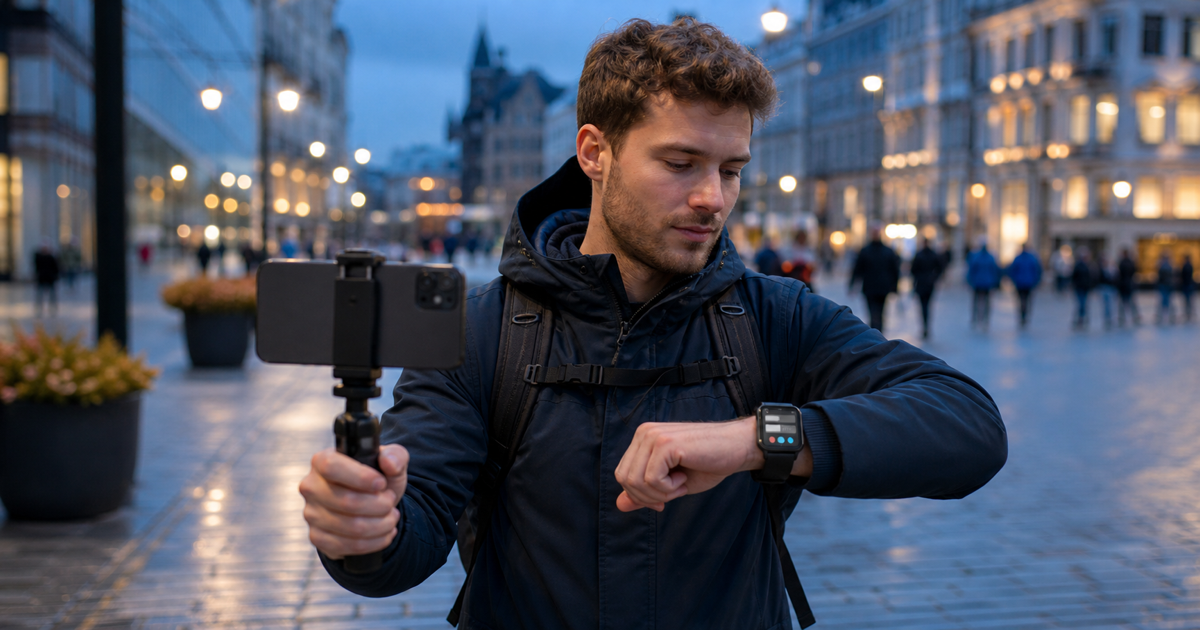
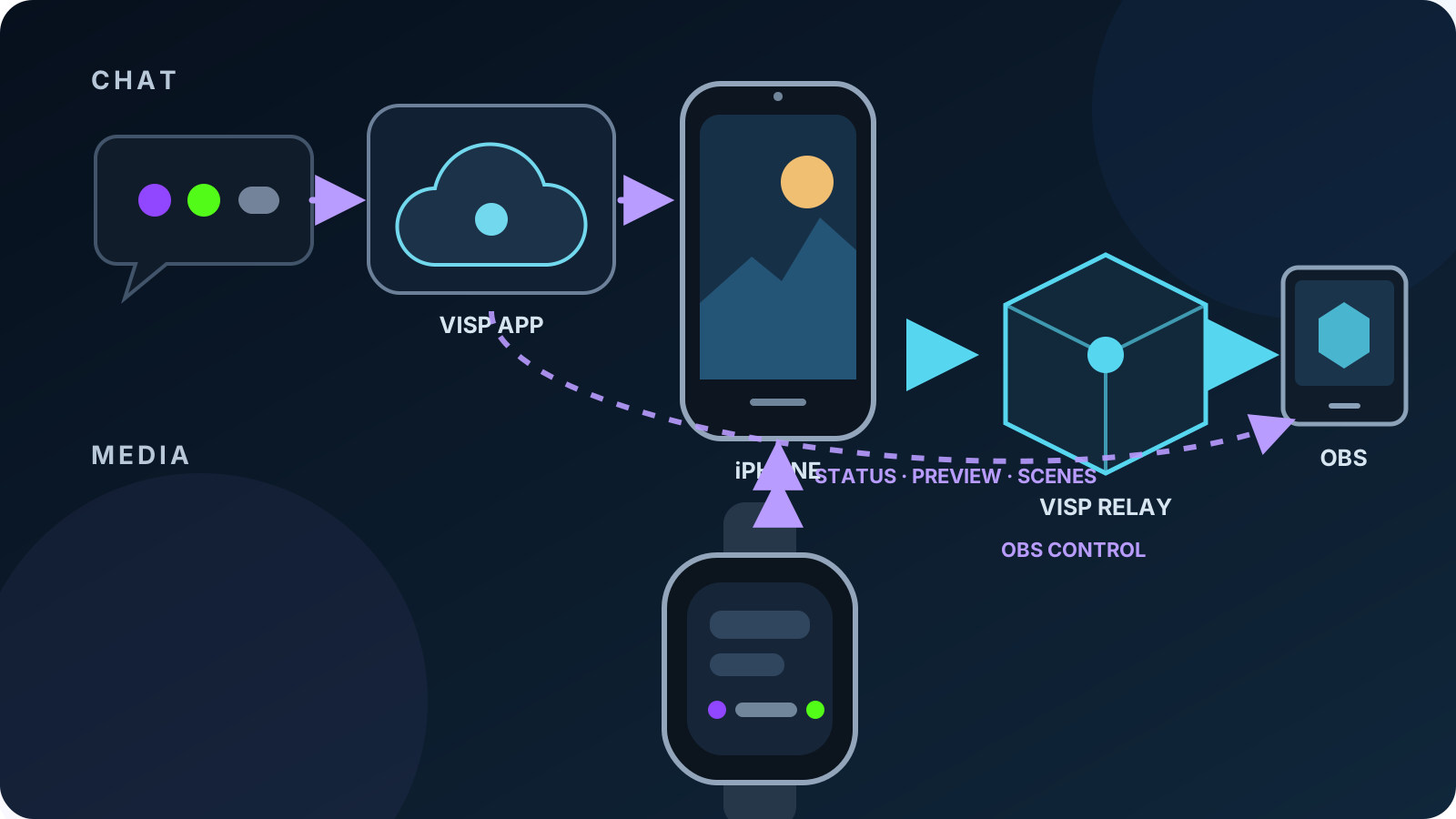
To use Apple Watch during a Twitch or Kick IRL stream, keep VISP open on the paired iPhone, open the VISP Watch app, and swipe between the camera preview, chat, stream health, and OBS scenes. The watch shows the three most recent chat messages, current stream state, microphone level, video format, Direct viewer counts, and the scenes reported by a paired OBS instance.
This is a field monitor and a small scene switcher, not a second encoder or a full OBS remote. The iPhone still captures and publishes the stream. The watch does not hold provider credentials, reply to chat, moderate viewers, or start and stop OBS.
What the Apple Watch companion can do
| Watch page | What it shows or controls | Important limit |
|---|---|---|
| Camera | A downscaled preview of the iPhone camera and its stream state | It is a low-frame-rate confidence view, not a production monitor |
| Chat | The latest three Twitch, Kick, or YouTube messages with sender and badges | Read-only; no reply, search, moderation, or history |
| Health | State, uptime, microphone tier, resolution, frame rate, reconnect detail, and Direct viewer counts | A dash means a provider did not return a current viewer count |
| OBS scenes | The current program scene and the scene list from the paired OBS plugin | Scene switching only; no mixer, source, recording, or stream-start controls |
The separation is deliberate. A walking creator can check whether the camera is framed, notice a reconnect, read a recent message, or move OBS to BRB without taking a hand off the rig for long. Detailed production work still belongs on the iPhone or at OBS.
If you mainly need chat on the phone itself, start with reading Twitch and Kick chat on one phone. If wrist control is unnecessary, the phone also offers the broader OBS remote-control surface, including stream start and stop.
What you need
- An iPhone running the VISP native app and a paired Apple Watch running watchOS 10 or newer
- The VISP Watch companion installed on the watch
- Twitch or Kick chat linked and enabled in the iPhone app if you want messages
- A configured VISP Direct destination if you want its viewer count
- OBS Studio 31 with the VISP plugin paired if you want scene switching
- Short, distinct OBS scene names and a rehearsed fallback scene
The Apple Watch path is iPhone-only. An Android phone can publish through VISP, but it cannot act as the companion for this watchOS app. See the current phone-app requirements before building the rest of the workflow.
1. Prepare the iPhone stream first
Complete the normal iPhone setup before involving the watch. Sign in, select the camera, resolution, frame rate, microphone, and destination, then run a short private test. The watch mirrors useful state from that running app; it does not configure the camera or destination for you.
For a home-studio production, follow the phone-to-OBS guide. The iPhone sends one H.264/AAC contribution feed to VISP, the relay forwards it without transcoding, and OBS owns the Twitch or Kick program. For a no-OBS workflow, VISP Direct performs a separate destination encode at the relay.
These two paths explain one detail on the Health page: viewer counts describe the selected Direct outputs. They are not an independent measurement of every OBS destination.
2. Enable Twitch or Kick chat on the iPhone
Open Settings → Advanced → Connections in the VISP app. Link each provider you want to follow and enable chat separately. Send one test message from another account and wait for the provider to show connected before relying on the watch.
Twitch delivers the read path through its
channel.chat.message EventSub subscription,
which requires chat-read authorization. Kick documents the equivalent
chat.message.sent event.
VISP forwards accepted messages to the signed-in iPhone, and the iPhone includes
the latest three in the watch snapshot.
The watch view is intentionally compact. It joins the message fragments into plain readable text, shows provider and user badges, and limits each message to two lines. Use Twitch or Kick's own moderation tools when chat is busy; the watch cannot delete, time out, ban, reply, or recover older messages.
3. Pair OBS and simplify the scene list
To switch scenes from the watch, install the VISP plugin in OBS Studio 31 and pair it with the same VISP account. The full procedure is in OBS remote control. The plugin reports its current program scene and scene names through an outbound authenticated connection, so OBS needs no inbound router port.
OBS also includes a much broader WebSocket control system. Its official Remote Control Guide describes that interface and recommends password protection. Use it when you need mixer, source, filter, recording, or automation control. The VISP watch companion is the narrower field option: it only chooses the program scene exposed by the paired VISP plugin.
Rename operational scenes before the rehearsal. Field, Wide, BRB, and End are safer on a small display than several names that differ only at the end. The watch marks the current scene, disables another request while a switch is pending, and reports an error if OBS is offline or busy.
4. Open VISP on both devices
Start VISP on the iPhone, then open the companion on Apple Watch. Swipe through its four pages:
- Camera confirms the current composition with downscaled preview frames.
- Chat shows connected providers and the newest three messages.
- Health shows live state, elapsed time, microphone activity, format, viewer counts, and reconnect information.
- OBS scenes marks the current program scene and lets you request another.
Keep the iPhone app running in the foreground for live watch data. VISP sends
small status snapshots through Apple's Watch Connectivity framework and sends
preview frames only while the watch app is reachable. Apple defines
isReachable
as live-message availability between the counterpart apps; it is not a promise
that two closed apps will continue an interactive control session.
The companion keeps no separate Twitch, Kick, or OBS credential. Apple describes Watch Connectivity as the two-way data channel between an iOS app and its paired watchOS app. In this design, the watch receives compact snapshots from the iPhone and sends a scene request back through that same paired-device channel.
5. Rehearse the wrist workflow
Run one end-to-end rehearsal before a public stream:
- Start a private or otherwise safe test from the iPhone.
- Confirm that the Camera page updates and matches the intended framing.
- Speak normally and check that the Health page microphone tier moves.
- Send one Twitch and one Kick test message, if both are enabled.
- Switch from Field to a harmless test scene and confirm the program in OBS.
- Disconnect the iPhone briefly from the network and confirm that reconnect information appears while OBS holds the fallback scene.
- Close VISP on the iPhone and learn the watch's Open VISP on iPhone state.
Do not treat the tiny Camera page as proof that viewers receive healthy video. It verifies the local capture path. VISP's live status describes the phone publisher, while OBS and the platform dashboard verify later parts of the chain. The guide to diagnosing dropped frames across an IRL stream explains those separate checkpoints.
Use one simple live routine
During the stream, make the watch a glanceable exception monitor rather than a second dashboard:
- Check Health when the phone vibrates, the picture seems delayed, or chat reports trouble.
- Check Chat when you need the latest context without covering the iPhone camera preview.
- Use OBS scenes for a rehearsed move to BRB, Wide, or Field.
- Return to the iPhone or contact the home producer for anything more complex.
A scene command needs a reachable watch-to-iPhone session, the running VISP app, the VISP service, a connected OBS plugin, and the OBS computer. If any link is down, stop retrying and use the fallback plan. VISP cannot turn a lost control path into an emergency guarantee.
Frequently asked questions
Can Apple Watch stream to Twitch or Kick by itself?
No. The watch companion neither captures nor publishes the program. The iPhone is the encoder; VISP relays its contribution to OBS or encodes configured Direct destinations.
Can I start or stop OBS from the watch?
Not currently. The watch can switch the current program scene. Use the VISP iPhone control or the producer at OBS to start and stop the broadcast.
Why does the watch show only three chat messages?
The companion is designed for quick field glances, so the iPhone sends only the latest three messages. Use the phone or provider dashboard for history and moderation.
Why is the viewer count a dash?
The selected Direct provider did not return a current count. A dash is an unknown value, not zero, and an OBS-only destination is outside this Direct count path.
Does the watch keep working when VISP is closed on the iPhone?
No interactive workflow should depend on that. The watch may have a last application snapshot, but live preview and scene commands require the paired iPhone app to be reachable. VISP shows Open VISP on iPhone instead of presenting stale data as live.
Sources and next step
- VISP: Phone and browser app
- VISP: OBS remote control
- Apple: Watch Connectivity
- Apple:
WCSession.isReachable - Twitch: EventSub subscription types
- Kick: Event types
- OBS: Remote Control Guide
If you want a hands-free field check without moving production onto the phone, try VISP, pair the Apple Watch companion, and rehearse one chat message, one reconnect, and one safe OBS scene switch before the next Twitch or Kick stream.
Bring the field into your OBS studio
Try VISP free during beta. You never have to paste a stream key anywhere.
Try VISP free