How to Read Twitch and Kick Chat on Your Phone While Streaming With OBS
Read Twitch and Kick chat on one phone while OBS runs the show, choose a private floating view or embedded overlay, and test the setup before live.
By VISP Team ·
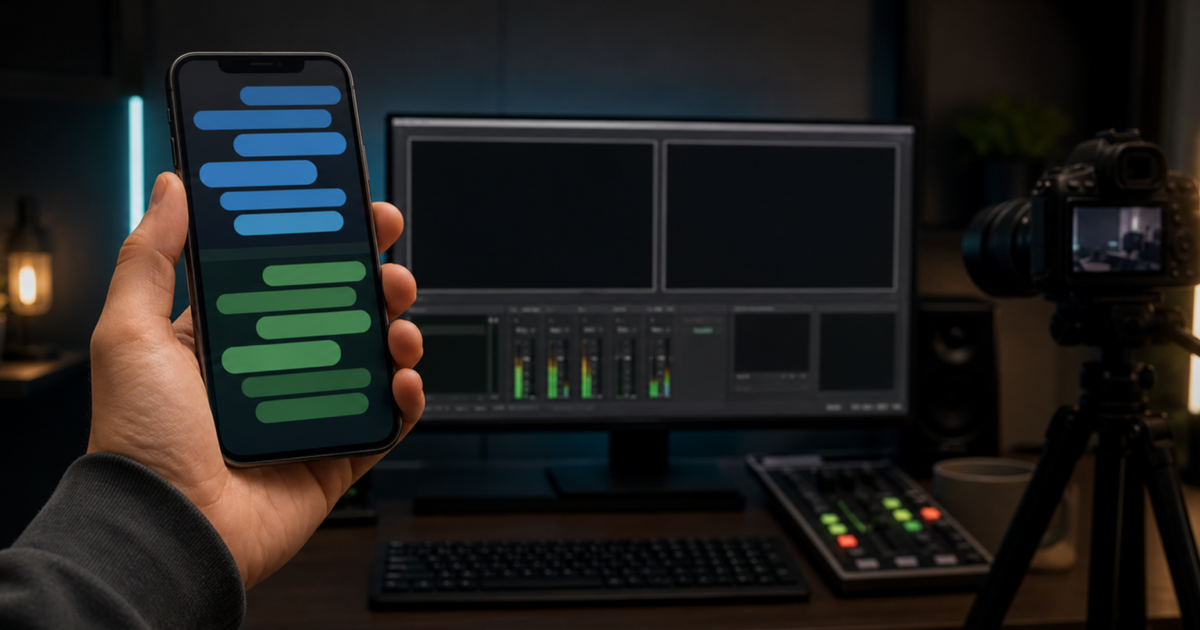
To read Twitch and Kick chat on one phone while streaming with OBS, link both provider accounts in VISP, enable chat for each one, and choose the Floating chat overlay in the phone app. Messages from both channels then share one movable view over the camera preview while OBS continues running the production at home.
The floating view is private to the operator. It does not appear in the camera feed or the finished broadcast. VISP also offers an Embedded mode when you deliberately want chat burned into the phone's outgoing video, but that is a different production choice. A linked YouTube chat can join the same view.
Choose the right kind of chat view
"Chat overlay" can mean several different things. Decide who should see the messages before changing any setting.
| Goal | Best starting point | Who sees it? |
|---|---|---|
| Read both chats while operating the phone camera | VISP Floating mode | Field operator only |
| Keep chat available but clear the camera preview | VISP Hidden mode | Nobody on the phone |
| Permanently include recent messages in the phone feed | VISP Embedded mode | OBS and viewers whenever that source is on air |
| Read Kick chat at the production computer | Kick custom browser dock in OBS | OBS operator only |
| Design a reusable on-stream chat layout | A dedicated OBS Browser Source | Viewers, controlled as a separate OBS source |
This guide focuses on the first row: a private, combined mobile monitor for a creator using the VISP phone as a remote camera. If you still need the camera path itself, start with using a phone as a remote camera in OBS.
OBS distinguishes an operator dock from a source in the program. Kick's official OBS chat-dock guide adds the pop-out chat URL under Docks → Custom Browser Docks. OBS's own chat FAQ explains that showing chat to viewers instead requires a chat overlay added as a Browser Source. A dock is for the producer; a source can become part of the broadcast.
What you need
- The VISP native app on the field phone
- A VISP account signed in with Twitch, Kick, or Google
- The other provider linked in VISP if you want both chats at once
- Chat enabled separately for every provider you want to follow
- OBS receiving the phone as a VISP Media Source
- Headphones and a tested fallback scene for the field feed
You do not need to move either platform's stream key to the phone. In this workflow (dashboard Mode set to Phone to your OBS) the phone publishes a contribution feed, VISP relays it, and OBS owns the final Twitch or Kick destination. The same chat view works with Direct, the default, where the relay sends the phone to the platforms instead. Reading both chats also does not configure OBS to multistream; destinations remain an OBS concern.
1. Link Twitch and Kick without changing the destination
Sign in to VISP with the account already used for the production. Open the phone app's settings and find the Chat section. Twitch and Kick each show one of these states:
- Not linked: the provider is not attached to this VISP account;
- Linked · chat off: sign-in is available, but live chat delivery is off;
- Chat connected, connecting, disconnected, or error: chat is enabled and the app is reporting the current delivery state.
Select Link for the second provider and complete its authorization in the browser. Linking an account does not copy its stream key into VISP and does not change the service configured in OBS. At least one linked account remains the login identity for the VISP account.
Keep this distinction clear: linking lets VISP identify the channel; enabling chat starts the read-only live-message path.
2. Authorize Twitch chat
If Twitch shows Authorize, select it and approve the requested chat access.
VISP requests Twitch's user:read:chat scope for this feature. Twitch defines
that scope as permission to receive chat-room messages and related
notifications, and its current
EventSub reference
uses the channel.chat.message subscription for messages sent to a channel.
VISP uses that read path to display messages and emotes. The mobile chat view does not send messages, time out users, ban users, or replace a moderation dashboard. The separate authorization is intentional: signing in to VISP does not silently opt the account into chat access.
After authorization, return to the Chat section and turn Twitch chat on. Wait for its status to become connected, then send a harmless test message from another account. Test before the public broadcast so an expired or replaced permission is not discovered in the field.
3. Enable Kick chat
Link Kick if it is not already attached, then turn its chat switch on. VISP
creates a subscription for Kick's chat.message.sent event. Kick delivers
those events to the VISP server as signed webhooks; the server verifies the
signature, timestamp, and message identifier before forwarding accepted
messages to the signed-in phone.
Kick documents the available event and payload in its official developer documentation and describes subscription delivery and verification in Subscribe to events and Webhook security.
Wait for Kick to show connected and send a second test message. Once Twitch and Kick are both enabled, their messages can appear in the same compact VISP view. The overlay does not replace either provider's full moderation context, so do not assume both audiences use the same vocabulary or rules.
4. Make chat private with Floating mode
Open Settings → Chat overlay → Position and select Floating. New messages appear over the phone's camera preview in a compact dark panel. Drag the panel away from faces, camera controls, audio meters, or the part of the frame you use to judge focus.
VISP remembers separate floating positions for portrait and landscape. Set the phone to the orientation you will use, place the panel, then rotate and place it again if the production may change orientation. Recheck both layouts after an app update or a major display-size change.
Only a small set of recent messages stays visible, and messages fade after a short interval. That keeps the preview usable, but it makes the feature a live monitor rather than a searchable chat history. If chat is busy, appoint a moderator with the provider's own tools instead of expecting the field operator to read every line while framing a shot.
Floating mode is deliberately outside the encoded camera picture. OBS receives the clean video source, so the producer can crop, switch, record, or reuse it without chat text attached.
5. Use Embedded mode only when chat should be in the video
The iOS and Android apps also offer Embedded with a Corner selector. In this mode the phone composites recent messages into its encoded camera frames before publishing them over SRT. VISP then relays those frames unchanged, and OBS cannot remove the chat later.
Embedded mode can suit a casual IRL layout where chat is intentionally part of the field camera. It is a poor default for a reusable camera source because:
- every OBS scene using that source receives the same overlay;
- the overlay is included in recordings and clips made from the program;
- an offensive message can appear before a moderator acts;
- cropping the feed can cut through the message panel;
- the producer cannot restyle, hide, or reposition individual messages in OBS;
- if the same picture also goes to Twitch while you simulcast, Twitch's simulcasting rules restrict showing other platforms' chat in it.
If the finished show needs a designed chat panel, keep VISP on Floating or Hidden and build the viewer-facing layer as a separate OBS Browser Source. That preserves scene-level control and keeps the clean camera available.
Embedded mode is native-only. The VISP browser publisher can use the floating operator view, but it does not composite chat into the WebRTC video.
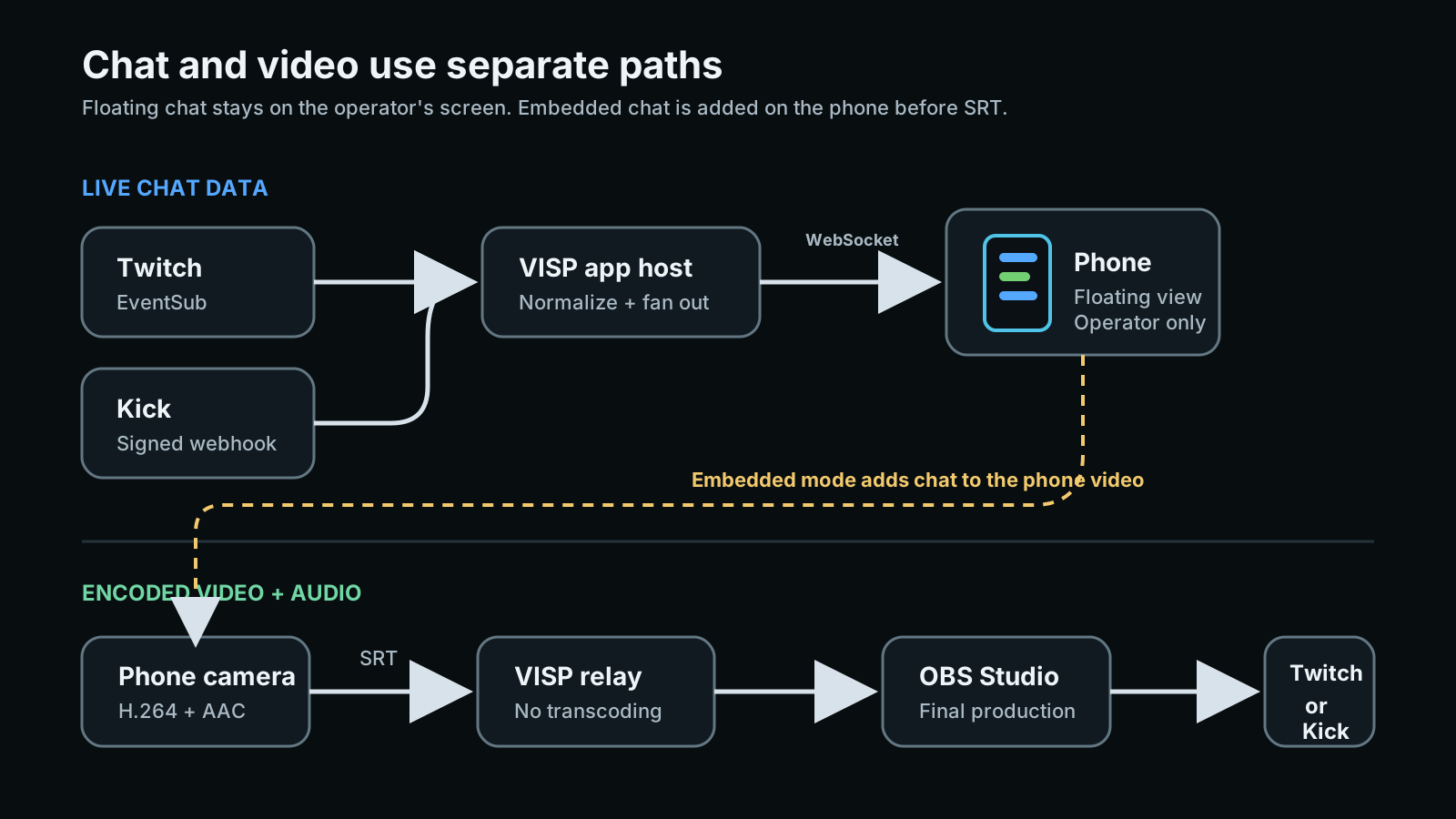
How the two paths stay separate
The phone receives chat and publishes media through different paths:
- Twitch messages reach the VISP app host through Twitch EventSub while an authenticated VISP chat viewer is active.
- Kick messages reach the app host through the enabled signed webhook subscription.
- VISP normalizes accepted messages and sends live events over an authenticated WebSocket to the phone.
- Separately, the phone encodes H.264 video and AAC audio and publishes them over SRT to the VISP relay.
- OBS reads that media path and sends the finished program to the configured platform destination (or, with Direct, the relay encodes it for each platform).
VISP does not store a chat-history archive in this flow. Recent messages live only long enough to support the active client view. A chat connection error therefore does not stop the SRT publisher, and a media reconnect does not change the provider authorizations.
The separation also sets an honest boundary: on the relay-to-OBS path VISP does not transcode the camera feed. Floating chat adds no pixels to the outgoing video. Embedded chat is composited on the phone, not at the relay. If the field network fails completely, neither chat nor the phone camera can use that path until connectivity returns. Use the mobile-network resilience guide to plan bitrate, SRT recovery, fallback scenes, and the app's optional Network bonding when one link must be allowed to fail.
Test the complete OBS workflow
Run one private rehearsal with both platforms before relying on the combined view:
- Start the phone preview with chat set to Floating.
- Confirm Twitch and Kick both report connected.
- Send a uniquely recognizable message from a second account on each service.
- Check that both messages appear and emotes do not obscure camera controls.
- Start the phone's VISP camera feed and verify OBS receives clean video.
- Record a short OBS sample and confirm no chat is present in the recording.
- Move the phone between portrait and landscape and check the saved positions.
- Disable one chat connection and verify the other remains usable.
- Briefly interrupt the phone network, restore it, and watch both media and chat recover.
- Confirm the OBS fallback scene works while the field video is unavailable.
For a production with several field phones, decide whether every operator needs chat. Each phone should still use its own VISP publishing device as described in the multi-phone IRL guide; chat connections belong to the signed-in creator account, while media credentials remain per-device.
Troubleshooting
Twitch is linked but says Authorize
The linked Twitch token does not currently include user:read:chat. Select
Authorize and complete the Twitch consent flow again. Then return to the app,
enable Twitch chat, and wait for connected status.
One platform works and the other is silent
Check the Chat section rather than the overlay mode first. The silent provider must be both linked and enabled. Send a new message after the status becomes connected; the view is for live delivery, not earlier chat history.
Messages disappear too quickly
That is expected for the compact live view. Recent messages fade so they do not cover the camera preview indefinitely. Use the provider's full chat or moderation tools when you need history.
Chat is visible in OBS even though Floating is selected
Make sure OBS is not also capturing the phone's whole display or a separate chat Browser Source. Floating mode itself is not composited into the VISP camera feed. Record the isolated VISP Media Source to identify which layer contains the chat.
Embedded chat is missing from the browser publisher
Embedded mode is implemented by the native iOS and Android video encoders. Use the native app, or keep the camera clean and add a separate Browser Source in OBS.
Frequently asked questions
Can VISP show Twitch and Kick chat at the same time?
Yes. Link and enable both providers, then use Floating or Embedded mode. This combines their live messages in the phone view; it does not make OBS stream to both destinations.
Can I use the guide with only Twitch or only Kick?
Yes. Leave the other connection disabled. The overlay works with either enabled provider on its own.
Can I reply or moderate from the VISP chat overlay?
No. The overlay is a read-only live monitor. Use Twitch or Kick's own creator and moderation surfaces for replies, bans, timeouts, and chat history.
Does Floating chat appear in the stream or VOD?
No. Floating is an operator overlay over the app preview. Embedded mode is the option that becomes part of the phone's encoded video and can therefore appear in OBS, the broadcast, and recordings.
Sources and next steps
- VISP phone and browser app
- VISP chat and media architecture
- VISP OBS remote control
- Twitch EventSub channel chat messages
- Twitch access-token scopes
- Kick developer event types
- Kick chat dock in OBS
- OBS chat FAQ
If your field phone already feeds an OBS studio and you want both live chats beside the camera controls, try VISP: link the two providers, start with Floating mode, and verify a clean OBS recording before your next broadcast.
Bring the field into your OBS studio
Try VISP free during beta. You never have to paste a stream key anywhere.
Try VISP free