How to Build a Multi-Phone IRL Stream in OBS
Build a multi-phone IRL production with independent VISP camera paths, microphones, credentials, OBS scenes, fallback, and remote control.
By VISP Team ·
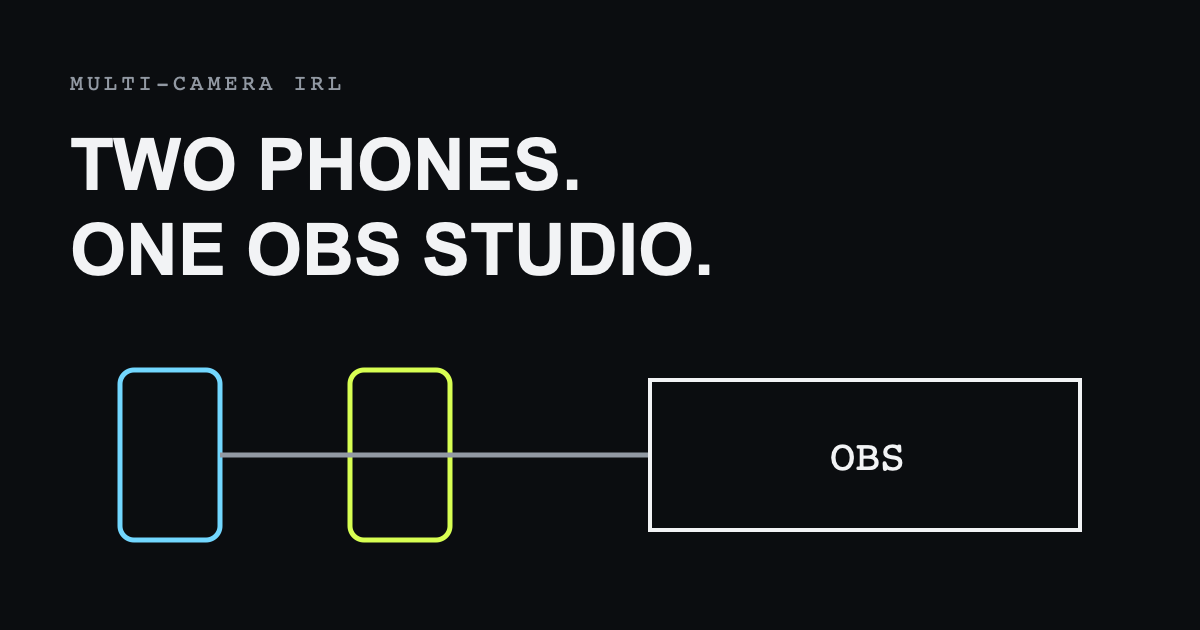
To build a multi-phone IRL stream in OBS, create one VISP publishing device per phone, add each feed as its own OBS media source, and compose those sources into separate scenes or a multi-camera layout. Each phone keeps an independent camera, microphone, path, and revocable credential, while OBS remains the single place that switches scenes and sends the final program to Twitch or Kick.
This is not a group call. The phones do not need to receive or mix one another. They contribute clean field feeds to a producer who decides what the audience sees and hears.

Design the production before adding devices
Start by assigning a job to each phone. A useful two-camera plan might be:
- Roaming camera: carried by the host, with the host's microphone and the closest view of the action.
- Wide camera: mounted on a tripod, showing the whole venue and providing a safe angle when the roaming operator moves or loses signal.
Other combinations include stage plus backstage, interviewer plus guest, vehicle interior plus road view, or two remote locations. A phone without a clear production role adds bandwidth and audio problems without improving the show.
Decide whether each phone supplies audio. Two microphones in the same physical space can produce echo, phase differences, and changing ambience. Often the wide camera should be video-only in the OBS mix while the roaming camera or a dedicated audio source remains live.
Create one VISP device per phone
Multi-phone production runs in OBS mode. VISP starts in Direct mode, which forwards one device at a time, so first open the dashboard's Mode: Direct · change menu and choose Phone to your OBS.
Then create a publishing device for each camera: sign in to the VISP app on each phone, which creates that phone's device automatically, or use Add device on the dashboard's Devices tab for a third-party encoder. Give devices names that make sense to both the field operators and OBS producer, such as “roaming,” “stage wide,” and “green room.” Do not call them “phone 1” and “phone 2” if their roles may be swapped later.
Every VISP device receives independent publishing access. This isolation has three practical benefits:
- both phones can publish at the same time because they own different paths;
- revoking one phone does not interrupt the others;
- OBS can keep a stable source and scene for each role.
Do not paste the same publishing URL into two phones. VISP allows one publisher to own a path at a time; the first connection stays active and a later publisher is rejected. A standby camera needs its own device and OBS source.
Add every feed to OBS
Pair the VISP Remote Control plugin through Tools → VISP Remote Control → Sign in with browser. The plugin lists the publishing devices and can add each one to the selected scene. Alternatively, choose Download OBS collection on the dashboard's OBS tab, then import it through Scene Collection → Import.
The generated collection includes one scene per active relay path plus a fallback scene. The sources use authenticated read URLs, low buffering, and automatic reconnection. Keep those generated media sources as the canonical inputs; reference them in composed scenes rather than creating several copies with independently edited URLs.
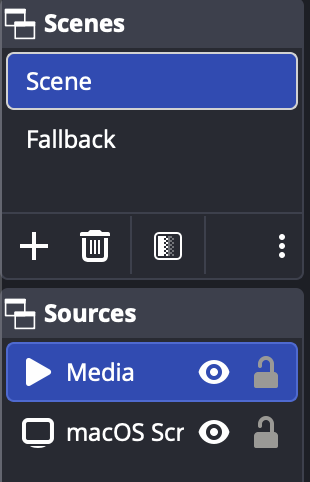
Create a simple scene layout:
CAM — ROAMING: full-screen roaming media sourceCAM — WIDE: full-screen wide media sourceMULTI: both sources arranged side by side or picture-in-pictureFALLBACK: local slate, schedule, music, or studio source
Use names the remote operator can recognize if they are allowed to switch scenes from the VISP app.
Configure each phone independently
The phones do not need identical settings. The roaming phone may need adaptive bitrate and a larger SRT latency window because it moves between cells. A fixed phone on venue Wi-Fi may sustain a higher bitrate with less jitter.
For each phone:
- select the intended camera and orientation;
- set a two-second keyframe interval;
- choose a conservative resolution, frame rate, and bitrate;
- enable adaptive bitrate when supported;
- run the VISP latency probe on that phone's actual network;
- confirm microphone selection and level;
- test stop, reconnect, and battery behavior.
Avoid assuming two phones on the same mobile carrier provide redundancy. They may share the same tower, congestion, and coverage failure. Multi-camera and network bonding are different features.
Manage audio deliberately
Audio is usually harder than video in a multi-phone setup. Radio waves do not make two camera microphones arrive at exactly the same time, and each phone's encoder, jitter buffer, and route can add different delay.
Choose one primary microphone wherever possible. Mute the wide phone in OBS or use it only when the roaming camera is unavailable. If two locations genuinely need simultaneous audio, wear headphones during setup and align sources using OBS sync offsets after a clap test. Recheck after reconnecting because a new connection may not reproduce the exact same timing.
Prevent field operators from monitoring the program through an open speaker near a live microphone. Use an earpiece for return audio, or keep the workflow one-way when talkback is not required.
Switch cameras without exposing the destination
The home OBS installation owns the Twitch or Kick destination and stream key. Field phones publish only to their assigned VISP paths. This lets a producer switch scenes locally, or lets an authenticated field operator request scene changes through the VISP plugin without receiving the destination credential.
The plugin uses authenticated outbound WSS rather than opening an inbound OBS control port. Rotating the plugin credential disconnects older plugin configurations, while publishing-device credentials remain separate.
For a solo two-phone production, keep the remote scene list short. A small set of obvious choices is safer on a phone screen than exposing every technical scene and transition in the OBS collection.
Plan for one camera failing
Multi-camera does not automatically mean seamless failover. OBS needs to know which source is healthy and which scene to show. The Advanced Scene Switcher plugin can watch a media source and move to a fallback after it stops, but a producer should still understand the logic.
Use a short debounce so a single decoder state change does not cut the show. VISP's recommended starting point is two seconds of stable playback before returning to a live camera and three seconds stopped before leaving it. Create separate rules for each important source and avoid a loop in which two missing cameras continually switch scenes.
The mounted wide camera is useful as a visual backup only if its network and power are independent enough to remain available. Otherwise use a local OBS fallback that does not depend on either phone.
Bandwidth and scaling limits
Each phone uploads its own encoded feed. The relay receives each feed, and OBS downloads each feed it uses. Adding a second 4 Mbps camera means another 4 Mbps of field upload from its network and roughly another 4 Mbps into the OBS location, before protocol overhead.
The relay-to-OBS path does not transcode, synchronize, or server-side mix the cameras. OBS does the composition. If a production needs frame-accurate synchronized cameras, central transcoding, contribution monitoring across dozens of feeds, or broadcast-grade intercom, it has moved beyond VISP's current scope.
For a small creator production, two or three independently managed phones are often the useful ceiling. Add cameras because the audience benefits from a new angle, not because the relay accepts another path.
A two-phone rehearsal
Run this rehearsal before the event:
- Start both phones and confirm the correct labels in OBS.
- Clap once where both microphones can hear it and inspect sync.
- Walk the roaming camera through the real route for ten minutes.
- Stop the roaming phone and confirm OBS can show wide or fallback.
- Restart it and wait for stable playback before switching back.
- Stop the wide phone and verify the fallback logic does not loop.
- Test remote scene commands with the destination stream still offline.
- Run both phones for the expected duration to check heat and battery.
Once that works, publish an unlisted or test broadcast and repeat the failure steps end to end.
Frequently asked questions
How many phones can I add?
VISP supports multiple publishing devices, but the practical limit is the available relay, OBS, network, and operator capacity. Start with two and measure before adding more.
Can two phones share one microphone?
Not through VISP as a shared capture device. Route the chosen audio separately or keep only one phone microphone active in OBS.
Will the cameras be perfectly synchronized?
No. Independent encoders and network paths introduce different delay. OBS offsets can align a tested setup, but reconnects may change timing.
Can one phone replace another without changing OBS?
A replacement can use the same device credential after the old publisher has disconnected, but two cannot preconnect to one path. For reliable standby, create a separate device and source.
Do multiple phones bond their connections?
No. Each feed uses its own connection. Each phone can turn on the VISP app's optional network bonding for its own Wi-Fi and cellular links, but phones do not pool their connections. Read the resilient mobile streaming guide for bonding options.
Sources and further reading
Bring the field into your OBS studio
Try VISP free during beta. You never have to paste a stream key anywhere.
Try VISP free