How to Fix Phone Camera Audio in OBS: No Sound, Echo, or Delay
Fix phone-camera audio in OBS: trace silence, remove echo, match delayed sources, set clean levels, and verify the final Twitch or Kick mix.
By VISP Team ·
When a remote phone camera looks right in OBS but sounds wrong, do not start by changing every audio setting. First identify whether the problem is silence, a duplicate signal, a fixed timing difference, or a level problem. Each has a different fix.
In a VISP workflow, the phone sends one camera-and-microphone contribution feed to the relay, and OBS receives that feed as a Media Source. OBS still owns the final Twitch or Kick mix. That separation gives you useful checkpoints: the phone meter, the VISP device state, the OBS mixer, a local recording, and the public platform output.
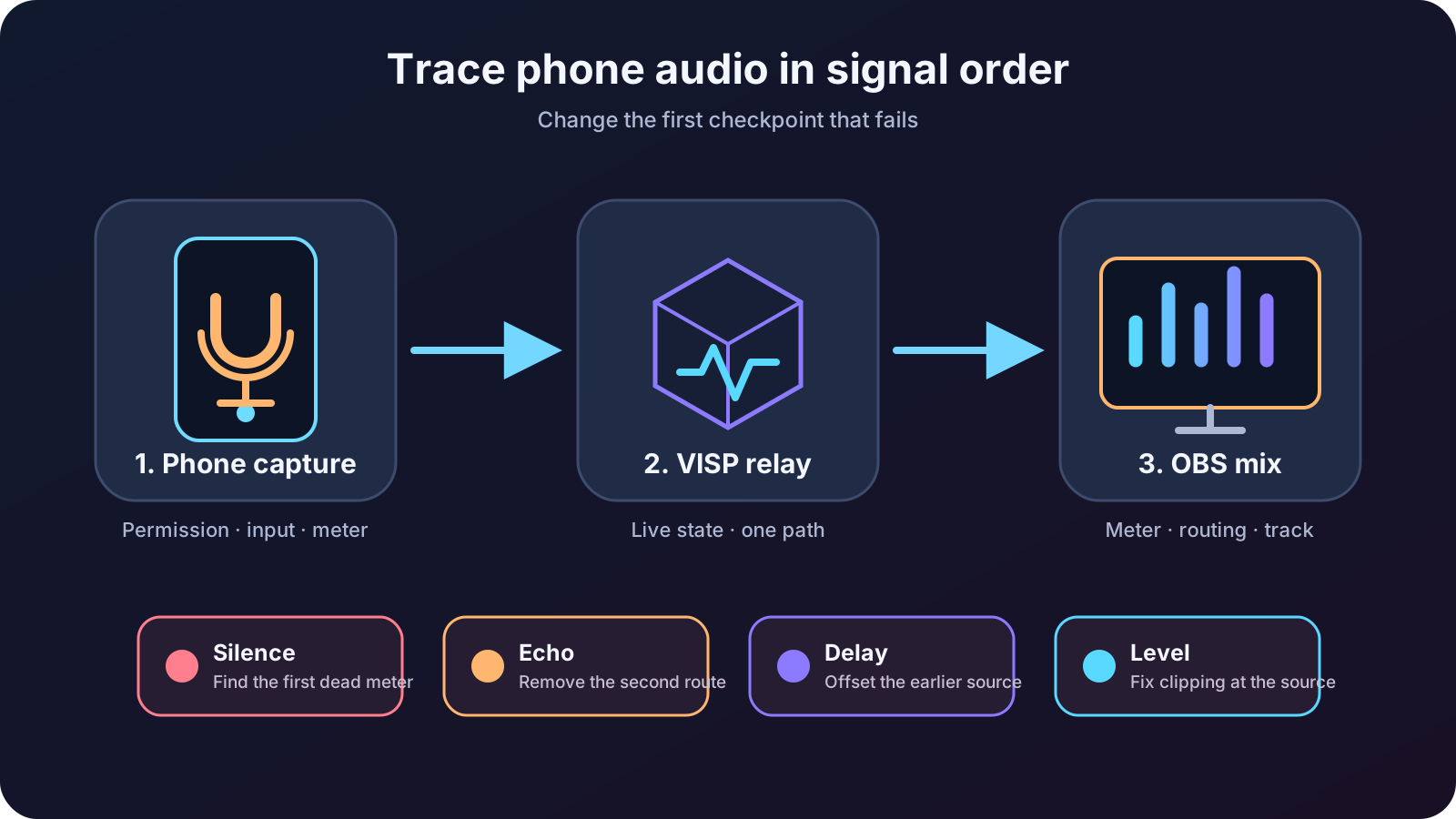
Start with the symptom, not a guessed fix
Use the shortest test that separates one fault from another:
| What you observe | Check first |
|---|---|
| No movement on the phone microphone meter | Phone permission and selected microphone |
| Phone meter moves, but the VISP device is not Live | Phone-to-relay connection |
| Device is Live, but no meter moves in OBS | Correct Media Source and current read URL |
| OBS meter moves, but recording or stream is silent | Mute state, monitoring mode, and active output track |
| One voice is heard twice | A duplicated capture or monitoring path |
| Audio is always early by the same amount | Delay the earlier source in OBS |
| Sync changes during the session | Reconnect and investigate load or an unstable source before adding a fixed offset |
| Voice distorts on loud words | Reduce gain at the earliest stage that is clipping |
Make a 20-second local recording after each change. Listening only through live monitoring can mislead you because the monitoring path has its own delay and routing.
Understand the phone-to-OBS audio path
The native VISP app captures the selected phone microphone, displays a live level indicator, encodes audio as AAC beside H.264 video, and publishes both over SRT. The relay authenticates and forwards that contribution feed. It does not split, remix, normalize, or transcode it on the normal relay-to-OBS path.
The VISP OBS plugin adds the device as an FFmpeg Media Source with MPEG-TS input, hardware decoding when available, low buffering, and automatic reconnection. Audio from that source appears in the OBS Audio Mixer. The phone app documentation covers camera and microphone selection, while the OBS plugin documentation explains one-click Media Source setup.
This means the first bad checkpoint usually tells you where to work. If the phone meter is silent, an OBS filter cannot restore audio that was never captured. If the OBS meter moves, changing the phone's SRT URL will not fix an output-track mistake.
1. Prove the phone is capturing the intended microphone
Stop the contribution stream before changing the microphone. In the VISP app, open settings and choose System default or the named input you actually want. A wired microphone, USB interface, or Bluetooth headset may become the system default when it connects, so do not assume the phone still uses its built-in microphone.
Speak at the volume and distance you will use on air. The phone's microphone indicator should respond clearly without remaining at its loudest state. Then cover or disconnect the intended microphone briefly. If the meter keeps responding normally, another input is active.
If the meter does not move:
- confirm the operating system still grants microphone access to VISP;
- disconnect and reconnect the external input;
- select System default, then select the named input again;
- stop and restart the camera session;
- test once with the built-in microphone to separate an app problem from an accessory problem.
Use headphones for this test. A speaker beside the active phone microphone can turn program audio or a call return into acoustic feedback.
2. Prove OBS receives exactly one copy
Start the phone feed and confirm that its device shows Live in the VISP dashboard. Then select the scene containing the phone in OBS and speak while watching the Audio Mixer.
The plugin should reuse or refresh the VISP Media Source for that device. If you also created a manual Media Source with the same read URL, remove or mute the duplicate. Two decoder sources reading the same microphone at slightly different times sound like echo even though neither signal contains an electronic echo.
For a clean isolation test:
- mute every OBS audio source except the phone feed;
- record one sentence and a hand clap;
- listen to the recording with headphones;
- unmute the remaining sources one at a time.
The source that reintroduces the second voice reveals the duplicate path. Typical duplicates are the phone microphone plus a studio microphone hearing the same room, two phones aimed at the same speaker, a second manual copy of the VISP source, or a monitored signal being captured again as desktop audio.
Do not try to hide a duplicate with a noise gate. A gate may close between words, but both copies still open when the person speaks.
3. Fix “the meter moves, but viewers hear nothing”
An active OBS meter proves that decoded audio reached the mixer. From there, check the output path:
- the phone source is not muted in the Audio Mixer;
- its fader is not at minimum;
- Audio Monitoring is not set to Monitor Only (mute output) when the source should reach the broadcast;
- the source is assigned to the audio track selected for streaming;
- a nested scene or scene-specific source has not been muted elsewhere.
OBS's official Multiple Audio Track Recording Guide shows where track assignments live in Advanced Audio Properties. It also notes that ordinary playback software may expose only one recording track, so test the same track your real output uses instead of assuming every enabled track will be heard.
If the plugin-created source no longer connects, refresh it from Tools → VISP Remote Control. Rotating the account read credential invalidates every old VISP Media Source, so use the newly generated source rather than editing a redacted URL by hand.
4. Remove echo by deleting the second route
Echo is usually routing, not a reason to add an echo-cancellation filter. Draw one line for every way the voice enters OBS. Keep one intended line and mute the others.
During normal streaming, leave the phone source on Monitor Off unless the producer genuinely needs to hear it through the configured monitoring device. Monitor Off does not mute the broadcast output. It only stops OBS from playing that source through the monitoring device.
For a temporary sound check, route monitoring to headphones, not speakers. OBS's current Audio Mixer Guide recommends checking the signal at the original device and again in OBS through Audio Monitoring, then making and reviewing a normal recording before going live.
Also mute the public Twitch or Kick preview on every computer and phone in the room. A delayed platform preview playing through speakers can be picked up by the phone or studio microphone and return to the broadcast as a long echo.
5. Correct a fixed delay without breaking a good phone feed
First decide which signals should be synchronized.
The phone camera and phone microphone are encoded into the same contribution feed. If their clap test is already aligned in a local OBS recording, leave that source at zero offset. SRT latency adds delivery delay so lost packets have time to be recovered; Haivision's SRT socket documentation defines it as the receiver's minimum buffering delay. It is not an audio-only delay control. OBS's SRT guide documents the URL latency value in microseconds, and the VISP encoder guide explains how VISP recommends it from the measured route.
A fixed offset is useful when a separate audio route arrives earlier than the phone video. Examples include venue sound sent through another device or a studio microphone used during a conversation with the remote camera.
Record a visible and audible sync event that both relevant paths capture. In OBS, open Edit → Advanced Audio Properties and add a positive Sync Offset to the earlier audio source. Change one value at a time, record again, and keep the smallest offset that aligns the event. Do not increase SRT latency merely to move one mixer channel; that changes resilience and delay for the whole contribution path.
If the phone feed starts synchronized but drifts later, a static offset is the wrong first fix. Stop and restart the phone session and refresh the Media Source, then repeat the recording. Check OBS for rendering or encoding overload and test the real field network. A constant correction cannot repair a delay that keeps changing.
6. Set a clean level and channel layout
Set gain in signal order: microphone or interface first, phone capture second, and the OBS fader last. Once a microphone clips before encoding, lowering the OBS fader only makes the distorted signal quieter.
OBS's Audio Mixer Guide explains its meter zones and peak indicator. Use them as warning and comparison tools, then judge the result from a recording on headphones and ordinary speakers. Do not chase one universal meter number for speech, crowds, music, and ambient IRL sound.
If a third-party encoder presents a mono microphone in only the left or right side of a stereo source, enable Downmix to Mono for that source in Advanced Audio Properties. The native VISP apps already configure their microphone contribution as a single voice-oriented channel, but Larix, Moblin, external interfaces, and adapter cables can expose different channel layouts. Verify both sides from the recording.
Run a complete pre-stream audio rehearsal
Before the next Twitch or Kick broadcast:
- choose the microphone while the phone stream is stopped;
- confirm the phone meter responds to the intended input;
- start publishing and confirm the device is Live;
- confirm one phone source moves one OBS mixer meter;
- mute all competing room microphones;
- use headphones for temporary monitoring;
- record speech, silence, a loud moment, and a clap;
- correct only a measured fixed offset;
- interrupt the phone connection and confirm audio returns after reconnect;
- start a short private or low-risk platform test and check it from a second device with that device muted.
Keep the local recording. If the platform output sounds wrong while the local file is clean, the contribution and OBS mix are already narrowed out; inspect the final output configuration instead.
Know what VISP does not fix
VISP gives the phone a revocable publishing path, relays its feed into OBS, and keeps the Twitch or Kick destination in the home studio. On the standard phone-to-OBS path, it does not transcode the feed, mix microphones, remove room echo, normalize loudness, or bond cellular and Wi-Fi connections.
That boundary is useful during troubleshooting: capture problems belong at the phone, transport problems belong on the contribution route, and final mixing problems belong in OBS.
If you want a managed phone source inside your existing production, follow the VISP getting-started guide, add the phone to a test scene, and run the isolation recording above before your next stream. The broader phone-as-a-remote-camera guide covers the complete video workflow, while the bad-mobile-network guide covers reconnection and fallback when the field link fails.
Bring the field into your OBS studio
Try VISP free during beta. You never have to paste a stream key anywhere.
Try VISP free