How to Record an IRL Stream in OBS From Your Phone
Record a Twitch or Kick IRL stream on your home OBS computer from the field, with remote controls, safe file settings, and a tested stop routine.
By VISP Team ·
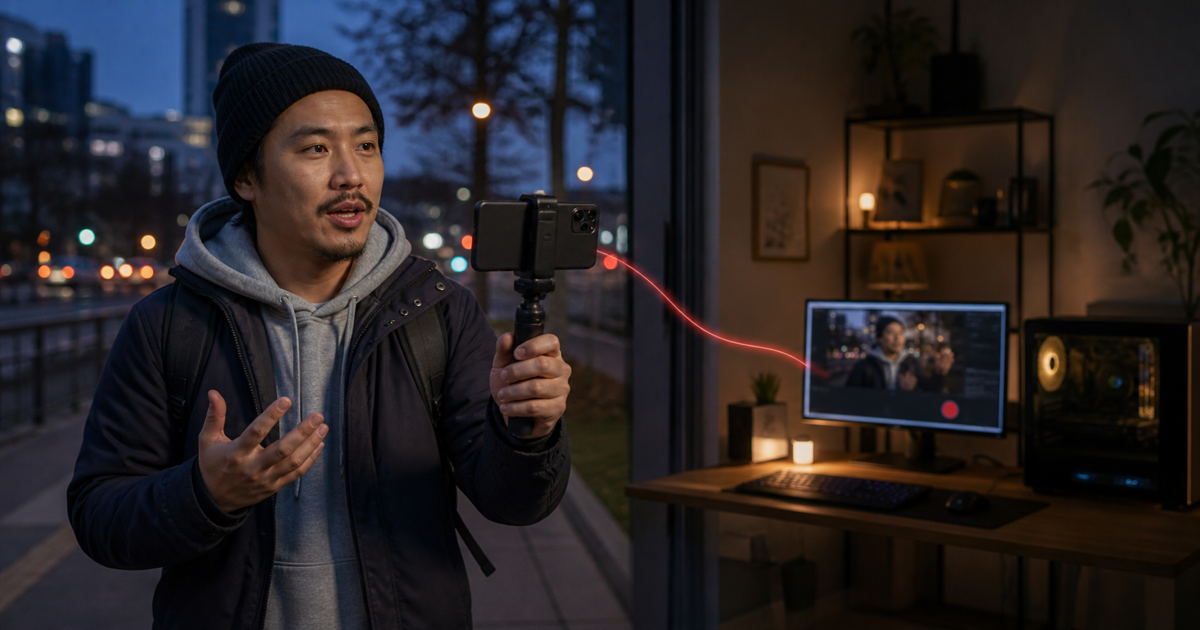
To record an IRL stream in OBS from your phone, send the phone camera to your home OBS computer, pair the VISP OBS plugin, then add a recording tile in VISP OBS Remote. The phone becomes the control surface. OBS still writes the file to the home computer.
That distinction matters. A red recording light on the remote does not mean the phone is saving a second copy. It means the paired OBS instance reports that its local recording output is active.
Decide which picture you need to keep
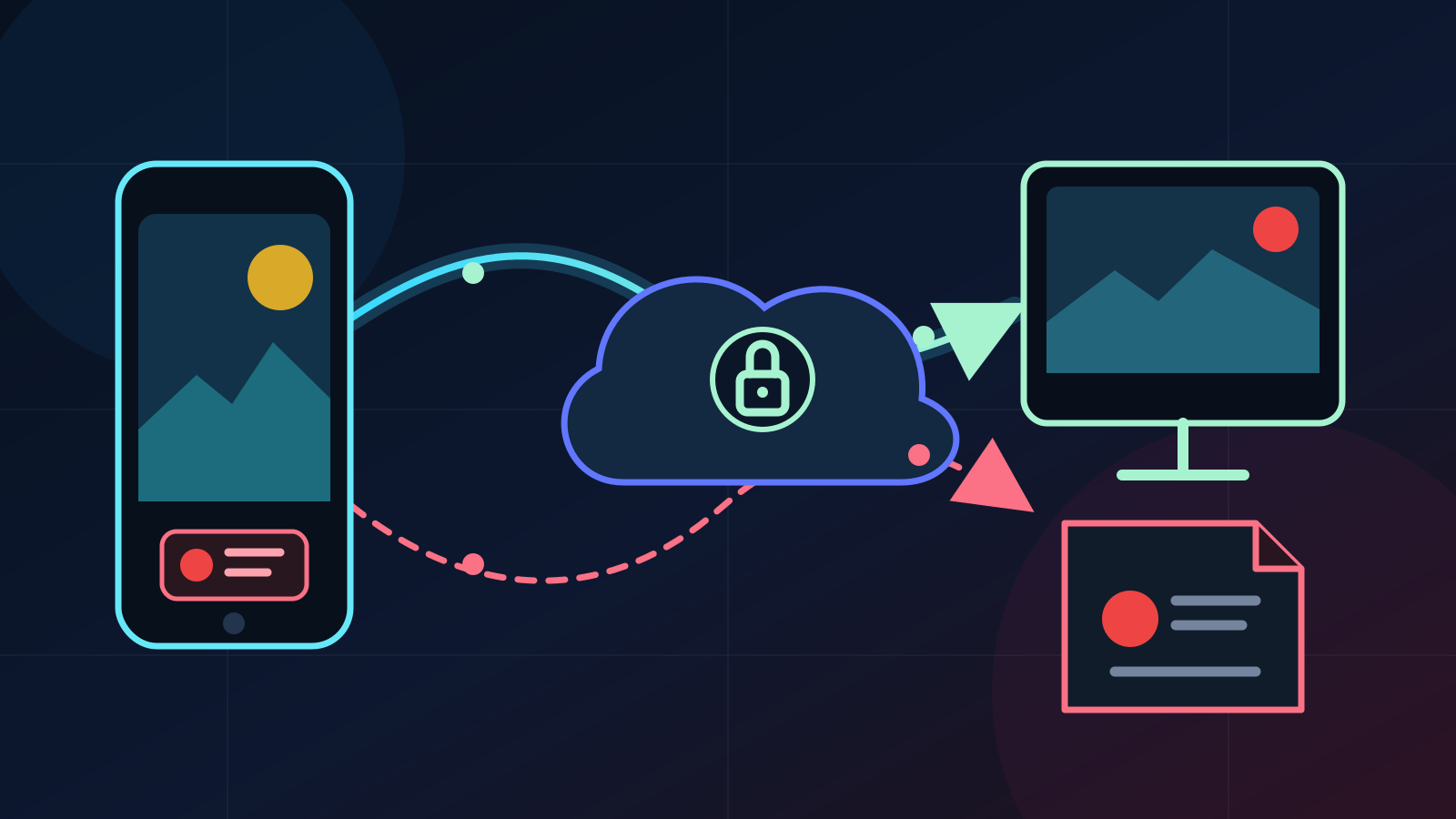
VISP supports two production paths, and they produce different local recordings.
| Live workflow | What OBS can record | What the file does not prove |
|---|---|---|
| Phone → VISP → OBS → Twitch or Kick | The finished OBS program, including its scenes, graphics, and audio mix | That the platform received every frame |
| Phone → VISP Direct → Twitch or Kick, with OBS also reading the feed | The original phone contribution received by OBS | The Direct distribution encode or a Cloud Studio program |
If OBS owns the public broadcast, its program recording is the useful master. If VISP Direct owns the broadcast, OBS can still record the original phone feed. Watch the platform separately when you need to verify the exact viewer output.
VISP does not keep a continuous cloud recording. The file belongs to OBS and stays on the computer named in Settings → Output → Recording Path.
1. Configure recording on the OBS computer
Do this at home before the field operator leaves.
- Open Settings → Output → Recording in OBS.
- Choose a recording path on a drive with enough free space for the planned show.
- Use MKV unless your editing workflow has a tested reason to use another container.
- Make a one-minute recording with the real scene collection and audio mix.
- Stop it, open the file, and confirm picture, sound, and sync.
OBS recommends MKV because an interrupted recording remains recoverable. If an editor needs MP4, use File → Remux Recordings after the show or enable automatic remuxing. The official OBS recording guide documents both choices. OBS also supports recoverable Hybrid MP4 and Hybrid MOV in current releases, but MKV remains the boring default that works across OBS versions.
Keep the first setup simple. A separate recording encoder or a higher-quality preset can add load to the home computer. Change it only after a realistic test shows enough encoding headroom. If you need an isolated microphone or music-free edit track, follow OBS's multi-track audio guide and test the file in the editor you will actually use.
2. Bring the phone feed into OBS
Complete the phone-to-OBS setup and add the publishing device to the intended scene with the VISP plugin. The relay forwards the phone's contribution to OBS without transcoding it.
Check four things in a local test recording:
- the phone video fills the intended frame;
- the phone microphone reaches the correct OBS audio track;
- any home microphone or music uses the intended track and level;
- a hand clap looks and sounds aligned.
If Direct is enabled for the phone, do not also point OBS at the same Twitch or Kick destination. OBS may read and record the VISP feed while Direct publishes, but only one of them should own each platform output. The Direct output documentation explains this boundary.
3. Pair the VISP OBS plugin
Install the VISP plugin on the OBS computer, then open Tools → VISP Remote Control and choose Sign in with browser. Approve the code with the same VISP account used by the field operator.
The plugin opens an authenticated outbound connection. You do not need to forward an OBS WebSocket port through the home router. Follow the VISP OBS remote-control documentation for installation, pairing, and token recovery.
Pairing controls an OBS instance. It does not move the recording path, encoder, or files into VISP. Those remain local OBS settings.
4. Add recording controls to OBS Remote
Open remote.visp-stream.com on the field phone and sign in with the same VISP account. The remote should show OBS ONLINE before you rely on a tile.
Select EDIT, then add the controls you need:
| Tile action | Use it for | Important limit |
|---|---|---|
| Toggle recording | Start or stop the full OBS recording | A failed local output may still need attention at the computer |
| Pause recording | Leave one file open while omitting a planned break | It does not start an idle recording |
| Replay buffer | Start or stop OBS's rolling replay buffer | Saving a replay still needs the OBS Save Replay Buffer hotkey locally |
Use a consequence-first label such as RECORD. The tile toggles one OBS state, so check its REC or IDLE indicator before tapping it again.
VISP's current OBS Remote implementation exposes recording, recording pause, and replay-buffer actions as separate tiles. The paired OBS plugin applies those states through OBS's frontend controls.
5. Use a field recording checklist
Run this short sequence before every Twitch or Kick show:
- Confirm that OBS Remote says OBS ONLINE.
- Start the phone contribution and check that the correct OBS scene is live.
- Tap the recording tile once.
- Wait until its state changes to REC.
- Ask the home operator to confirm the first file during early rehearsals.
- At the end, stop the platform stream and the recording as two separate actions.
- Confirm that the recording tile returns to IDLE before closing OBS.
Stopping the Twitch or Kick stream does not automatically finish a separate OBS recording. That is useful when you want a clean post-show minute, but it is also an easy way to fill a drive overnight. Put both actions in the shutdown checklist.
The reverse is also true. Stopping the recording does not end the public broadcast.
Full recording or replay buffer?
Use a full recording when the entire walk, event, or interview may matter later. Use Replay Buffer when you only want occasional recent moments and someone at the OBS computer can save them.
OBS requires a Save Replay Buffer hotkey before it can write a buffered moment. Its OBS Studio overview lists separate start, stop, and save replay-buffer hotkeys. VISP OBS Remote currently starts and stops the buffer, but it does not expose the save action. Do not promise the field operator remote clipping until that last action has a tested local trigger.
For a solo creator in the field, a full recording is usually safer. It uses more disk space, but it does not depend on someone noticing and saving the right moment.
What happens if remote control disconnects?
The control connection and the recording output are separate. If the phone loses access to OBS Remote after recording has started, OBS keeps recording locally unless OBS or its output fails. The phone simply loses the ability to change that state.
Treat OBS OFFLINE as a control failure, not proof that recording stopped. Contact the home operator or use an approved remote-desktop fallback. Repeated taps are not a recovery plan because they cannot reach an offline plugin.
The remote can request a state change, but it cannot clear a full drive, choose a new path, dismiss an encoder error, or repair a disconnected media source. Keep those jobs with OBS.
Frequently asked questions
Does VISP save the OBS recording to my phone?
No. OBS writes the recording to the home computer. The phone sends the camera feed and remote command.
Can OBS record while VISP Direct sends to Twitch or Kick?
Yes. OBS can read and record the original contribution while Direct publishes. The OBS file does not contain the Direct encode or prove what viewers received.
Can I pause the recording from OBS Remote?
Yes, when recording is already active. Add a Pause recording tile and test both pause and resume before the show.
Can I save an OBS Replay Buffer clip from VISP OBS Remote?
Not currently. The remote can toggle Replay Buffer on or off. Saving the buffer still needs a local OBS hotkey or another tested local control.
Should I record directly to MP4?
OBS recommends a recoverable container such as MKV for most recording work. Remux the finished file to MP4 when your editor or upload workflow needs it.
Record the first rehearsal
Set the OBS path and format, pair the plugin, build one recording tile, then run the off-air IRL test. A successful test ends with a playable file on the home computer and the remote back at IDLE.
When that path is proven, try VISP for the field camera and remote recording control. Keep OBS responsible for the file. That clear boundary makes failures much easier to diagnose.
Sources
Bring the field into your OBS studio
Try VISP free during beta. You never have to paste a stream key anywhere.
Try VISP free