How to Test an IRL Stream Before Going Live on Twitch or Kick
Test a phone IRL stream off-air through VISP and OBS, then check Twitch Inspector or plan a short Kick verification without risking the main show.
By VISP Team ·
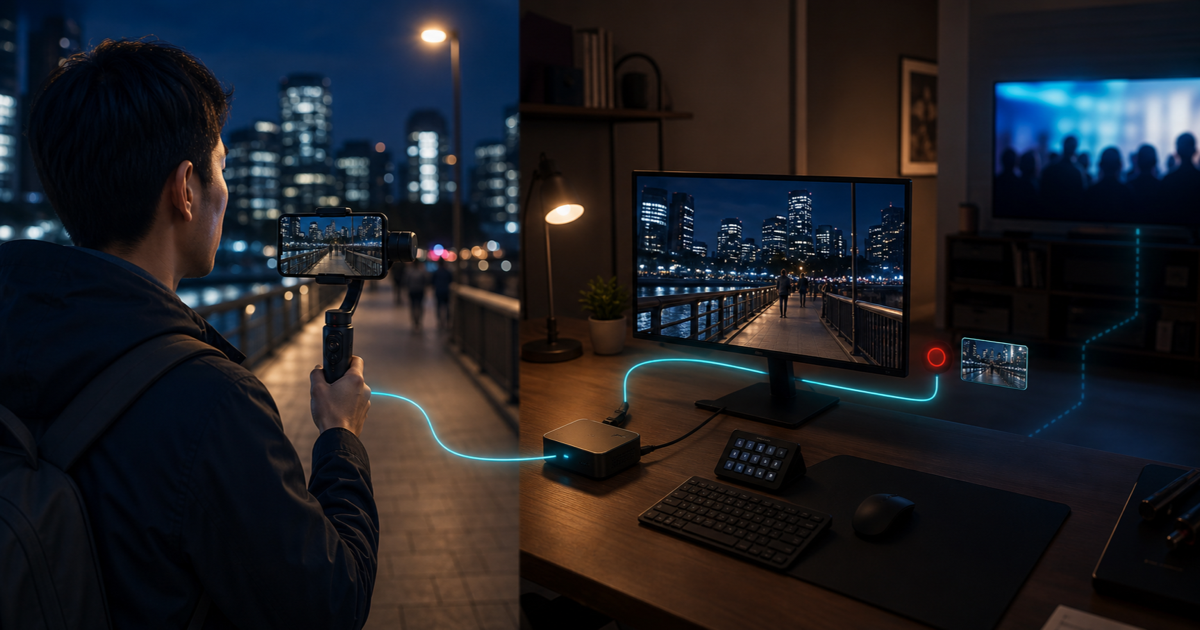
The safest IRL stream test happens in layers. First, send the phone through VISP into OBS without any platform output enabled. Record the complete program in OBS and watch it back. Then test the final destination separately. Twitch offers a hidden bandwidth test through Twitch Inspector. Kick's official OBS workflow goes live when you click Start Streaming, so treat any Kick ingest check as a short public verification.
Do not start with a public test. An off-air recording catches most expensive mistakes: a silent microphone, the wrong camera, unreadable overlays, a failed fallback scene, an unstable field route, or private information in the frame.
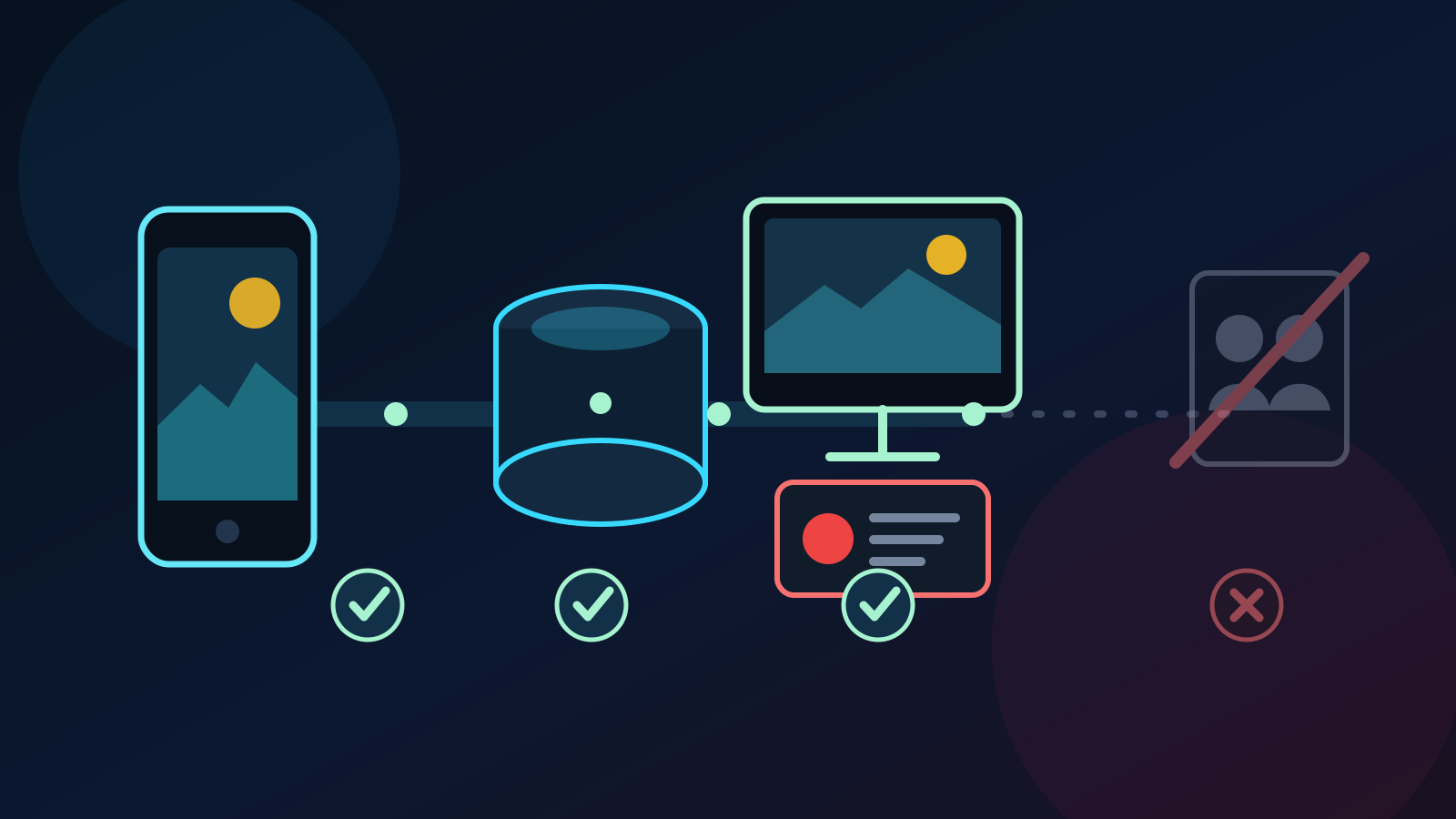
The short answer
Use this order:
- Turn off Direct outputs for the VISP device that you will test.
- Start the phone feed and confirm that the VISP dashboard shows the device as live.
- Check the Media Source, audio meters, scenes, and fallback in OBS.
- Record a realistic 10 to 15 minute route without starting the OBS stream.
- Watch the recording with headphones and inspect View → Stats in OBS.
- Run a Twitch Inspector bandwidth test, or plan a brief Kick live check.
- Restore the final platform settings only after the off-air test passes.
This sequence separates three different questions. Can the phone reach OBS? Can OBS produce a clean program? Can the platform receive and play that program? A single green preview cannot answer all three.
Keep the first test off-air
VISP has two output paths, and the distinction matters during a rehearsal.
In the optional phone-to-OBS path, the phone encodes H.264 video and AAC audio. VISP relays that contribution to an OBS Media Source without transcoding it. OBS owns the scenes, recording, final encode, and Twitch or Kick destination. You can therefore run the phone and record OBS without sending anything to a platform.
With VISP Direct, the relay starts a separate distribution encode for every enabled destination when the publishing device connects. The Go Live button can then make Twitch or Kick public without OBS. Before an off-air test, stop the device and open Settings → Stream to. Turn off Twitch, Kick, YouTube, and any custom Direct output for that device.
The switches are locked while the device is publishing. This prevents a live output from moving under an active feed. The current native Direct settings and Direct ownership logic enforce that boundary.
If Never drop again is holding an existing Direct broadcast on a BRB card, end that broadcast before changing test settings. Turning off Direct on an idle device is the cleanest off-air state.
Test the phone-to-OBS path
Set up the same rig that you plan to carry. Use the same phone, camera, mount, microphone, power bank, case, mobile connections, resolution, frame rate, and bitrate. A desk test on home Wi-Fi proves a different setup.
- Open OBS and select the scene collection that you will use live.
- Start the VISP phone app, but leave OBS streaming stopped.
- Confirm that the device row on the VISP dashboard shows Live.
- Wait for the phone Media Source to show moving video and audio in OBS.
- Start an OBS recording.
- Walk the weakest section of the real route for at least 10 minutes.
The VISP phone app guide explains the automatic device binding. The encoder and fallback guide covers the imported OBS Media Source, SRT latency, reconnect behavior, and fallback scene.
Do not press the phone's Start OBS stream control during this stage. That button asks the paired OBS plugin to start the configured platform output. The phone contribution and the OBS output are independent, which is exactly what makes an off-air test possible.
Make the rehearsal behave like the real show
Standing still in a quiet room hides the failures that matter outdoors. Run the actions that your stream actually needs:
- walk past the known weak mobile area;
- turn, pan, and change exposure between bright and dark locations;
- speak at normal distance while traffic or a crowd is audible;
- switch every OBS scene that the field creator or producer will use;
- trigger one alert and check that it does not cover a face or caption;
- disconnect the phone long enough for the fallback scene to appear;
- reconnect and confirm that OBS returns to the live scene without restarting the public output.
Record the failure test too. The OBS preview may look acceptable while the recording reveals clipped speech, one-sided audio, a delayed microphone, or a transition that exposes an empty source.
OBS's official Quick Start Guide recommends a multi-minute test before the first stream or recording. Its Audio Mixer Guide specifically advises recording a normal session and listening back before going live.
Review the recording, not only the preview
Watch the complete file at normal speed with headphones. Do not scrub only the first and last minute.
Check these details:
- speech is clear and reaches both left and right channels;
- the camera stays correctly framed while walking and turning;
- captions, chat, and alerts remain readable against bright and dark scenes;
- the fallback appears after a lost feed and disappears after recovery;
- no address, license plate, notification, reflection, or bystander remains in frame longer than intended;
- the picture does not freeze while audio continues;
- the phone reaches normal operating temperature without the frame rate collapsing.
Open View → Stats before the test. Recording exercises scene rendering and encoding, so rising rendering or encoding lag still matters even when the platform output is off. Network dropped frames in OBS apply to its outgoing stream, so that counter becomes relevant during the platform stage. The OBS encoding guide separates computer load from connection trouble.
For phone and relay health, watch VISP's live bitrate, round-trip time, loss, and reconnect attempts. If the feed fails before it reaches OBS, use the IRL dropped-frames guide to isolate the phone-to-relay and relay-to-OBS checkpoints.
Run a hidden Twitch bandwidth test
Twitch supports a test stream that does not appear live on your channel. Its
Stream Key FAQ
instructs encoders to append ?bandwidthtest=true to the stream key. Start the
OBS stream with that test key, then open
Twitch Inspector to review stream health.
Keep the normal stream key secret. Do not paste it into chat, screenshots, log notes, or a shared checklist. Follow Twitch's current dashboard instructions when you need to reveal it.
Run the test long enough to include the route and home-network conditions that matter. Twitch Inspector adds the OBS-to-Twitch ingest leg to the rehearsal, but it does not replace watching your OBS recording. Inspector can show a stable ingest while the scene still contains bad audio or private visual details.
After the test, restore the normal Twitch connection. Verify that the
?bandwidthtest=true suffix is gone before the scheduled broadcast.
Treat a Kick ingest check as live
Kick's official OBS setup guide defines Start Streaming in OBS as the Go Live step. The guide does not put a private rehearsal between OBS and the public channel.
For that reason, keep the first Kick test inside VISP and OBS. Record the program off-air, fix every local problem, and check the Kick title, category, server URL, stream key, H.264 output, CBR, and two-second keyframe interval before the final stage.
When you must prove the Kick ingest and player, plan a short live verification. Tell moderators what it is, avoid promoting it, and stop as soon as the public player, audio, and recovery behavior are confirmed. Kick says that stopping OBS ends the stream and saves a VOD. Review that test VOD according to your channel workflow.
Do not describe a Kick test as private unless Kick publishes and you use a specific private-testing feature. A quiet live check is still live.
Test VISP Direct separately
An OBS recording shows the original contribution feed. It does not show the separate encode that VISP Direct sends to viewers. If you plan to stream with Direct, complete the off-air phone-to-OBS recording first, then re-enable the intended Direct destination and run a short platform check.
Watch the actual Twitch or Kick player from a muted second device on a different connection. Confirm the public resolution, audio, title, category, viewer-facing overlays, and recovery behavior. Muting prevents the player's audio from feeding back into the phone microphone.
Direct destinations fail independently, and each uses its own relay slot. A successful Twitch output does not prove that Kick also started. If you multistream, check each destination rather than trusting one status indicator.
Use a pass or fail sheet
Keep the checklist short enough to use before every event.
| Checkpoint | Pass condition |
|---|---|
| Phone → VISP | Device stays live on the real route with acceptable bitrate, RTT, loss, and heat |
| VISP → OBS | Video and audio recover after a forced disconnect without recreating the source |
| OBS program | Full recording has clean audio, correct scenes, readable overlays, and no private details |
| OBS performance | Rendering and encoding lag stay at zero or within an accepted tested limit |
| Twitch | Inspector reports a stable hidden bandwidth test with the final output settings |
| Kick | A planned short live check reaches the public player with correct metadata and audio |
| Direct | Every enabled destination starts, plays, and recovers independently |
If one row fails, fix that checkpoint and repeat only the affected stage. Do not change bitrate, frame rate, SRT latency, audio filters, and scenes at the same time. One change produces a result you can understand.
Frequently asked questions
Can I test a Twitch stream without going live?
Yes. Twitch's official method appends ?bandwidthtest=true to the stream key
and reports the result in Twitch Inspector. The test checks ingest health
without putting the channel live.
Can I test a Kick stream privately?
Kick's current OBS setup guide treats Start Streaming as Go Live. Keep your first rehearsal off-air in OBS, and treat any final Kick ingest check as a short public broadcast unless Kick documents another mode.
Does starting the VISP phone app make me public?
It depends on the device's outputs. With no Direct destination enabled, the phone publishes to the relay and OBS can read it without going live on Twitch or Kick. With Direct enabled, publishing starts the selected platform outputs.
Does an OBS recording prove what Direct viewers see?
No. OBS reads the contribution feed, while Direct makes a separate platform encode. Watch the actual platform player during the final Direct check.
How long should an IRL test run?
Use at least 10 to 15 minutes for a basic check. For an important event, cover the real route, weak network area, normal phone temperature, scene changes, audio conditions, and one forced reconnect.
Sources and next steps
- VISP phone app
- VISP Direct output
- VISP encoders and fallback
- Twitch Stream Key FAQ
- Twitch Inspector guide
- Kick OBS setup
- OBS Quick Start Guide
- OBS Audio Mixer Guide
- OBS encoding performance troubleshooting
To rehearse a real phone-to-studio path before your next broadcast, try VISP. Keep Direct off for the first recording, prove the route in OBS, and enable the public destination only for the final check.
Bring the field into your OBS studio
Try VISP free during beta. You never have to paste a stream key anywhere.
Try VISP free