How to Bring a Remote Guest Into OBS Without Sharing Your Stream Key
Bring a remote guest camera into OBS with revocable VISP access while keeping Twitch or Kick credentials and final production control at home.
By VISP Team ·
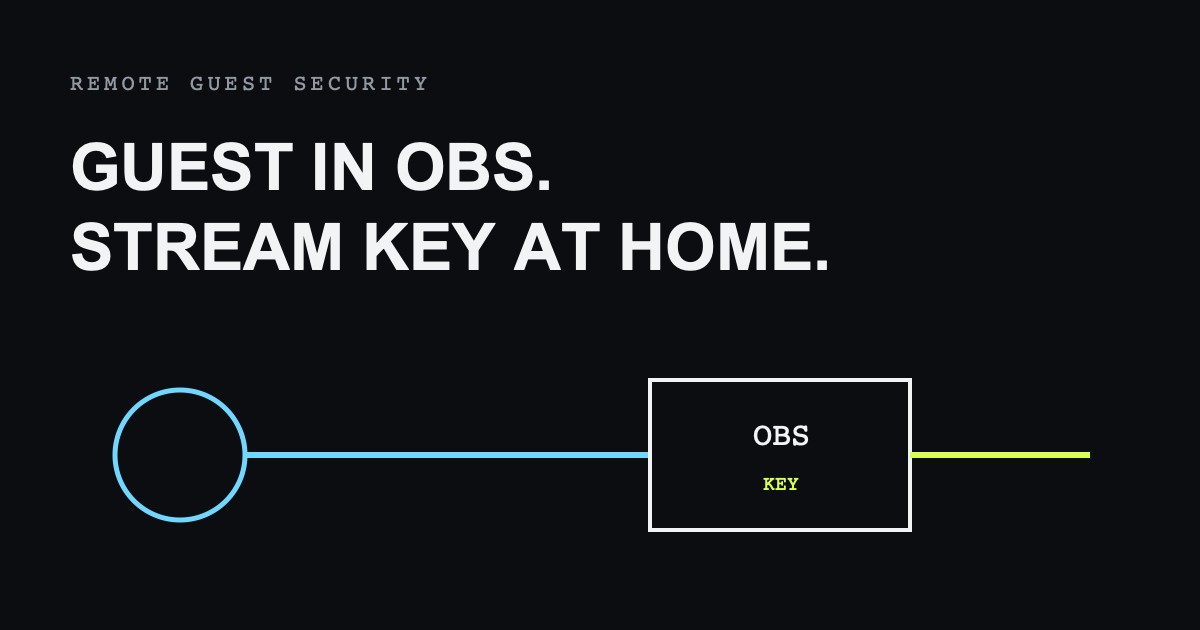
You do not need to give a remote guest your Twitch or Kick stream key. Create a separate VISP publishing device for the guest, let them publish camera and microphone through the browser, and add that authenticated feed to OBS. OBS keeps the destination credential, scenes, audio mix, and decision about when the guest appears on air.
This workflow is for a guest acting as a remote contribution source. If several people need to see and hear one another like a normal call, VDO.Ninja or a dedicated call platform may be a better front end.

Separate contribution from distribution
A destination stream key authorizes software to broadcast to a channel. It is broader access than a guest needs. Sharing it creates several avoidable risks: the guest can accidentally start a separate broadcast, the key may remain in their application after the appearance, and rotating it disrupts every trusted encoder that uses it.
Instead, separate the two jobs:
- Contribution: the guest sends one camera and microphone feed to VISP.
- Production: OBS selects, mixes, and combines that feed with local scenes.
- Distribution: OBS sends the finished program using the destination key stored at home.
VISP's device credentials are scoped to contribution. Each guest or camera has independent publishing access, and OBS read access is managed separately.
Create a guest publishing device
Sign in to the VISP dashboard and create a new video source for the guest. Give it a recognizable and temporary name such as “Guest — Alex — July 22” rather than reusing the roaming phone device.
Independent devices make cleanup predictable. Revoking or rotating the guest's publish access does not change another phone's URL and does not rotate the OBS read credential. If the same guest returns regularly, keep a stable named device only when that ongoing access is intentional.
Do not send screenshots of the advanced credentials or display them on stream. Treat a publishing URL as a password: someone who possesses it can attempt to publish to that device path.
Send the guest through the browser publisher
The easiest guest flow uses the VISP browser publisher. Send the guest to the approved VISP setup flow, where they sign in or claim the intended device and grant camera and microphone permission. The browser publishes H.264 video over WHIP/WebRTC to the relay.
Ask the guest to join early enough to test:
- camera selection and orientation;
- microphone selection and level;
- headphones or echo control;
- lighting and framing;
- sustained upload quality;
- reconnect behavior after a page refresh.
The browser needs a network that permits its WebRTC path. VISP's relay accepts media over the configured UDP port with a TCP fallback. If both are blocked, use the native VISP app or a third-party SRT encoder with a device publishing URL.
Add the guest feed to OBS
Pair the VISP Remote Control plugin in OBS, select the guest device, and add it to the intended scene. The alternative is to reveal the OBS read URL in the dashboard and configure a media source manually.
Build at least three scenes:
- a host scene without the guest;
- a guest or split-screen scene with the remote feed;
- a fallback scene for a missing guest connection.
Keep the guest scene off air during setup. Use OBS monitoring to check audio without sending the program return through open speakers. If the guest needs to see the host or final program, provide a deliberate return path rather than assuming the one-way contribution feed includes it.
The producer remains responsible for delay, framing, color, audio gain, and when the source becomes visible. A guest seeing their local browser preview is not proof that OBS is receiving clean media.
Decide whether the guest needs a call
VISP's browser publisher sends a camera into the production. It is not currently a group-call room with a director view, shared return video, and participant-to-participant audio. That can be a benefit when the guest is a remote camera operator or reporter who only needs a clear contribution path.
For an interview, the guest normally needs to hear the host with sufficiently low delay. VDO.Ninja is designed around interactive WebRTC guests, rooms, and OBS browser sources. A normal video-call service with an OBS capture workflow is another option.
The systems can coexist. Use a call platform for conversation and VISP for dedicated field cameras or a higher-latency SRT contribution. Prevent duplicated audio by deciding which source owns each participant's microphone.
Read the full VDO.Ninja versus VISP comparison before selecting the guest path.
Keep OBS control separate too
VISP can let an authenticated field operator send start, stop, and scene commands through the paired OBS plugin. The plugin receives them over an authenticated outbound WSS connection; OBS opens no inbound internet port.
Do not grant remote production controls merely because someone can publish a camera. Publishing access and operator trust are different decisions. A one-time guest usually needs only the ability to send media. A regular remote host may need a curated set of scene controls.
Use clear scene names and test remote commands while the destination broadcast is offline. Rotating the OBS plugin credential disconnects older plugin configurations without rotating camera publishing devices.
Handle disconnects without ending the show
The guest's home connection can fail even when the producer's OBS uplink is healthy. Keep OBS live and switch away from the guest source if it stops. A local host camera, holding slate, or planned segment is safer than waiting on a frozen frame.
Automatic reconnection should restore the media source when the guest returns. Use a short stable-playing delay before putting it back on air so a single decoded frame does not trigger a premature switch.
Tell the guest what to do during a failure: remain on the page, check whether the browser reports reconnecting, avoid repeatedly refreshing unless asked, and keep a separate messaging channel available. Production recovery is easier when both sides follow the same plan.
Revoke access after the appearance
After a one-time guest leaves, confirm the source is offline and rotate or revoke that publishing device's access. Remove the scene if it will not be reused. This limits how long a copied credential remains useful.
Do not rotate the shared OBS read credential unless it has been exposed. That action invalidates every existing OBS media source using it and creates unnecessary repair work. Device publish access is the narrow control intended for guest cleanup.
If the guest returns frequently, document the device owner and review it periodically. “Temporary” credentials have a habit of becoming permanent when nobody owns the removal step.
A producer checklist
Before the call
- Create a uniquely named guest device.
- Send only the guest publishing flow, not the destination stream key.
- Build host, guest, and fallback scenes.
- Test camera, microphone, headphones, and network.
- Decide how the guest hears the host or program.
- Agree on an out-of-band contact method.
During the call
- Confirm the OBS source is advancing before taking it live.
- Watch guest audio independently from local audio.
- Keep the fallback scene ready.
- Do not expose credentials on screen.
After the call
- End the guest publishing session.
- Revoke or rotate the guest device when access was temporary.
- Leave unrelated publishing and OBS credentials unchanged.
- Remove unused scenes and document any retained access.
Frequently asked questions
Does the guest need my Twitch or Kick login?
No. They need only the approved VISP publishing flow for their device. OBS at home owns the destination account and stream key.
Can the guest join without installing an app?
Yes, when their browser and network support the VISP WebRTC publisher. The native app or an SRT encoder is an alternative.
Can the guest see the OBS program return?
Not automatically through the one-way VISP publishing path. Provide a separate low-latency return or use a call platform when interaction requires it.
What should I revoke after the guest leaves?
Revoke or rotate that publishing device. Do not rotate the shared OBS read credential unless it was exposed.
Can a guest control OBS?
VISP supports authenticated remote commands through the OBS plugin, but grant that separately and only when the guest is also a trusted operator.
Sources and further reading
Bring the field into your OBS studio
Try VISP free during beta. You never have to paste a stream key anywhere.
Try VISP free