How to Use Larix Broadcaster With OBS Over SRT
Connect Larix Broadcaster to OBS over SRT through VISP, tune mobile bitrate and latency, import the feed, and test recovery before going live.
By VISP Team ·
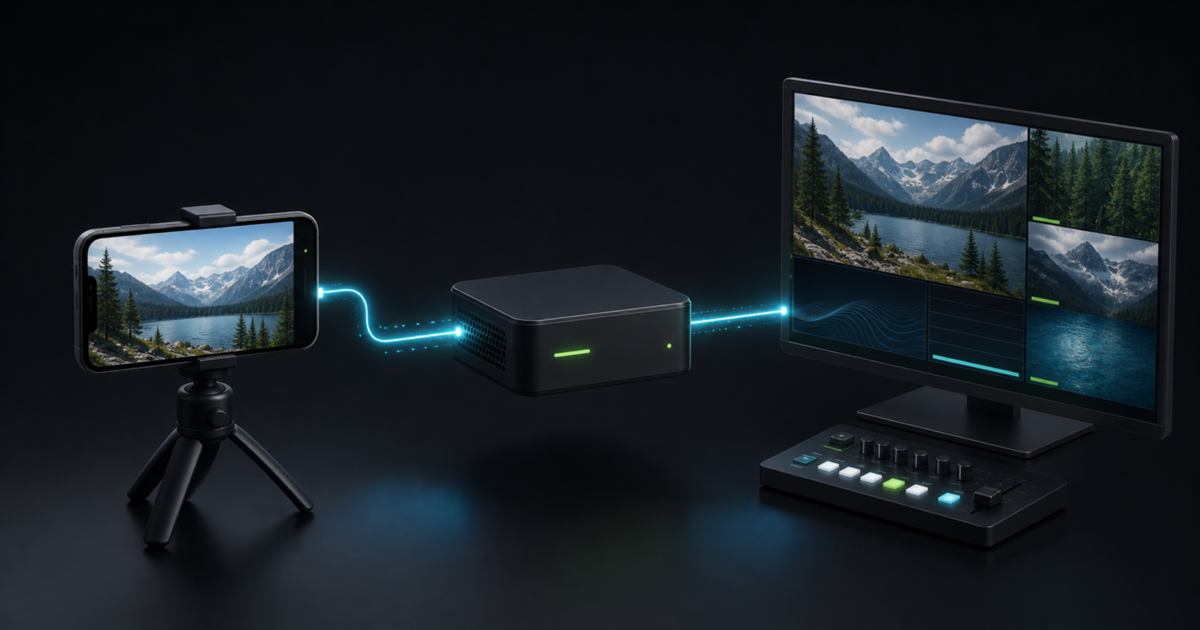
To send Larix Broadcaster into OBS over the internet, create a video source in VISP, paste its SRT publishing URL into a Larix connection, and add the separate OBS reading URL as a Media Source. Larix handles capture and mobile encoding, VISP authenticates and relays the contribution feed, and OBS keeps control of the finished Twitch or Kick broadcast.
This relay-based route avoids opening an inbound SRT port on the home network. It also keeps the Twitch or Kick stream key off the field phone. The phone is a camera for the production, not the owner of the destination broadcast.

Why use Larix with VISP instead of sending straight to OBS?
Larix Broadcaster can send SRT directly to an OBS listener when the receiving computer has a reachable address and UDP port. That is useful on a controlled LAN. Across the public internet, it normally means arranging port forwarding, firewall rules, and a stable address for the home computer.
VISP puts the reachable relay in the middle. Larix and OBS both make outbound connections to it. Each field device gets an independently revocable publish credential, while OBS uses a separate read credential. A producer can replace one lost phone's access without rebuilding every other camera source.
The relay does not replace Larix's camera controls or OBS's production tools. Larix remains the encoder; OBS remains the mixer, graphics system, recorder, and final broadcaster. If you want the simpler VISP-native camera flow instead, start with the phone-as-an-OBS-camera guide.
What you need
- Larix Broadcaster on the field phone
- OBS Studio on the production computer
- A VISP account signed in with Twitch, Kick, or Google
- Enough sustained upload capacity for Larix and download capacity for OBS
- Headphones for checking audio without creating a return-path echo
- A local OBS fallback scene for a field interruption
Test with the same phone, carrier, route, and time of day you expect to use. A fast Wi-Fi rehearsal does not validate a moving cellular production.
1. Create a Larix video source in VISP
Sign in to VISP and choose Larix Broadcaster as the publisher during setup. If the account is already configured, open Video sources, choose Add device, and give it a practical name such as “roaming Larix” or “finish-line camera.” One VISP device represents one publishing path.
Choose Copy beside Add this to video source. The value begins with
srt:// and includes the path's publishing credential. Treat the whole URL as
a password: do not paste it into screenshots, chat, stream overlays, or a
public troubleshooting post.
VISP shows SRT by default. Keep it unless the sending network blocks UDP. The dashboard exposes an RTMP fallback in Advanced mode, but changing protocols does not improve a connection that simply lacks enough upload capacity.
For the exact dashboard flow, see the VISP documentation for adding a video source.
2. Add the SRT connection in Larix
In Larix Broadcaster, open Settings → Connections → New connection. Give the connection a recognizable name, paste the complete VISP publishing URL into the URL field, and save it. Back in the connections list, make sure the new destination is selected before returning to the camera preview.
These steps follow Larix's current connection model: a saved destination must also be active for the main broadcast button to send to it. Softvelum's Larix documentation reference includes the current iOS and Android connection walkthroughs if a menu label has moved in your installed version.
Do not split the VISP URL into server, stream ID, username, and password fields. The generated value already carries the SRT stream ID and authentication data in the format the relay expects. Paste it as one URL.
3. Choose settings the mobile connection can sustain
Use H.264 video and AAC audio for the predictable VISP-to-OBS path. Set a two-second keyframe interval and begin with constant target bitrate. Select the camera orientation before composing the source in OBS; changing from landscape to portrait later may break an existing crop or scene layout.
Do not choose bitrate from a single speed-test peak. Measure the real route and leave margin below the repeatable upload result. A stable 720p30 picture is more useful than a nominal 1080p feed that continually queues, freezes, or reconnects.
| Network behavior | Better first adjustment |
|---|---|
| Bitrate repeatedly approaches available upload | Lower target bitrate |
| Short bursts of loss or jitter | Increase SRT latency |
| Capacity changes while moving | Enable Larix adaptive bitrate |
| Long dead zone or total carrier outage | Use OBS fallback or add real bonding |
Larix offers multiple adaptive-bitrate strategies. Its official FAQ explains how logarithmic, ladder, and hybrid modes reduce and later restore bitrate. The best choice depends on the phone and route, so test the mode at the lowest acceptable picture quality before relying on it live. Adaptive bitrate can trade detail for continuity; it cannot send video when the active connection has no usable route.
VISP does not transcode the incoming feed. The codec, resolution, frame rate, keyframe interval, and bitrate Larix sends are what the relay passes toward OBS. Fix an incompatible or oversized contribution at the encoder instead of expecting the relay to convert it.
4. Tune SRT latency from the field network
SRT can retransmit missing UDP packets while they are still useful. Its latency window gives those retransmissions time to arrive, so lower is not always better. Too small a window produces visible loss; an unnecessarily large one slows the field-to-studio path.
Run VISP's latency probe on the connection Larix will actually use and select the correct network profile. VISP turns the median of seven round-trip samples into these starting recommendations:
| Profile | Recommendation | Minimum |
|---|---|---|
| Wired | 3× measured RTT | 120 ms |
| Wi-Fi | 4× measured RTT | 300 ms |
| Cellular | 6× measured RTT | 600 ms |
Enter the recommended millisecond value in the saved Larix connection's SRT latency setting. Cellular gets more headroom because its jitter is often bursty. Do not reduce the value only to advertise a smaller delay; watch motion and recovery on the real route first.
The OBS SRT guide likewise describes latency as the main recovery option and explains its round-trip-time relationship. VISP uses more conservative profile-specific floors for this mobile contribution workflow.
5. Bring the Larix feed into OBS
Larix uses the publishing URL. OBS must use the separate reading URL. They are intentionally different credentials.
The quickest OBS setup is to pair the VISP plugin, select the Larix device, and add it to the current scene. The plugin creates the authenticated Media Source without exposing a public control port. Alternatively, download the generated scene collection and choose Scene Collection → Import in OBS. It includes a Fallback scene and one reconnecting Media Source scene per active VISP device.
For a manual source:
- Reveal or copy the device's OBS URL in VISP.
- In OBS, add a Media Source.
- Clear Local File.
- Paste the OBS reading URL into Input.
- Set Input Format to
mpegtsif it is not already supplied. - Confirm the source reconnects after Larix stops and starts again.
Those Media Source steps match OBS's official SRT guidance. VISP's generated source also uses low buffering and automatic reconnection. Rotating the OBS read credential invalidates every existing OBS source for that account, so do it only when you intend to replace them. Rotating one Larix device's publish credential affects only that device.
6. Test recovery before the real broadcast
Start Larix before sending OBS to Twitch or Kick. The matching VISP device should change to Live, and the OBS source should begin moving after the SRT connection and a decodable keyframe arrive.
Run this short failure drill:
- Confirm motion and audio in OBS for several minutes.
- Disable the phone's active network.
- Verify OBS remains connected to Twitch or Kick and shows local fallback.
- Re-enable the phone network and watch Larix reconnect.
- Confirm the same OBS Media Source resumes without a new URL.
- Wait for stable playback before cutting back to the field camera.
Use Larix's advanced connection settings to choose a practical reconnect timeout. On supported versions, the network-presence option can also allow retry behavior when the device temporarily reports no network. The exact controls differ between iOS and Android, so confirm the behavior on the phone you will carry rather than copying someone else's timer.
For a production that should keep entertaining viewers while the camera is offline, follow the mobile-network resilience guide and configure a Media-state condition in Advanced Scene Switcher.
What this setup does not do
VISP relays the authenticated feed; it does not transcode it and it does not bond Wi-Fi and cellular into one connection. Larix can publish to multiple destinations, but simultaneous outputs are not network bonding: each output still travels over the phone's available network path.
If one carrier must fail without interrupting the field picture, add a genuine bonding layer or a bonded encoder system. If a short interruption is acceptable, SRT recovery, Larix adaptive bitrate, automatic reconnect, and a good OBS fallback scene are the smaller and easier setup.
Only one publisher can own a VISP device path at a time. A second phone cannot wait pre-connected on the same URL as a seamless standby. Give every phone or encoder its own VISP device and OBS source.
Troubleshooting
Larix starts, but VISP never shows Live
Check that the saved connection is active, the full current publishing URL was pasted, and another encoder is not already using that device path. If its credential was rotated or revoked, replace the old Larix URL.
VISP is Live, but OBS is blank
Make sure OBS has the reading URL, not the Larix publishing URL. Confirm the Media Source has Local File disabled and wait for a keyframe. If the OBS read credential was rotated, download a fresh scene collection or update the source URL.
The picture freezes while moving
Lower the target bitrate, enable and test Larix adaptive bitrate, and rerun the VISP latency probe on the field connection. More latency helps recover bursts of loss, but it cannot compensate for sustained upload below the encoded bitrate.
Video works, but OBS has no audio
Confirm Larix is sending video and audio, the selected microphone has permission, and the contribution uses AAC. Then check that the OBS Media Source is not muted and its mixer monitoring does not create feedback on the phone.
SRT is blocked on the venue network
Switch VISP to Advanced, copy that device's RTMP publishing URL, and create an RTMP connection in Larix. Keep OBS on its generated reading path. RTMP is a compatibility fallback over TCP, not a cure for insufficient bandwidth.
Pre-stream checklist
- Larix connection uses the current VISP publishing URL and is active.
- H.264, AAC, orientation, keyframe interval, and bitrate are tested.
- SRT latency comes from a probe on the real field network.
- Adaptive bitrate is enabled and tested when mobile capacity varies.
- OBS uses the separate reading URL and receives both picture and audio.
- The destination stream key remains only in OBS.
- A forced outage switches to fallback and the same source recovers.
- Every additional camera has its own VISP device and credentials.
Frequently asked questions
Does Larix send directly to Twitch or Kick in this workflow?
No. Larix sends a contribution feed to VISP, OBS receives it, and OBS sends the finished production to Twitch or Kick. That keeps scenes, alerts, recording, and the destination stream key at the studio.
Should I use SRT or RTMP from Larix?
Use SRT by default for recovery on an unpredictable network. Use RTMP when the sending network or encoder path cannot use UDP. Neither protocol creates bandwidth, transcodes video, or bonds connections.
Can I reuse one Larix URL on several phones?
Not at the same time. Create one VISP device per phone. That keeps source names, status, revocation, and OBS scenes independent.
Is Larix required for VISP?
No. Larix is a strong option when its camera, encoding, adaptive-bitrate, and advanced connection controls fit the shoot. The VISP native and browser apps cover simpler publishing workflows.
Sources and next steps
- VISP: add a video source
- VISP: encoders, latency, and fallback
- Larix documentation reference
- Larix adaptive bitrate FAQ
- OBS SRT protocol guide
- SRT Alliance technology overview
If you already produce in OBS and want Larix to become a managed field camera, try VISP: create one device, paste its SRT URL into Larix, and verify the complete path before your next live show.
Bring the field into your OBS studio
Try VISP free during beta. You never have to paste a stream key anywhere.
Try VISP free