How to Add Overlays to a Phone IRL Stream Without OBS
Add scenes, PNG graphics, browser overlays, and live alerts to a phone IRL stream with VISP Cloud Studio, without running a home PC.
By VISP Team ·
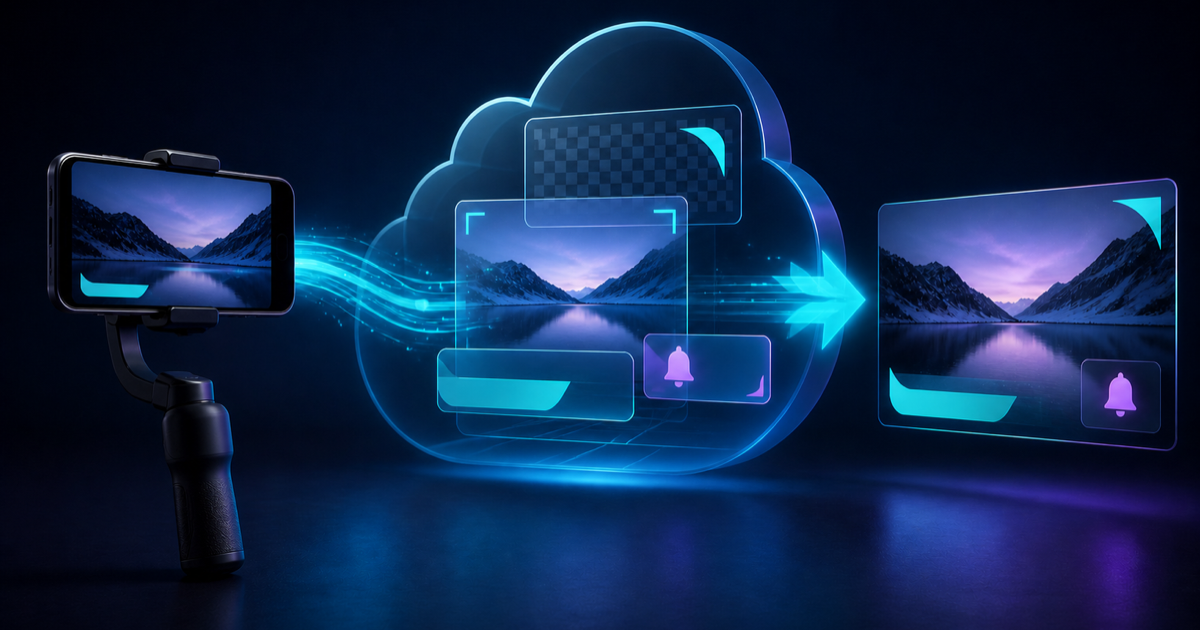
Twitch's current mobile broadcasting guide answers a common question plainly: its built-in mobile broadcast does not support overlays. Twitch's broader mobile streaming guide therefore points creators to apps that add scenes, alerts, and web overlays.
That leaves IRL creators with a choice. Compose the whole program on the phone, keep OBS running somewhere, or put a smaller compositor between the phone and the platform. VISP Cloud Studio uses the third route. Your phone sends one camera contribution to VISP. Cloud Studio adds selected visual layers, and VISP Direct sends the saved program to Twitch, Kick, YouTube, or a custom destination.
You do not need a computer at home for this workflow. You do need Cloud Studio to be enabled on your VISP deployment. If Open Studio does not appear on the dashboard, use a phone-side production app or keep OBS in the path.
'/%3e%3ccircle%20cx='800'%20cy='450'%20r='340'%20fill='%230c2440'%20opacity='0.55'/%3e%3cg%20transform='translate(105%20210)'%3e%3crect%20x='0'%20y='0'%20width='270'%20height='480'%20rx='42'%20fill='%23111827'%20stroke='%2367e8f9'%20stroke-width='5'/%3e%3crect%20x='23'%20y='55'%20width='224'%20height='350'%20rx='12'%20fill='%23183453'/%3e%3cpath%20d='M23%20300%20L88%20230%20L137%20272%20L185%20205%20L247%20270%20L247%20405%20L23%20405%20Z'%20fill='%23245f79'/%3e%3ccircle%20cx='135'%20cy='27'%20r='8'%20fill='%2364748b'/%3e%3ccircle%20cx='135'%20cy='442'%20r='18'%20fill='none'%20stroke='%2364748b'%20stroke-width='4'/%3e%3c/g%3e%3cpath%20d='M420%20450%20C510%20450%20535%20450%20605%20450'%20fill='none'%20stroke='%2322d3ee'%20stroke-width='10'%20marker-end='url(%23arrow)'/%3e%3cg%20transform='translate(610%20155)'%3e%3cpath%20d='M180%20530%20H520%20C600%20530%20650%20480%20650%20410%20C650%20342%20606%20290%20542%20280%20C524%20170%20432%2090%20320%2090%20C230%2090%20149%20143%20111%20224%20C45%20235%200%20286%200%20350%20C0%20422%2056%20478%20128%20478%20H180%20Z'%20fill='%23102d4e'%20stroke='%2338bdf8'%20stroke-width='6'/%3e%3crect%20x='105'%20y='225'%20width='430'%20height='242'%20rx='24'%20fill='%23122b45'%20stroke='%2367e8f9'%20stroke-width='5'/%3e%3cpath%20d='M105%20385%20L210%20300%20L300%20360%20L386%20270%20L535%20370%20L535%20467%20L105%20467%20Z'%20fill='%231d607a'/%3e%3crect%20x='155'%20y='325'%20width='245'%20height='78'%20rx='16'%20fill='%2322d3ee'%20opacity='0.78'/%3e%3crect%20x='335'%20y='245'%20width='170'%20height='95'%20rx='16'%20fill='%238b5cf6'%20opacity='0.8'/%3e%3cpath%20d='M420%20267%20C395%20267%20376%20286%20376%20310%20C376%20337%20355%20345%20355%20345%20H485%20C485%20345%20464%20337%20464%20310%20C464%20286%20445%20267%20420%20267%20Z'%20fill='%23f0abfc'/%3e%3ccircle%20cx='420'%20cy='353'%20r='11'%20fill='%23f0abfc'/%3e%3crect%20x='210'%20y='185'%20width='220'%20height='70'%20rx='16'%20fill='%230f172a'%20stroke='%23a5f3fc'%20stroke-width='4'%20stroke-dasharray='12%2010'/%3e%3c/g%3e%3cpath%20d='M1260%20450%20C1320%20450%201340%20450%201390%20450'%20fill='none'%20stroke='%2322d3ee'%20stroke-width='10'%20marker-end='url(%23arrow)'/%3e%3cg%20transform='translate(1390%20285)'%3e%3crect%20x='0'%20y='0'%20width='160'%20height='280'%20rx='24'%20fill='%230f172a'%20stroke='url(%23cyan)'%20stroke-width='5'/%3e%3crect%20x='16'%20y='22'%20width='128'%20height='215'%20rx='10'%20fill='%23193d5d'/%3e%3cpath%20d='M16%20168%20L55%20124%20L88%20150%20L118%20110%20L144%20139%20L144%20237%20L16%20237%20Z'%20fill='%2327687d'/%3e%3crect%20x='29'%20y='170'%20width='83'%20height='31'%20rx='8'%20fill='%2322d3ee'%20opacity='0.8'/%3e%3crect%20x='102'%20y='133'%20width='31'%20height='31'%20rx='8'%20fill='%23a78bfa'/%3e%3c/g%3e%3cg%20fill='%2394a3b8'%3e%3ccircle%20cx='468'%20cy='450'%20r='8'/%3e%3ccircle%20cx='511'%20cy='450'%20r='8'/%3e%3ccircle%20cx='1300'%20cy='450'%20r='8'/%3e%3ccircle%20cx='1340'%20cy='450'%20r='8'/%3e%3c/g%3e%3c/svg%3e)
What Cloud Studio changes
Without a compositor, VISP Direct receives the phone's H.264 and AAC contribution and creates a separate platform encode for each destination. The camera picture is the program.
Cloud Studio inserts one composition step before those destination encodes:
- The phone captures the camera and microphone and uploads one SRT feed.
- Cloud Studio uses the camera video as the 1920×1080 base canvas.
- It places the active scene's text, PNG, browser, and alert layers over the camera.
- It keeps the camera audio and encodes it as stereo AAC. Cloud Studio does not mix extra audio sources.
- Direct creates an independent output encode for every selected destination.
The phone still makes one upload when you select more than one platform. Each destination still uses a Direct forwarder slot and relay CPU. Cloud Studio is not a way to avoid encoding. It moves visual composition away from the phone and removes the need for a home OBS computer.
Know the smaller scope before you build
OBS supports many source types, filters, plugins, audio buses, local recording, and multi-camera switching. The official OBS Sources Guide shows why a full OBS production can grow far beyond a camera with graphics.
Cloud Studio deliberately covers a smaller job:
| Need | Cloud Studio support |
|---|---|
| Text over the camera | Yes |
| Transparent graphic or sponsor corner | PNG, up to 10 MB |
| Web-based status or simple overlay | Public HTTPS browser source |
| Follow, subscription, or donation alert | One VISP alert layer |
| Scene switching | Up to three scenes, with cut or fade |
| Layer ordering and placement | Up to eight layers in each scene |
| Local program recording | No |
| Extra microphones or music mixing | No |
| OBS plugins, replay, or multi-camera mixing | No |
The whole Studio can contain at most two browser sources and one alert layer. Those totals apply across all scenes, not separately to each scene. The limits keep the relay compositor predictable. If your show needs more, OBS or a cloud OBS service is the right tool.
Build the first scene with one useful overlay
Start with less than you think you need. A camera scene, one PNG, and one alert are enough to prove the path.
- Sign in to VISP and finish the normal Direct setup for your phone.
- Authorize the platform destinations that you want to test.
- Open the dashboard and select Cloud Studio as the Direct production mode.
- Choose Open Studio. If you are in the phone app, Edit on web opens the same authenticated editor.
- Create a scene named Main.
- Choose Add source → PNG overlay and upload a transparent PNG no larger than 10 MB.
- Select the layer and set its position, width, and height. Use Move forward or Move backward to fix the stacking order.
- Choose Save.
Saving matters. The editor keeps changes as a draft until you save them. Direct uses the last saved program, including when you later start the stream from the phone. Leaving the editor with unsaved changes does not change the live output.
Use the two previews for different checks. Camera ingest shows what arrived from the phone. Program shows the composited result. If the first looks right and the second does not, stay in Studio and inspect the layers. If both look wrong, check the phone and contribution settings first.
Treat browser sources as snapshots, not mini OBS tabs
An OBS Browser Source runs a web page inside OBS. The official Browser Source reference describes the live browser and its audio, page-permission, refresh, and custom-CSS options.
Cloud Studio's browser source has a narrower design. It loads a public HTTPS page in an isolated browser, captures the rendered layer as an image, and refreshes that capture about every five seconds. This works for a scoreboard, schedule, static sponsor panel, or a slowly changing status page. It is a poor fit for video, audio, rapid animation, or a frame-accurate countdown.
The URL must use HTTPS and resolve to a public address. Cloud Studio rejects credentials in the URL, localhost, local hostnames, and private network addresses. Do not paste a dashboard URL that exposes an account token. Publish a dedicated read-only overlay page instead.
If a browser layer fails, Studio skips that layer rather than ending the camera program. The editor marks the source as failed so that you can replace or hide it. Test the exact public URL before the event, including any cookie or login assumption that might make it render blank in a new browser session.
Add alerts without burning chat into the picture
Choose Add source → VISP alert to add one alert layer. Select a follow, subscription, or donation event, then place the alert like any other visual layer. VISP maps supported events from connected platforms into those three display groups. The alert label appears for ten seconds.
This is different from showing combined chat on every platform. An alert is a short event card. A chat overlay is a continuous stream of messages and can create policy or moderation problems during a simulcast. If you only need the field creator to hear messages, use the private workflow in the chat text-to-speech guide instead of putting chat in the public program.
Send a real test alert before going live. A layer can be placed correctly while the account connection that supplies its events is missing or has lost permission. The visual editor cannot prove the provider connection by itself.
Make scene two a real fallback, not a duplicate
Cloud Studio supports up to three scenes. A useful first pair is:
- Main, with the camera and the normal corner graphic.
- Low signal, with a short text line and fewer overlays.
Choose Cut when the switch should be immediate. Choose Fade for a half-second transition. Keep both scenes within the same 1920×1080 canvas. After you choose Save, a scene change updates the Direct program. The editor is not a local switcher with zero network delay. Watch the Program preview and verify the public channel from a muted second device.
Do not confuse a Studio scene with VISP's ingest-loss hold. A Studio scene still needs the phone contribution. If the phone disappears entirely and Never drop again is enabled, Direct's BRB behavior holds the platform output. The bad mobile network guide explains why SRT recovery, reconnect behavior, and fallback content remain separate layers of reliability.
Plan for camera-only passthrough
Cloud Studio is designed to fail toward a simpler program. If the compositor becomes unhealthy, Direct falls back to the camera contribution and keeps trying to restore the saved Studio program. The saved scenes remain intact.
That is the safer failure than taking the whole stream offline, but it changes what viewers see. Never put essential safety information only in an overlay. Do not rely on a sponsor graphic to cover private material in the camera frame. Assume the clean camera can become public at any time.
Run one rehearsal that proves the fallback:
- Start the phone with Cloud Studio and one platform output.
- Confirm the camera ingest, Studio program, and public channel.
- Switch scenes and save one live edit.
- Hide and restore one layer.
- Disconnect the phone long enough to trigger your chosen BRB behavior.
- Reconnect and verify that camera, overlays, audio, and alerts return.
The VISP Direct documentation contains the current Cloud Studio controls, limits, and failure behavior. The phone app documentation covers the contribution side.
Cloud Studio is the right middle option when a phone-only IRL stream needs a few scenes and overlays, but a full OBS computer would add more operations than the show needs. If that describes your production, try VISP, build one small scene, and test the camera-only fallback before the next public stream.
Bring the field into your OBS studio
Try VISP free during beta. You never have to paste a stream key anywhere.
Try VISP free