How to Use Twitch and Kick Chat Text-to-Speech While IRL Streaming With OBS
Hear Twitch and Kick chat through text-to-speech during a phone-to-OBS IRL stream, keep it out of the broadcast, and test voice, audio, and recovery.
By VISP Team ·
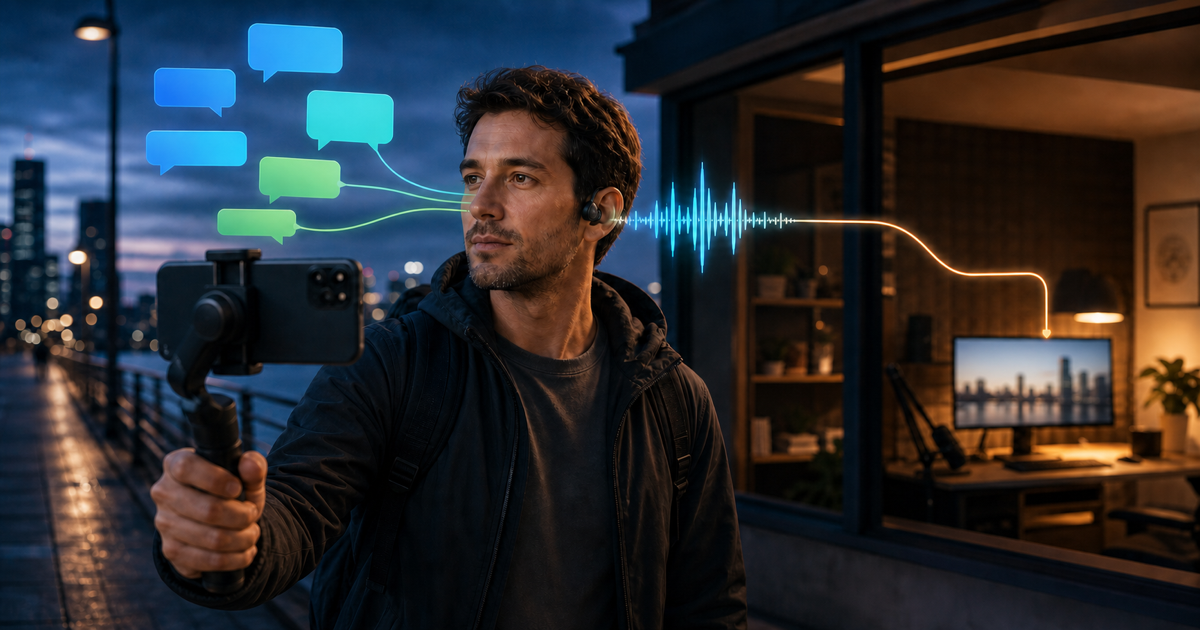
The quickest way to hear Twitch and Kick chat while IRL streaming is to connect the provider chats in VISP, choose English or Suomi under Settings → Chat overlay → Speak messages, wear headphones, and run a private live rehearsal. New text messages are then read on the field phone while that phone continues sending its camera and microphone to OBS at home.
This is a hands-free chat monitor, not a donation alert or an OBS text-to-speech source. VISP does not deliberately mix the spoken voice into the camera feed. That distinction lets the field creator hear chat without forcing every viewer to hear it too.

Choose private chat speech, not on-stream TTS
“Chat text-to-speech” can describe two different production choices:
| Goal | Best starting point | What viewers receive |
|---|---|---|
| Hear ordinary Twitch and Kick messages while operating the phone camera | VISP Speak messages with headphones | The normal camera and microphone mix |
| Glance at recent messages without speech | VISP Floating chat | A clean camera feed; Floating stays on the operator screen |
| Put recent chat text in the phone video | VISP Embedded | Chat is permanently composited into that camera source |
| Play selected alerts or paid TTS to the audience | A moderated OBS-side alert or TTS workflow | Audio intentionally added to the program mix |
This guide covers the first row. Speech and the visible chat position are separate settings, so you can hear messages with the overlay Hidden, keep a small Floating view for context, or use speech while an Embedded overlay is active. For the visual choices and their privacy consequences, read How to Read Twitch and Kick Chat on Your Phone While Streaming With OBS.
VISP’s read-aloud mode is deliberately simple: it follows live chat and speaks the useful text. It is not a moderation queue, a reward system, or a way to reply. If every spoken line must be approved before viewers hear it, keep that workflow in OBS with a moderator rather than routing an unfiltered phone speaker back into the broadcast.
What you need
- The VISP native app signed in with the Twitch or Kick account used by the production
- Twitch chat, Kick chat, or both connected in the app
- The phone already feeding the home studio as described in How to Use Your Phone as a Remote Camera in OBS
- A headphone or earpiece that leaves the creator aware of the surroundings
- A second account or trusted moderator who can send harmless test messages
- A private OBS rehearsal and a recording you can listen back to
In this phone-to-OBS workflow, the Twitch or Kick stream key still belongs in OBS. Enabling chat speech does not change the destination, start multistreaming, or give the phone ownership of the finished broadcast.
1. Connect the chat providers
Open the VISP phone app, sign in, and open Settings → Chat. Each provider must be linked and have chat enabled before its messages can reach the phone.
For Twitch, select Authorize if the app asks for chat access. VISP uses
Twitch’s user:read:chat permission, which Twitch defines as permission to
receive chat-room messages and related notifications. The official
channel.chat.message EventSub reference
documents the live message event. Wait for Twitch to show connected, then
send a new test message; the app does not fetch old chat history.
For Kick, link the account, enable chat, and wait for connected. Kick sends
the chat.message.sent event to VISP through a signed webhook. VISP verifies
the delivery before forwarding the live message to the signed-in phone. Kick
documents the event in its official
event types,
subscription,
and webhook security
references.
Connecting both providers combines their live messages on the phone. It does not make OBS publish to both services, and it does not merge the two communities’ moderation tools.
2. Select the language that should speak
Open Settings → Chat overlay → Speak messages and choose:
- Off to disable read-aloud chat;
- English for an English phone voice; or
- Suomi for a Finnish phone voice.
The selection controls pronunciation; it does not translate chat or detect the language of every message. Choose the language used by most of the channel. Mixed-language chat will still be read, but names and messages in the other language may sound unnatural.
VISP checks the phone’s installed voices for the selected language. If the app reports that no voice is available, add one in the device’s system text-to-speech settings and reopen the setting. The app uses the platform speech capability exposed by Expo Speech, whose official reference documents voice discovery and language selection.
Some native-app accounts may also see Better voice. Treat that switch as optional: it appears only when enabled for the account. If the generated clip cannot be fetched or played, VISP falls back to the installed device voice so chat can remain audible.
3. Keep the voice out of the phone microphone
Use headphones before the first spoken message. If speech plays through the phone speaker, the same phone’s microphone can capture it and send it to OBS. Viewers may then hear a delayed copy of chat even though VISP did not add a TTS source to the media stream. Once a language is selected, Speak to lets you pick the output, such as a connected Bluetooth earpiece.
Start at a low listening volume and make sure the earpiece does not prevent you from hearing traffic, venue staff, or people nearby. The safest hardware depends on the location; no chat message is worth losing situational awareness.
In OBS, watch the phone source’s audio meter while a test message is spoken. The creator’s voice should move the meter, but private chat speech should not. OBS’s official Audio Mixer Guide recommends checking sound both early in the signal chain and again in OBS, then recording and listening back before going live.
If the spoken line appears in the OBS recording, fix the physical audio path: lower the phone playback volume, improve headphone isolation, or move the microphone. Do not try to hide the symptom with a permanent OBS mute, because that would also remove the field creator’s microphone.
4. Start a real broadcast session before testing speech
VISP reads messages aloud only while the phone has an active broadcast session and the app is in the foreground. This prevents old setup chatter from speaking unexpectedly. A message sent while the camera is only idle may appear visually but should not be your speech test.
Use this order:
- Choose English or Suomi under Speak messages.
- Put on the headphones and set a conservative volume.
- Start the phone’s VISP stream.
- Confirm the phone camera and microphone arrive in OBS.
- Send one short Twitch message from a second account.
- Send one short Kick message if Kick is enabled.
- Stop the phone stream and confirm the speech queue stops too.
Keep the app visible during the test. Backgrounding it stops read-aloud chat, so navigating to another app during a live walk is not a reliable way to keep speech running.
5. Learn what VISP reads and what it skips
VISP turns each useful chat message into a short utterance:
- Text is spoken first and the sender name follows, which makes the response easier to understand before the attribution arrives.
- URLs are reduced to the word “link” instead of reading every character.
- An emote-only message stays silent rather than producing a meaningless username announcement.
- Very long message bodies and names are shortened so one line cannot occupy the voice indefinitely.
- A reconnecting chat socket does not intentionally speak the same provider message twice.
The app processes messages in arrival order. A busy chat can therefore build a backlog: speech takes longer than reading a screen, and the queue cannot make several people talk at once. If the voice is consistently behind, the practical fix is to turn Speak messages off and use Floating chat with a moderator. VISP currently has no per-user allowlist, keyword filter, or “mentions only” mode.
This behavior also means that speech is not a complete representation of chat. Badges, image emotes, deleted-message context, and moderation state still belong in Twitch or Kick’s own tools.
How chat speech and OBS stay separate
The two paths meet on the phone screen but serve different jobs:
- Twitch sends authorized
channel.chat.messageevents to VISP. - Kick sends signed
chat.message.sentwebhook events to VISP. - VISP normalizes accepted messages and forwards them over an authenticated live connection to the signed-in phone.
- The phone turns message text into speech using the selected language and plays it to the connected audio output.
- Separately, the phone encodes its camera and microphone as H.264/AAC and publishes one SRT contribution feed.
- The VISP relay forwards that feed to OBS, where the home producer owns scenes, alerts, recording, and the final Twitch or Kick destination.
The relay-to-OBS path does not transcode this camera feed. The native app’s optional network bonding can combine Wi-Fi and cellular with SRTLA or send duplicate packets over both. Chat text-to-speech changes neither behavior.
The phone’s speech output is also not a separate OBS audio source. It reaches the broadcast only if the field microphone captures it acoustically or if you build another intentional audio route.
Run this private preflight
Before using TTS on a public IRL stream:
- Connect only the providers you actually plan to monitor.
- Select the majority language and confirm the device has a matching voice.
- Set chat to Hidden or Floating; avoid Embedded unless chat text is meant to become part of the camera feed.
- Wear headphones and start the phone stream.
- Send plain text, a URL, an emote-only message, and one long message.
- Confirm both providers are distinguishable in the visible chat view.
- Talk over a test message and decide whether the voice is distracting.
- Record the phone source in OBS and listen for speech leakage, echo, or doubled audio.
- Briefly interrupt the field connection and confirm the OBS fallback scene still protects the viewer-facing broadcast.
- Stop streaming and verify the phone becomes quiet.
If the recording reveals echo or sync problems unrelated to TTS, follow the phone-camera audio troubleshooting guide before changing more chat settings.
Troubleshooting
Speak messages is on, but nothing is audible
Confirm the phone stream is active, the app is in the foreground, and at least one chat provider reports connected. Raise the media volume carefully, send a new plain-text message, and check for the missing-voice warning. Old messages are not replayed when speech is enabled.
One platform speaks and the other does not
Open Settings → Chat. The silent provider must be linked, chat-enabled, and connected. Twitch may need its chat authorization renewed. Test with a new message after the status recovers.
Names or messages sound wrong
The language picker is not translation or automatic detection. Select the dominant chat language and accept that usernames, slang, and mixed-language messages may be pronounced imperfectly. If the platform voice itself is missing, install a matching system voice.
Chat speech falls far behind
The channel is producing text faster than one voice can read it. Turn speech off rather than listening to stale reactions. Keep Floating chat for quick context and ask a moderator to surface the messages that need a response.
Viewers hear the text-to-speech voice
The phone speaker is probably reaching the field microphone. Switch to headphones, lower playback volume, and make another OBS recording. Check for a second deliberate audio route only after the acoustic path is clean.
Frequently asked questions
Can VISP read Twitch and Kick chat at the same time?
Yes. Link and enable both chats; their new text messages enter the same speech queue. This does not make OBS multistream or combine moderation.
Does the OBS plugin have to be installed for chat speech?
No. Chat speech runs in the signed-in VISP app. The plugin is useful for remote scene and stream control, but it is not the TTS engine.
Can I reply to chat by voice?
No. VISP’s mobile chat is read-only. Reply and moderation actions stay in the providers’ creator tools.
Does chat speech appear in the stream or VOD?
Not as a digital VISP source. It can still leak into both if the phone microphone hears the speaker, which is why the headphone and recording test matter.
Sources and next steps
- VISP phone and browser app
- VISP chat and media architecture
- VISP broadcaster fallback setup
- Twitch EventSub channel chat messages
- Twitch access-token scopes
- Kick developer event types
- Kick webhook security
- Expo Speech reference
- OBS Audio Mixer Guide
If your phone already feeds a home OBS production and looking down at chat is the awkward part, try VISP: connect one provider, turn on read-aloud chat, and prove the headphone path with a private recording before your next walk.
Bring the field into your OBS studio
Try VISP free during beta. You never have to paste a stream key anywhere.
Try VISP free