How to Control OBS From Your Phone Without Port Forwarding
Control OBS from your phone over the internet without port forwarding: pair VISP, start or stop streaming, switch scenes, and test recovery.
By VISP Team ·
To control OBS from your phone without port forwarding, install the VISP plugin in OBS Studio 31, pair it through the browser, and use the OBS controls in the VISP phone app. The phone can start or stop the active OBS stream and switch the current program scene. The plugin reaches VISP with authenticated outbound WSS, so your router does not need an inbound rule for OBS.
This is useful when a Twitch or Kick creator carries the camera in the field while a home computer runs scenes, alerts, recording, and the final broadcast. It is intentionally a smaller control surface than OBS WebSocket: VISP handles the few live commands a field operator commonly needs, not every source, filter, mixer, or studio setting.
First choose local or internet remote control
OBS already includes WebSocket support. The OBS Project says it has been built into OBS Studio since version 28 and lists phone, tablet, automation, and scene control as normal uses. On the same trusted local network, an OBS WebSocket client is often the most capable answer. It can expose far more of OBS than VISP does.
The network question changes when the phone leaves home. A local WebSocket address is not automatically reachable through the internet. Publishing its port on the router creates a public entry point to software that can control the production. OBS therefore strongly recommends password protection, and its current 5.x server uses port 4455 by default.
For broad remote WebSocket access, put the client and OBS computer on a private VPN or similarly controlled network rather than exposing that port directly. For the narrower job of starting the show, stopping it, and choosing a program scene from a VISP field phone, the outbound plugin path avoids router setup altogether.
| Need | Better starting point |
|---|---|
| Full OBS automation on the same LAN | OBS WebSocket and a compatible client |
| Full OBS automation over the internet | OBS WebSocket behind a private VPN |
| Start, stop, and scene switching from a VISP field phone | VISP Remote Control plugin |
| An operator who can manage the entire show | A producer at OBS, optionally using the tools above |
VISP is not a universal remote desktop and does not replace an operator when a production needs detailed audio, source, filter, or recording control.
What you need
- A home computer running OBS Studio 31 with a Twitch or Kick service already configured in its active profile
- The VISP Remote Control plugin package for Windows, macOS, or Ubuntu
- A VISP account and the VISP phone app signed in to that account
- Outbound HTTPS access from both the phone and the OBS computer
- Scenes whose names make sense from a small phone picker
- A local recovery plan if the phone or internet control path disappears
The phone does not need the Twitch or Kick stream key. That destination remains in OBS. Pairing gives the plugin a limited VISP machine credential; it does not copy the provider credential to VISP or to the field phone.
If the phone is also your field camera, complete the phone-to-OBS setup first. Remote control and camera contribution are separate paths even when one app presents both.
1. Install the VISP plugin in OBS
Download the package for your operating system from the project's GitHub Releases, install it, and restart OBS. VISP's current documentation targets OBS Studio 31.
Open Tools → VISP Remote Control. The dialog is also where you can list VISP publishing devices and add their relay feeds as Media Sources, but those device tools are not required merely to operate an existing OBS stream remotely.
Before pairing, open the intended OBS profile and verify its streaming service. Remote start uses the active profile exactly as it stands. The plugin does not supply a missing Twitch or Kick destination and does not choose a different profile for you.
2. Pair OBS through the browser
Select Sign in with browser in the plugin dialog. A browser window opens the VISP approval flow. Sign in to the same VISP account used on the phone, approve the displayed device code, then return to OBS.
This approval is not a reusable Twitch or Kick login inside OBS. VISP uses a short-lived browser authorization and exchanges it for a scoped machine token. The temporary session is revoked after the exchange. OBS stores the resulting machine credential, while VISP stores only a SHA-256 hash of its secret.
Treat the plugin configuration as a credential anyway. Someone who obtains it may be able to operate the paired OBS instance. If the computer or configuration is exposed, rotate the OBS token in VISP and pair again. Rotation disconnects older plugin configurations on their next request.
The dashboard should report Connected within a few seconds. If it does not, confirm that the OBS computer can reach the public VISP app address over HTTPS. No inbound test or router-port scan is needed.
3. Open OBS controls on the phone
Sign in to the VISP native app with the same creator account. Once the pairing is configured, the live screen shows the OBS control. Its state distinguishes a connected OBS instance from one that is offline and reports whether OBS is currently streaming.
Open the scene picker. The list comes from the paired OBS instance, and the current program scene is marked. Choose a scene only after confirming that its name identifies what viewers should see. Short operational names such as Field, BRB, Desk, and End are easier to distinguish on a phone than several nearly identical scene names.
The command changes the program scene, not a private Studio Mode preview. If a producer is actively preparing a preview transition, coordinate before using the phone picker. The remote control also does not expose OBS's audio mixer, so scene design should already produce the intended microphone state.
4. Test start and stop deliberately
Use a private platform test, bandwidth-test destination, or unlisted rehearsal appropriate to your channel before trusting remote start. Keep the OBS monitor visible to someone at home if possible during the first run.
- Confirm that VISP reports OBS as connected.
- Select the intended opening scene from the phone.
- Press the start control once and wait for the pending state to clear.
- Confirm in OBS and on the platform dashboard that the broadcast actually started.
- Switch to a harmless test scene and verify the program output.
- Press stop once, then confirm both OBS and the platform status.
Do not repeatedly tap while a command is pending. The app disables overlapping commands, and the plugin receives the latest pending state over its live socket. VISP reports command delivery and OBS state; it cannot guarantee that Twitch or Kick accepted the output or that viewers received healthy video. Keep the provider dashboard available as an independent check.
Stopping remotely stops OBS's active stream output. It does not shut down OBS, the computer, or a separate recording. If your end-of-show procedure includes recording, replay buffers, local audio, or uploads, finish those tasks at the studio rather than treating one remote button as the whole shutdown checklist.
How the no-port-forwarding path works
The control route is indirect by design:
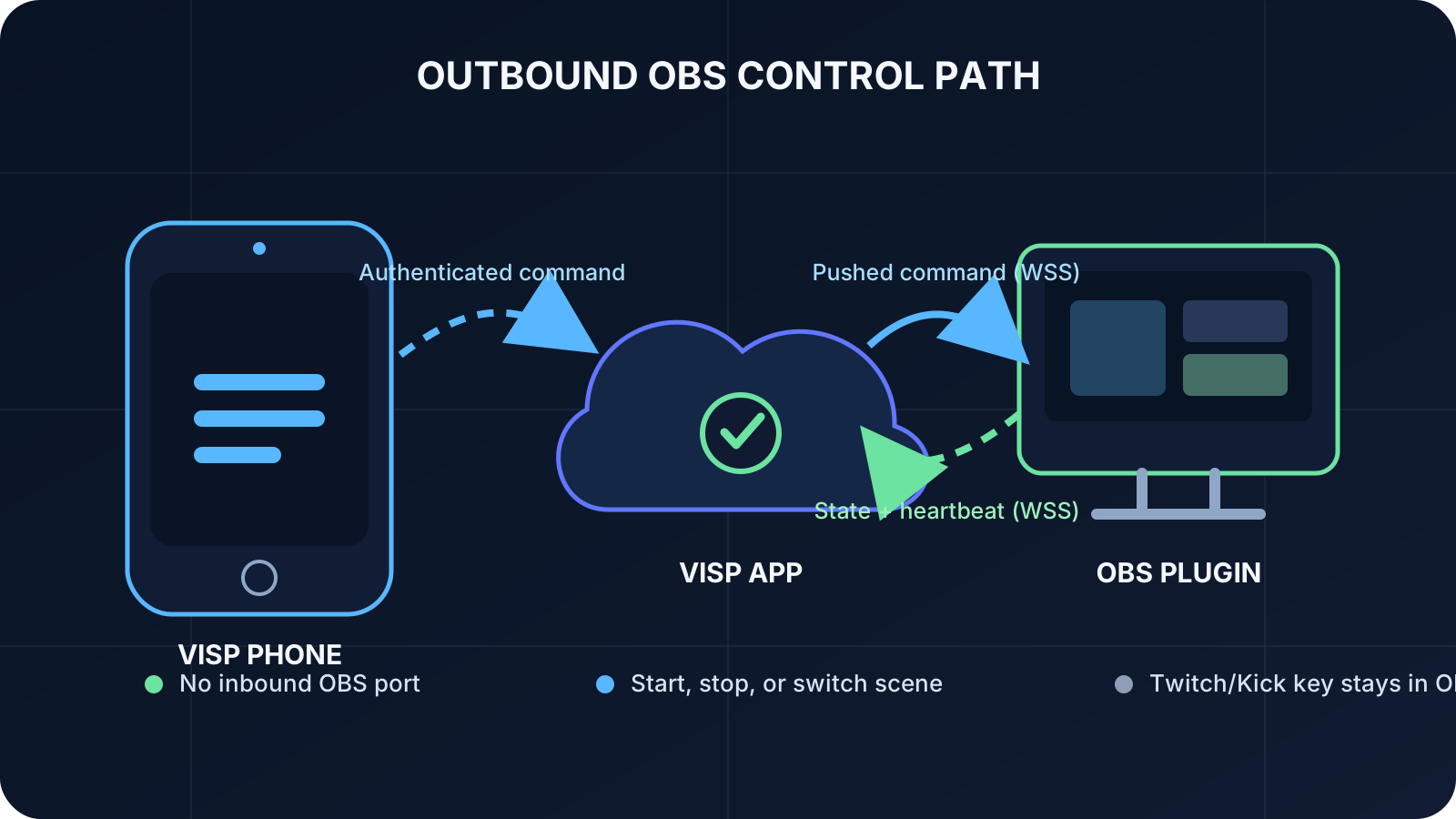
- The authenticated phone sends a start, stop, or scene request to the VISP app over HTTPS.
- VISP records the desired state for that account.
- The paired OBS plugin obtains a 30-second, one-use ticket over authenticated HTTPS and opens an outbound WSS connection.
- The plugin reports streaming state, scene names, and the current scene when they change and on five-second heartbeats. VISP pushes the latest pending command immediately.
- The plugin applies it in OBS and acknowledges the command version only after OBS reaches the requested state.
Because OBS initiates the socket, the plugin opens no listening port to the internet and needs no router port forwarding. Commands are pushed immediately, but internet scheduling and OBS transitions still make this unsuitable for frame-accurate switching.
The machine token is narrower than a general VISP session: it can support the plugin's device and Media Source workflow and live socket, but it does not grant unrelated account or provider administration. The phone still uses its own authenticated account session to request commands.
Plan for the control path going offline
No internet remote is an emergency guarantee. A command cannot arrive if the field phone loses data, the VISP app host is unavailable, the home connection fails, OBS exits, or the plugin socket disconnects. The Offline state is a reason to use the recovery plan, not to keep pressing the control.
Make critical behavior local to the OBS computer:
- Have OBS launch into the correct profile and scene collection.
- Keep a producer, remote desktop path, or trusted person available for high-stakes broadcasts.
- Use local automation for a fallback scene when a field Media Source fails.
- Keep the Twitch or Kick creator dashboard accessible for destination status and emergency platform actions.
- Rehearse what happens if the phone camera reconnects but remote control does not, and the reverse.
The mobile-network recovery guide explains why OBS should remain live on a local holding scene when a field feed drops. In a multi-phone production, agree on one operator for scene commands so two camera operators do not fight over the program output.
Understand the media boundary
Remote control does not alter the video path. A VISP phone may publish H.264 video and AAC audio over SRT while control requests use the app API and the OBS plugin's authenticated outbound WSS connection. OBS still renders the final scenes and sends the finished program to Twitch or Kick.
The relay does not transcode video or aggregate network capacity. VISP Native can duplicate packets over Wi-Fi and cellular, but it cannot lower an unsuitable camera bitrate at the relay, combine cellular and Wi-Fi into one resilient uplink, or make a control command cross a total outage. Those boundaries remain true even though control and camera publishing appear in one phone app.
The destination stream key stays in the active OBS profile. VISP does not need it to carry a camera source or operate the paired plugin. This separation is the main reason a field operator can control the home studio without becoming the owner of its Twitch or Kick publishing credential.
Troubleshooting
The phone says OBS is offline
Open Tools → VISP Remote Control on the home computer and confirm the plugin is paired. Check outbound HTTPS/WSS access and verify that the computer has not gone to sleep. If the token was rotated, pair again; the old configuration is expected to disconnect.
Start does nothing
Open OBS locally and verify that the active profile has a valid streaming service and key. The plugin requests OBS to start the configured output; it does not create the destination. Also clear any OBS error dialog that requires local attention.
The scene list is empty or stale
Keep OBS running and connected long enough for another state report. Rename scenes in OBS, not on the phone. If the pairing never refreshes, reopen the plugin dialog and pair again rather than selecting from an old assumption.
A scene changed later than expected
Check connection quality and avoid rapid commands while one is pending. Use an on-site producer or a local control path when exact timing matters.
Frequently asked questions
Do I need to open port 4455 for VISP?
No. Port 4455 is the default for OBS WebSocket 5.x. The VISP plugin uses its own authenticated outbound WSS path and opens no inbound OBS control port.
Does VISP replace OBS WebSocket?
No. OBS WebSocket supports a much broader control and automation ecosystem. VISP is a focused option for starting, stopping, and switching program scenes from its phone workflow without exposing an inbound control port.
Can the phone control audio sources and filters?
No. The current VISP phone control is limited to stream start or stop and program-scene selection. Build audio behavior into tested scenes or use a more capable local OBS control system.
Can I switch scenes from an Apple Watch?
The VISP Watch companion can display the OBS connection and scene list and send a scene selection through its paired iPhone. The watch is not an independent internet controller and does not hold the VISP credential itself.
Sources and next steps
- VISP OBS remote control setup and security
- VISP phone and browser app
- VISP architecture and command flow
- VISP getting-started guide
- OBS Project Remote Control Guide
- Official obs-websocket README
If your phone already contributes a field camera and you only need safe, deliberate control over the home show's start, stop, and scenes, try VISP: pair the plugin, rehearse the offline case, and keep the full Twitch or Kick destination under OBS control.
Bring the field into your OBS studio
Try VISP free during beta. You never have to paste a stream key anywhere.
Try VISP free