How to Keep an iPhone IRL Stream Live While Using Other Apps
Keep a Twitch or Kick iPhone IRL camera live while opening maps or chat with Picture in Picture, then verify the feed and fallback in OBS.
By VISP Team ·
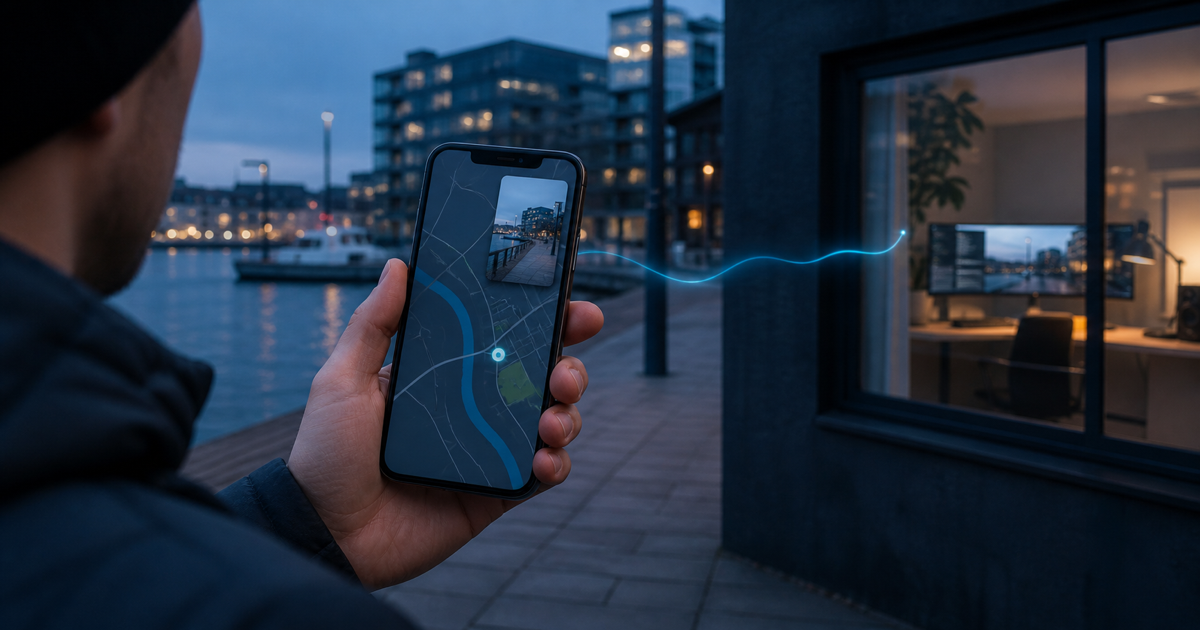
You do not need a second phone every time you want to check a map or open a producer message during an iPhone IRL stream. On a supported iPhone, VISP can keep the active camera session visible in Picture in Picture (PiP) while another app is in the foreground. Start the camera feed in VISP, confirm it in OBS, swipe to the Home Screen, and make sure the small live preview appears before opening the other app.
The important boundary is simple: switching apps with an active PiP window is supported; locking the phone, closing the PiP window, or force-quitting VISP is not a safe background workflow. If iOS cannot continue the camera in PiP, VISP stops the publishing session instead of pretending that a frozen picture is still live.
'/%3e%3cpath%20d='M430%20450H660M940%20450h220M1390%20450h90'%20fill='none'%20stroke='%2348d7ff'%20stroke-width='16'%20stroke-linecap='round'%20marker-end='url(%23arrow)'/%3e%3cg%20transform='translate(90%20160)'%3e%3crect%20width='340'%20height='580'%20rx='54'%20fill='%2305080d'%20stroke='%23718099'%20stroke-width='8'/%3e%3crect%20x='28'%20y='42'%20width='284'%20height='496'%20rx='28'%20fill='%231a3550'/%3e%3cpath%20d='M50%20430C120%20350%20115%20280%20190%20210S250%20105%20295%2080'%20fill='none'%20stroke='%236f8ca4'%20stroke-width='10'/%3e%3ccircle%20cx='180'%20cy='260'%20r='18'%20fill='%2348d7ff'%20stroke='%23dff9ff'%20stroke-width='7'/%3e%3crect%20x='158'%20y='70'%20width='132'%20height='190'%20rx='22'%20fill='%23d9eef7'%20stroke='%2348d7ff'%20stroke-width='8'/%3e%3cpath%20d='M175%20210l35-48%2025%2023%2038-62'%20fill='none'%20stroke='%2325516e'%20stroke-width='10'%20stroke-linecap='round'%20stroke-linejoin='round'/%3e%3ccircle%20cx='245'%20cy='120'%20r='14'%20fill='%2348d7ff'/%3e%3c/g%3e%3cg%20transform='translate(660%20265)'%3e%3crect%20width='280'%20height='370'%20rx='44'%20fill='%2312243a'%20stroke='%2348d7ff'%20stroke-width='8'/%3e%3cpath%20d='M55%20110h170M55%20170h130M55%20230h150'%20stroke='%237a93a8'%20stroke-width='18'%20stroke-linecap='round'/%3e%3ccircle%20cx='220'%20cy='300'%20r='28'%20fill='%2348d7ff'/%3e%3c/g%3e%3cg%20transform='translate(1160%20235)'%3e%3crect%20width='230'%20height='320'%20rx='30'%20fill='%230a0f18'%20stroke='%23718099'%20stroke-width='8'/%3e%3crect%20x='24'%20y='28'%20width='182'%20height='224'%20rx='16'%20fill='%231f4763'/%3e%3cpath%20d='M42%20210l42-58%2038%2030%2052-88'%20fill='none'%20stroke='%2348d7ff'%20stroke-width='12'%20stroke-linecap='round'%20stroke-linejoin='round'/%3e%3crect%20x='75'%20y='275'%20width='80'%20height='18'%20rx='9'%20fill='%23718099'/%3e%3c/g%3e%3cg%20transform='translate(1480%20365)'%3e%3ccircle%20cx='60'%20cy='85'%20r='60'%20fill='%2348d7ff'%20opacity='.18'/%3e%3cpath%20d='M30%2085h60M60%2055v60'%20stroke='%2348d7ff'%20stroke-width='14'%20stroke-linecap='round'/%3e%3c/g%3e%3c/svg%3e)
What Picture in Picture keeps running
VISP captures the selected iPhone camera and microphone, encodes H.264 video with AAC audio, and publishes that contribution feed over SRT. In the usual home-studio workflow, the VISP relay authenticates and forwards the feed to an OBS Media Source. OBS then adds scenes, alerts, local audio, and fallback content before sending the finished program to Twitch or Kick.
When PiP works, that camera contribution continues while a different iPhone app occupies the main screen. The small PiP window shows the live camera picture so the operator still has a visual indication that capture is active. Apple lets you move the window to another corner, resize it, or temporarily tuck it against the screen edge.
This is camera multitasking, not screen sharing. A route, private message, or account page opened behind the PiP window does not become the VISP camera feed or an OBS source. The camera still points at the physical scene. That distinction also means PiP is not a way to broadcast a mobile game or demonstrate an app; those jobs need a deliberate screen-capture workflow.
The same phone capture can feed VISP Direct, but the failure consequence is different. With OBS at home, the producer can cut to a local fallback scene if the phone stops. A Direct-only show has no home OBS layer to cover a failed background transition.
Check support on the actual iPhone
VISP's iPhone app requires iOS 16.4 or later, but the minimum OS version alone does not promise background camera access. The app asks the active capture session whether iOS reports multitasking camera access on that device. It only prepares PiP when the system says the path is supported.
Apple documents
isMultitaskingCameraAccessSupported
as the capability check and
isMultitaskingCameraAccessEnabled
as the switch that allows camera use while multitasking. VISP enables the
session only after the support check succeeds. Its current
PiP coordinator
then supplies live camera frames to the system PiP window.
Do not turn that implementation detail into a model list copied from the web. The reliable test is the iPhone and VISP build that will be used on the real stream. OS updates, device capability, and capture state all matter. Run the background transition during rehearsal and judge the advancing picture in OBS, not only the presence of a PiP icon.
Android is a separate case. The current VISP PiP publishing path described here is iPhone-only. Android users should keep VISP in the foreground and use the built-in chat view, another device, or a producer for the information they need until an equivalent background-camera workflow is documented.
Use another app without losing the camera feed
Set up the complete path before leaving VISP:
- Open VISP and select the camera, microphone, resolution, and frame rate.
- Start the phone feed and wait until VISP reports it live.
- In OBS, open the phone Media Source full-screen and confirm that both picture and audio are current.
- Swipe to the iPhone Home Screen. Do not lock the device.
- Wait for the live camera preview to appear as a small PiP window.
- Open the map, notes, chat, or producer-communication app you need.
- Move or resize the PiP window if it covers an important control, but do not close it.
- Ask the OBS operator to confirm that the source is still advancing and the audio meter still responds.
- Tap the PiP window's return control, or switch back to VISP, before ending or reconfiguring the camera feed.
Apple's current iPhone PiP guide documents the window gestures: resize, move, hide at an edge, close, and return to full screen. For a live VISP contribution, closing is not equivalent to hiding. Hide the window at the edge when you need the screen space; return to VISP before dismissing PiP.
The OBS check is essential. A small preview proves that iOS opened a PiP window, but the production needs the complete camera-to-relay-to-OBS path. Watch a moving subject or a clock outside the phone for several seconds and listen to a short spoken phrase. A still scene can make a frozen source look healthy.
Pick the right tool for chat and navigation
If all you need is Twitch or Kick chat, changing apps may be unnecessary. VISP already offers floating chat over the camera view, so the field operator can read messages while keeping the full publishing interface in front. The phone chat guide explains that private operator view and how it differs from a viewer-facing OBS overlay.
PiP is more useful when the information lives elsewhere:
- a map for the next walking segment;
- a notes or run-of-show document;
- a private producer channel;
- venue information or a transport update;
- a browser page needed briefly during the show.
Keep these visits short. The PiP preview is smaller than the full VISP camera view, so it is harder to judge focus, horizon, exposure, and whether a stranger has entered the frame. Return to VISP before a complicated camera move or a segment where composition matters.
Use spoken navigation cautiously. Guidance from the phone speaker can be picked up by the same microphone used for the stream, even though the navigation app itself is not being screen-captured. Test the actual microphone, speaker level, and route instructions. Muted guidance, a discreet earpiece, or a second navigation device may produce a cleaner show.
PiP does not make background streaming unconditional
Picture in Picture solves one narrow problem: it gives a supported active camera session an iOS-approved visible background presentation while another app is foregrounded. It does not remove the rest of the phone and network failure modes.
Do not rely on PiP for any of these:
- Locking the screen. A locked phone is not the same as another foreground app with a visible PiP window. Keep the device unlocked while publishing.
- Closing the PiP window. If VISP remains in the background and PiP stops, the app cannot safely promise continued camera capture.
- Force-quitting VISP. Removing the app ends its publishing process.
- Recovering a dead network. PiP does not create upload capacity, repair a carrier outage, or change SRT latency.
- Network bonding. VISP's optional native dual-link mode duplicates packets over Wi-Fi and cellular; PiP does not aggregate those links.
- Changing camera settings in the background. Return to VISP before switching camera, format, audio input, stabilization, or stream state.
The current VISP background-state policy keeps connecting, live, and reconnecting sessions running only while PiP is active or starting. If PiP cannot continue, the native view stops the stream and reports a background-video error when the app returns. That is deliberate: a visible failure is safer than silently sending stale video.
Build an OBS fallback for the failed case
Even a tested PiP transition can fail later because a capture session is interrupted or the operating system cannot continue it. A home OBS production should assume the phone source can disappear and keep a local scene ready.
Use the generated Media Source and the fallback workflow from VISP's broadcaster setup. The fallback can contain a holding image, local microphone, music you are licensed to use, or another camera. Its job is to keep the viewer-facing broadcast coherent while the field operator returns to VISP.
If the feed stops after leaving the app:
- cut OBS to the local fallback;
- return to VISP on the iPhone;
- read the on-screen state instead of repeatedly swiping away again;
- restart the phone contribution if VISP has stopped it;
- confirm fresh motion and audio in OBS;
- return to the field scene only after the source is stable.
Do not try to hide a background-camera failure by increasing SRT latency. SRT latency gives late or retransmitted packets more time to arrive; it cannot keep an iOS camera session alive. The mobile-network recovery guide covers transport loss separately.
Run a five-minute PiP rehearsal
Test the feature with the same iPhone, iOS version, VISP build, microphone, and network planned for the show. Record the OBS source so you can inspect the exact moment of every transition.
| Time | Operator action | What the OBS producer verifies |
|---|---|---|
| 0:00 | Start VISP in the foreground | Current motion, clean audio, correct source |
| 1:00 | Swipe to Home and wait for PiP | No frozen frame, reconnect, or audio gap |
| 2:00 | Open the required map or chat app | Camera motion and microphone continue |
| 3:00 | Move and briefly hide PiP at the edge | Feed continues while PiP remains active |
| 4:00 | Return to VISP | Live state and statistics are current |
| 5:00 | Stop normally from VISP | Source ends intentionally and fallback behaves correctly |
Repeat once with the screen recording disabled and notifications silenced, as they will be during the real stream. If the first background transition stops the feed, treat PiP as unsupported for that setup. Keep VISP foregrounded and use another device rather than making a public broadcast the next experiment.
Also test recovery on purpose: during a private rehearsal, close PiP while VISP is backgrounded and confirm that the producer sees the failure, switches to the fallback, and waits for a fresh source. Knowing the failure path is as valuable as seeing the successful one.
Frequently asked questions
Can viewers see the map or chat app behind PiP?
No. VISP publishes the selected camera and microphone, not the iPhone screen. The other app remains local to the phone. A separate screen-broadcast workflow would be required to put it on air.
Can I lock the iPhone while the camera streams in PiP?
Do not depend on it. PiP is designed to remain visible while another app is in use; the Lock Screen is a different state. Keep the phone unlocked and test automatic-lock behavior before going live.
Why did VISP stop when I left the app?
The iPhone may not have reported supported multitasking camera access, PiP may have failed to start, or the active capture session may have been interrupted. Return to VISP and read the error. If the same device fails the rehearsal twice, keep VISP in the foreground for the show.
Does PiP work when VISP Direct sends to Twitch or Kick?
PiP protects the same active iPhone capture path, so it can continue while Direct is enabled on a supported device. However, a Direct-only show has no OBS fallback scene if capture stops. Test the destination and recovery path, not only the phone preview.
Does PiP reduce stream quality or bitrate?
The PiP window is a local preview of the active capture; it is not a second platform encode. The selected camera format and VISP contribution settings still determine the phone feed. Verify the real output in OBS because device load and network conditions can still change during multitasking.
Sources and next steps
- Apple: Multitask with Picture in Picture on iPhone
- Apple: AVCaptureSession multitasking camera access
- Twitch: Getting started with mobile streaming
- VISP phone and browser app
- VISP encoders and fallback
If you want an iPhone to remain a managed field camera while home OBS owns the Twitch or Kick production, try VISP. Start with a private five-minute PiP rehearsal, keep a local fallback scene ready, and use another device whenever the actual iPhone cannot hold the background camera path reliably.
Bring the field into your OBS studio
Try VISP free during beta. You never have to paste a stream key anywhere.
Try VISP free