Best Phone Camera Settings for IRL Streaming at Night
Set up a phone for night IRL streaming on Twitch or Kick: choose 30 FPS, the right lens, useful lighting, stable bitrate, and restrained OBS correction.
By VISP Team ·
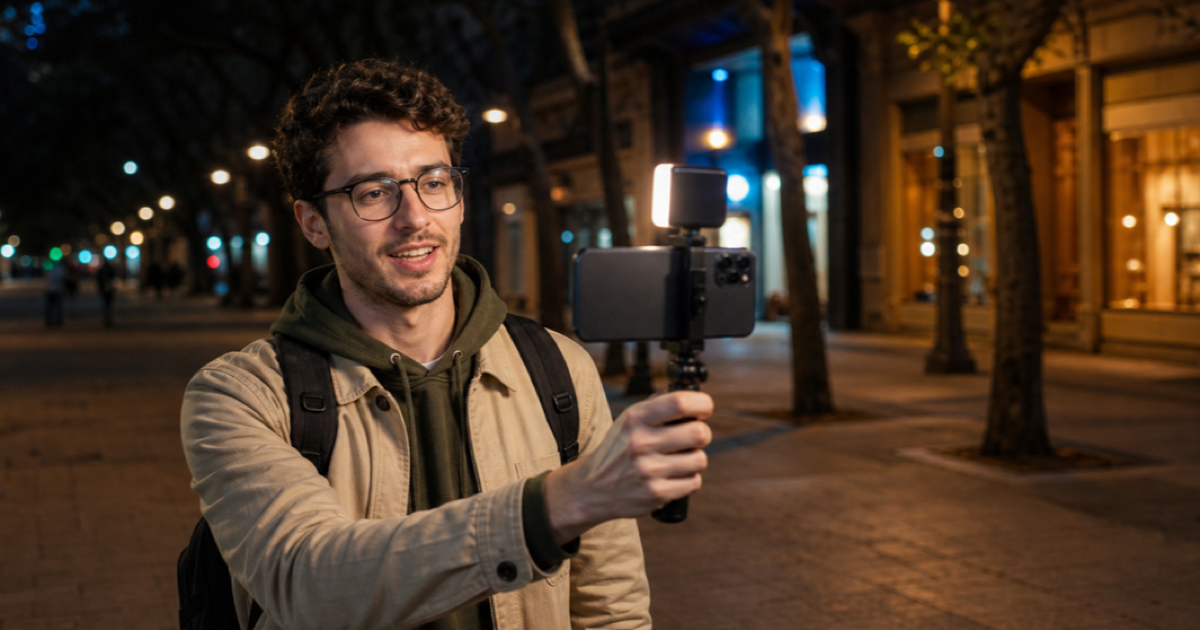
A phone can make a good Twitch or Kick IRL stream after dark, but night video punishes the wrong setting quickly. Fast frame rates leave less time for each frame. A dark, noisy picture is harder to compress. Digital brightening can turn that noise into gray mush without restoring any missing detail.
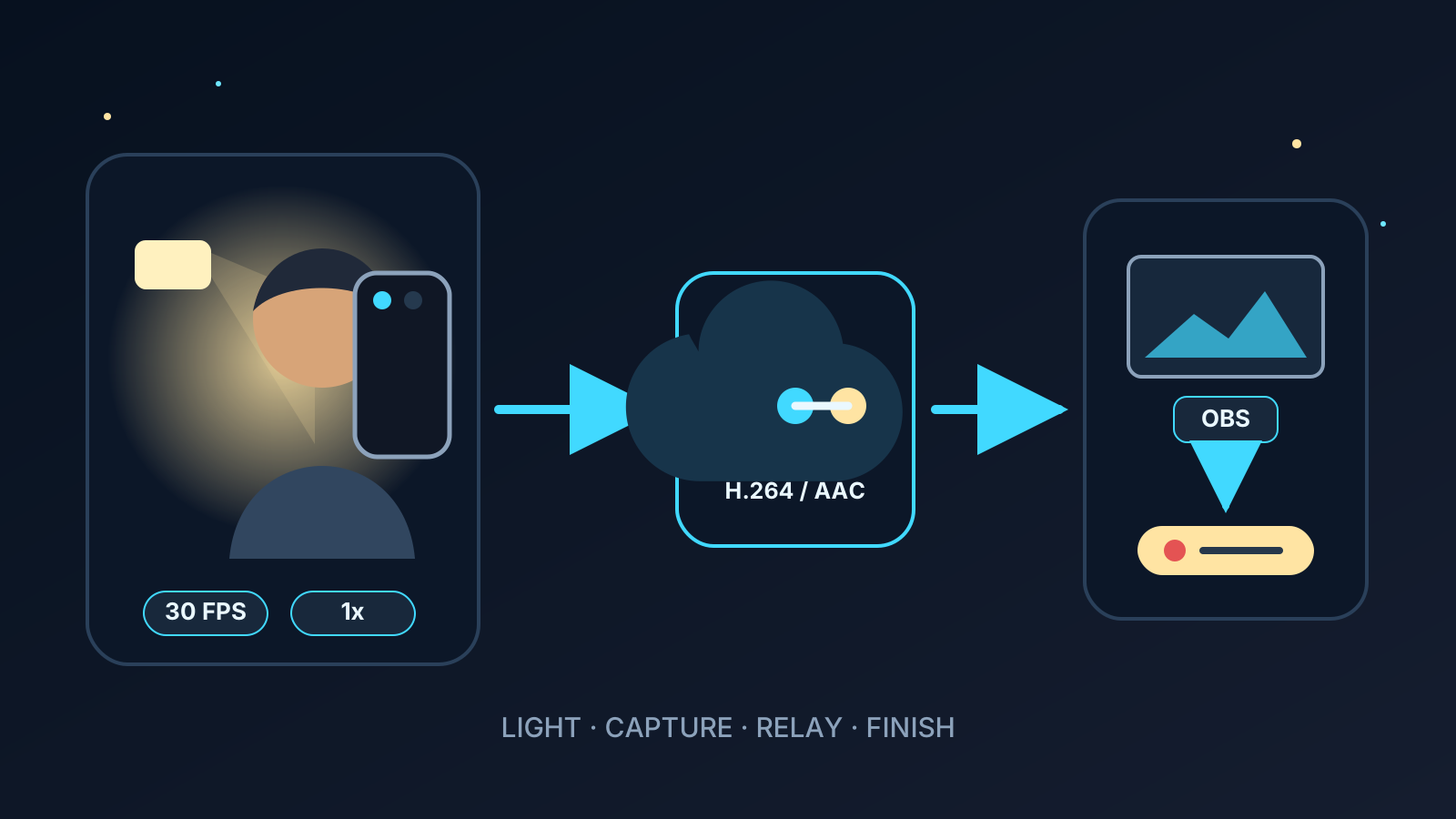
The useful starting point is simple: add a little light, use the rear 1x camera, select 30 FPS, and keep the bitrate conservative enough for the real mobile route. Test the public stream after sunset, not just the preview in a bright room.
The short answer
Start with these settings in the VISP phone app:
| Setting | Night starting point | Change it when |
|---|---|---|
| Camera | Rear camera at 1x | Another reported lens wins a side-by-side test |
| Frame rate | 30 FPS | Use 60 only for fast action in genuinely good light |
| Resolution | 720p for uncertain cellular, 1080p for a proven route | The connection or final viewing test supports the higher format |
| Stabilization | On when VISP shows support and you are walking | Turn it off on a tripod or if the low-light test is cleaner without it |
| Light | Small diffused light near the phone | Move or soften it if faces clip or glasses reflect it |
| OBS correction | Small gamma or brightness adjustment | Stop when noise and compression blocks become more visible |
VISP currently exposes the camera, resolution, frame rate, device-reported zoom levels, and supported image stabilization. It does not expose manual shutter speed, ISO, white-balance lock, or a torch control. That boundary is visible in the phone app documentation and the open-source camera capability model.
Add light before adding bitrate
The best night-stream setting is often a light, not another encoder option. A small diffused LED close to the phone can light a face while streetlights and signs keep the location recognizable. It does not need to turn the pavement into daytime. It only needs to give the camera a clean subject to expose.
Mount the light close to the phone but slightly above or to one side of the lens. That angle is usually kinder to faces than a bare light pointed straight forward. If the subject wears glasses, move the light until its reflection leaves the lenses. Keep brightness low enough that skin retains detail.
Run one comparison with the light off and one with it on. Watch the resulting Twitch or Kick stream at normal player size. The phone preview can hide noise and compression damage because it is small and bright. The public encode is the result viewers get.
Clean the camera glass before the test. Kick's current mobile quality guide includes a clean lens in its blurry-picture troubleshooting, and Apple advises cleaning front and rear camera lenses with a microfiber cloth when images look blurred. Grease around point lights creates haze that no bitrate setting fixes.
Start with the rear 1x camera
Open Settings > Camera while the VISP stream is stopped. Pick the rear camera and start at 1x. This is a baseline, not a promise that every phone's 1x lens beats every other lens. Phones have different sensors, apertures, and processing, so the final choice belongs to a recorded comparison on the actual device.
Avoid zooming merely to make a person larger. Move closer when it is safe. If VISP lists 0.5x, 1x, 2x, or other levels, those are the levels the device reports through its native camera system. The iOS and Android implementations derive the choices from the available cameras and zoom ranges rather than inventing a generic list. See the iOS camera implementation and Android camera implementation.
Test the front camera separately if the streamer needs to see the screen while walking. Convenience may matter more than a small image-quality gain. Keep the camera that produces the cleaner public stream without making the operator miss chat, framing, traffic, or hazards.
Select 30 FPS for the capture
Thirty FPS is the useful night default. Apple says its Camera app can improve low-light video by automatically reducing frame rate to 24 FPS. Kick recommends 30 FPS for most IRL streams and reserves 60 FPS for fast motion. Both pieces of guidance point to the same tradeoff: more frames are not free when light is scarce.
VISP configures native streaming with the selected frame rate. On iOS it sets the minimum and maximum active frame duration to the chosen value. On Android it checks the rate against both camera and H.264 encoder capabilities, then passes that rate into stream preparation. The phone's Camera-app-only low-light modes should not be treated as VISP streaming controls.
Choose 60 FPS only when the subject is fast, the scene is well lit, and the complete stream looks better after a long test. The 30 FPS versus 60 FPS guide covers the motion, heat, bandwidth, and OBS output tradeoffs in more detail.
Match resolution and bitrate to the route
Low light is not a reason to push the phone to its highest resolution. Start at 720p30 on uncertain cellular. Try 1080p30 after the route holds a stable 720p test and the extra detail survives the public platform encode.
VISP's native app sets a bitrate ceiling for the chosen format and adjusts the target from live link conditions. The live display reports bitrate, round-trip time, and packet loss. Use those numbers to diagnose the phone-to-relay leg. They do not prove that OBS, Twitch, or Kick is healthy after that checkpoint.
Do not raise bitrate until the dark picture looks clean. More bits can preserve more of the captured signal, but they cannot add light or recover detail the camera never captured. A higher target can also make a cellular stream less stable. The IRL bitrate guide starts at about 2,500 kbps for 720p30 on cellular and explains how to test the phone and home connections separately.
Test stabilization with the exact night setup
Keep image stabilization on for a walking stream when VISP offers it for the selected camera, resolution, and frame rate. The app only shows the active state for combinations the device reports as supported. Kick also recommends stabilization for walking and notes that stabilization can crop the picture slightly.
Low-light behavior still varies by phone. Record the same short walk with stabilization on and off. Compare face detail, motion, crop, and bright point lights in the public stream. On a tripod or fixed mount, turn stabilization off unless the test shows a benefit.
Do not trade away a stable 30 FPS mode just to force a shakier 60 FPS option. If walking motion is the main problem, follow the phone stabilization guide after the lighting and frame rate are settled.
Know which phone camera features do not carry into a live app
The built-in Camera app can advertise impressive night features, but a live publisher is a different capture path. Apple's Auto FPS guidance describes the iPhone Camera app. VISP explicitly fixes the selected streaming frame rate.
Google's Pixel Video Boost documentation says the phone records a temporary file, uploads it to Google Photos, and waits for cloud processing before the boosted version is ready. That can improve a recorded clip, but it cannot process a Twitch or Kick frame that is already being sent live.
Judge VISP by its own preview, relay feed, and public output. Do not assume that a Night mode photo, a boosted gallery video, or a manufacturer demo describes what a third-party live capture session will produce.
Use OBS correction as a finishing step
If the phone feeds a home OBS studio, right-click the phone source, open Filters, and add Color Correction. OBS documents gamma, contrast, brightness, saturation, hue, and color controls for that filter.
Make one small adjustment at a time. A slight gamma lift may make a face easier to read. Too much brightness lifts the dark noise too, and aggressive contrast can crush the little shadow detail that remains. Toggle the filter off and on while watching the program output, not only the source preview.
OBS receives the H.264/AAC contribution that the VISP relay forwards. The normal relay path does not transcode or denoise it. With VISP Direct, the relay makes a separate distribution encode for the selected destination, but that encode still cannot reconstruct missing capture detail. Fix the light and camera choice first. Grade the usable picture last.
Run an after-dark rehearsal
Use the same phone, mount, light, route, and mobile connection planned for the real stream. A useful rehearsal takes at least 15 minutes and includes the brightest sign, darkest street, and fastest walking section on the route.
- Clean the lens and start with the rear 1x camera at 720p30.
- Set the portable light to its lowest useful level.
- Walk from a bright area into the darkest expected section.
- Watch VISP bitrate, RTT, packet loss, reconnects, temperature, and battery.
- Check the advancing picture in OBS, if used.
- Watch the public Twitch or Kick stream from a muted second connection.
- Change one variable, such as camera, light level, resolution, or stabilization, then repeat the same section.
Keep the setting that survives transitions. A night stream rarely stays at one brightness. Storefronts, vehicle lights, dark parks, and indoor entrances make the automatic camera react. The winner is the setup that stays watchable while those conditions change, not the one frame that looks best under a lamp.
Frequently asked questions
Should I use 60 FPS for a night IRL stream?
Usually no. Start at 30 FPS. Keep 60 only for fast action when a well-lit, full-route test shows a clear motion benefit without worse noise, heat, or network stability.
Should I raise bitrate when the stream looks dark?
No. Bitrate does not brighten the scene. Add or reposition light, choose the cleaner camera, and use 30 FPS first. Raise bitrate only when the route has margin and compression damage remains in an otherwise clean capture.
Can OBS fix a noisy phone picture?
OBS can change gamma, brightness, contrast, and color. It cannot recover detail that the phone did not capture. Large corrections often make noise and blocks more obvious.
Does iPhone Auto FPS work in VISP?
VISP's current iOS capture implementation fixes the stream to the selected frame rate. Choose 30 FPS in VISP for the night test rather than relying on the Camera app's Auto FPS behavior.
Does Pixel Video Boost improve a live Twitch or Kick stream?
No. Google documents Video Boost as a recorded-file workflow that uses Google Photos and cloud processing. It is not a live third-party camera effect.
Sources and next steps
- VISP phone app settings
- VISP camera settings implementation
- VISP native camera capability model
- Apple iPhone video recording settings
- Google Pixel Video Boost
- Kick mobile stream quality
- OBS Color Correction filter
If you want to test these settings on a repeatable phone-to-studio path, try VISP, begin with a little light and 30 FPS, then keep only the changes that improve the public Twitch or Kick stream.
Bring the field into your OBS studio
Try VISP free during beta. You never have to paste a stream key anywhere.
Try VISP free