How to Stabilize a Shaky Phone IRL Stream in OBS
Stabilize a shaky phone IRL stream before it reaches OBS: choose a supported camera mode, handle the phone well, and test crop, latency, and motion.
By VISP Team ·
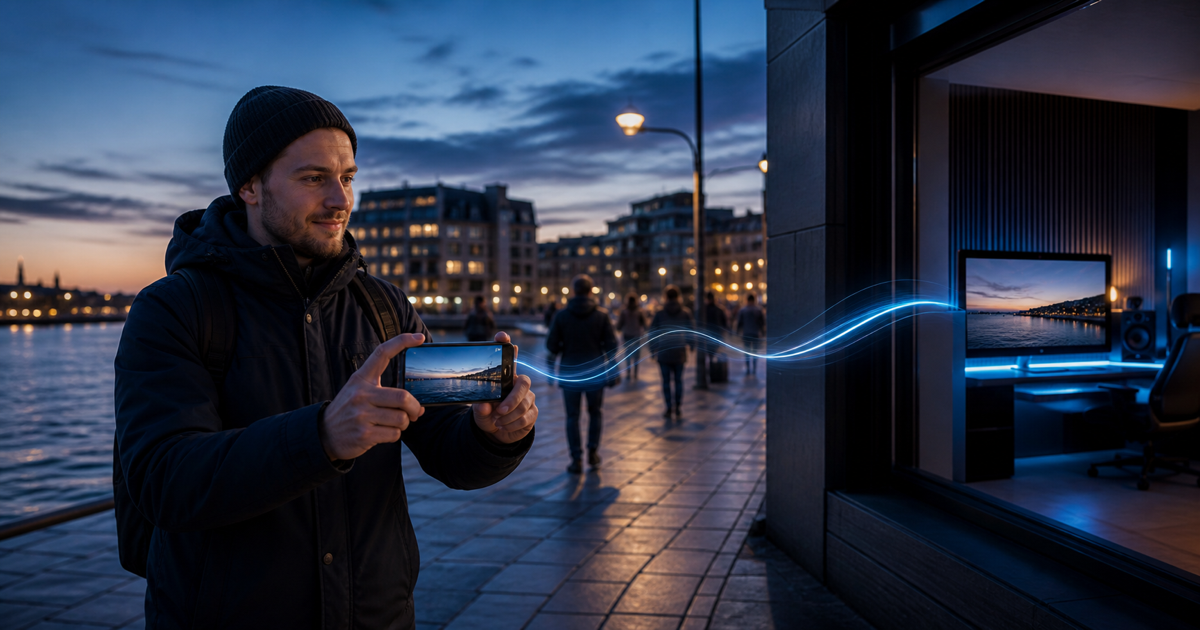
A stable IRL picture starts at the phone, before SRT, the VISP relay, or OBS touches the feed. Use a supported camera, resolution, and frame-rate combination, enable Settings → Camera → Image stabilization in the VISP native app, and then test the real walking route. If the result still bounces, improve the grip or mount before changing network settings. A tripod solves a fixed shot; a gimbal can help a walking shot; neither SRT latency nor OBS upload bitrate can remove physical camera movement.
The useful goal is not a perfectly floating picture. It is a frame that viewers can follow without losing the subject, while preserving enough field of view and keeping capture delay acceptable. Phone stabilization can crop the image, add some capture latency, or look unnatural with certain movement. Treat it as one layer in the camera rig, not a magic switch.

First, identify shake instead of a network problem
Camera shake moves the whole scene from frame to frame. A tilted horizon, repeated footstep bounce, and small hand tremors remain visible even when the picture is otherwise sharp and continuous. Network trouble looks different: the image may freeze, skip forward, become blocky, or disappear while VISP reports loss or a reconnect.
Record a short section in OBS and inspect it frame by frame. If the horizon and background shift together in consecutive frames, work on camera stability. If frames are missing or corrupted, check the transport path instead. The OBS dropped-frames guide separates phone-to-relay loss from relay-to-OBS trouble and the final OBS-to-platform upload.
Do not raise SRT latency to fix visible footsteps. SRT latency gives lost packets time to be retransmitted; it cannot change the motion already captured by the camera. Likewise, changing the Twitch or Kick bitrate in OBS affects the finished platform output, not the physical movement in the phone source.
Build stability from the simplest layer
Start with the operator, because this costs nothing and works with every phone:
- Hold the phone with two hands or use a grip that keeps the wrists neutral.
- Keep elbows relaxed and close to the body instead of extending the phone at arm's length.
- Walk with shorter, softer steps and bend the knees slightly over uneven ground.
- Turn the torso rather than snapping the phone from the wrists.
- Begin and end pans deliberately, with a short still moment at each end.
- Keep the horizon in view so drift is easy to notice.
Avoid unnecessary zoom. A narrow view makes small angular movement occupy more of the picture. Start at the camera's normal wide view, frame the subject by moving the operator when safe, and add zoom only after the stability test. VISP shows the zoom levels the selected native camera exposes, so the available choices vary by device.
For a stationary interview, performance, cooking setup, or venue-wide shot, stop hand-holding entirely. A tripod, clamp, or firmly supported monopod is the shorter solution. Make sure the support cannot be knocked over, does not block airflow around a hot phone, and leaves microphone and charging cables without tension. The phone overheating guide covers the thermal side of a mounted outdoor rig.
Enable stabilization in the VISP native app
Open the camera preview, then go to Settings → Camera. The Image stabilization switch appears only when the selected camera, resolution, and frame rate report a supported stabilization path. VISP checks that combination on the device instead of promising one setting for every iPhone or Android phone. The switch is on by default wherever it appears.
When enabled, VISP requests the native platform's supported stabilization before the phone encodes the H.264 contribution. On iOS it requests Apple's standard video stabilization mode. On Android it first requests camera video stabilization and can use the camera's optical stabilization path when that is the supported option. The app does not stack both Android modes.
That placement matters: OBS receives the already stabilized camera picture. The VISP relay authenticates and forwards the SRT contribution but does not transcode or stabilize it again. Direct may create destination encodes on the server, but that still cannot reconstruct field of view lost before the phone encode.
The browser publisher does not currently expose VISP's native stabilization switch. Browser and device camera behavior may still vary, but the control described in this guide is for the iOS and Android apps. See the current VISP phone app documentation for supported clients and the complete publishing workflow.
Choose a format the camera can stabilize
If the switch disappears after changing the camera, resolution, or frame rate, that combination did not report stabilization support. Return to a simpler baseline rather than assuming the app is broken:
- select the rear camera;
- choose Stream quality → Reliable · 720p30, or 1280×720 and 30 fps;
- keep the other settings unchanged;
- confirm that Image stabilization appears;
- check that it is on and start the preview;
- move upward one setting at a time only if the stream needs it.
VISP starts at 1080p when the camera offers it, otherwise 720p, and prefers 30 fps for the selected format. For a stabilization test, 720p30 is a practical starting point for mobile IRL production, not a claim that every phone stabilizes it equally well. The app uses the capabilities reported by the actual camera and encoder.
Android's official Camera2 stabilization documentation explains why capability checks matter: video stabilization warps consecutive frames and may change the crop region, and not every recording size or frame rate is supported on every device. Apple likewise documents that its standard stabilization mode reduces field of view and may add latency to the capture pipeline.
Those are camera tradeoffs, not VISP relay behavior. Leave extra room around a face or important object, and do not position critical action against the edge of the preview until you have seen the stabilized output in OBS.
The mobile IRL bitrate guide helps choose a contribution bitrate after the camera format is stable. Keep the questions separate: resolution and frame rate decide the captured format; stabilization changes motion and crop; bitrate decides how much compressed data the route must carry.
Know when a gimbal or tripod is the right fix
On-device stabilization is well suited to small hand movement and ordinary walking, but the real limit depends on the phone, lens, pace, light, and chosen format. It cannot keep a badly swinging arm level or make a running shot look like a fixed studio camera.
Use a tripod or clamp when the camera should not move. Use a hand grip when the operator needs quick, modest movement and the phone's result is already good. Consider a powered gimbal when a long walking segment still bounces after good handling and supported stabilization are in place.
Do not assume that more stabilization layers always produce the better shot. With a gimbal, make two test recordings: one with VISP stabilization enabled and one with it disabled. Compare horizon drift, corner warping, delayed pans, and the crop in the final OBS canvas. Keep the cleaner result for that exact phone and rig. This test is faster and more reliable than a universal rule about combining a particular phone with a particular gimbal.
Balance the complete rig before going live. Attach the case, microphone receiver, cable, and any small light before balancing a gimbal. Confirm that a cable cannot pull the phone during a pan and that the motors do not fight a blocked axis. Then rehearse the same walking pace and camera moves planned for the broadcast.
Judge the result in OBS, not only on the phone
The phone preview is useful for composition, but the viewer sees the decoded source inside an OBS scene and then the platform encode. Inspect all three levels:
- Phone preview: Is the horizon stable? Is the subject still inside the cropped frame? Does a pan begin and stop naturally?
- OBS source: View the phone source full-screen. Look for corner warping, repeated bounce, delayed movement, and audio that no longer feels aligned.
- OBS program: Put the source in its real scene with overlays and other cameras. Make sure the crop still leaves space for graphics and captions.
- Short platform test: Watch a brief destination test from a second device and confirm the final encode preserves the intended motion.
OBS can crop, scale, and position the source, but those transforms do not undo camera movement that was encoded in the field. Excessive scaling can also make small motion easier to notice. Build the phone source at the size it actually needs in the scene, then leave the transform unchanged during the comparison.
Use the generated Media Source and fallback settings from the VISP broadcaster documentation. Keep a local fallback scene ready so the producer can cut away while the field operator remounts the phone or restarts capture.
Run one repeatable stabilization test
Use a five-minute route that includes the motion your real show contains. Keep every other variable fixed while comparing stabilization off and on.
| Segment | What to do | What to inspect in OBS |
|---|---|---|
| 30 seconds | Hold a static medium shot | Horizon drift, hand tremor, crop |
| 60 seconds | Walk straight at normal pace | Vertical footstep bounce and subject framing |
| 30 seconds | Pan left and right slowly | Delayed starts, overshoot, or warped edges |
| 30 seconds | Turn a corner | Horizon recovery and sudden crop changes |
| 60 seconds | Walk on the roughest planned surface | Whether handling or a mechanical support is still needed |
| 30 seconds | Stop and hold again | How quickly the picture settles |
Record the OBS source, not just the phone screen. Repeat the route with the same camera, resolution, frame rate, zoom, grip, and walking speed. The only first change should be the stabilization switch. If enabled wins, keep it. If it adds an unacceptable crop or motion artifact, turn it off and improve the physical support. If neither pass is usable, the next step is a mount or gimbal—not random SRT settings.
After choosing the camera setup, run the route once more while streaming over the real Wi-Fi or cellular connection. That final pass tests stability and transport together without confusing their symptoms.
When should you turn stabilization off?
Disable it when the stabilized result is worse for the intended shot. Common reasons discovered in testing include:
- a locked tripod shot is already steady and the extra crop has no value;
- the subject no longer fits after the field of view narrows;
- a controlled pan feels delayed or settles poorly;
- a gimbal and the phone's processing produce an unnatural correction;
- the required camera, resolution, or frame rate does not support the mode;
- the browser publisher is being used and the native VISP control is not available.
There is no penalty for choosing the off position when the physical rig already does the job. The correct setting is the one that wins the recorded OBS comparison for the planned movement.
Frequently asked questions
Why is the Image stabilization switch missing?
VISP shows it only when the selected native camera, resolution, and frame rate report support. Try the rear camera at 720p30, then test other formats one at a time. The browser publisher does not expose this switch.
Can OBS stabilize a shaky phone source live?
The standard VISP workflow stabilizes at the phone. OBS can transform the received source, but it does not restore a stable camera path from already encoded shake. Fix the grip, mount, gimbal, or supported phone setting first.
Does more SRT latency make the camera smoother?
It can make delivery more resilient by allowing retransmissions more time, but it does not remove camera motion. Use link statistics for SRT tuning and the recorded horizon for stabilization tuning.
Should every walking stream use a gimbal?
No. Good handling plus the phone's supported stabilization may be sufficient. Use a gimbal when the recorded route still fails the quality target and the extra equipment is practical for the operator.
Does stabilization change the framing?
It can. Apple says standard stabilization reduces field of view, and Android documents that video stabilization may alter the crop region. Leave framing margin and verify the actual device in OBS.
Sources and next steps
- Apple: AVCaptureVideoStabilizationMode.standard
- Android: CaptureRequest video stabilization
- VISP phone and browser app
- VISP encoders and fallback
If you want a phone to remain a managed field camera while OBS owns the Twitch or Kick production at home, try VISP. Start at 720p30, compare stabilization off and on over the same five-minute route, and keep the simplest rig that produces the steadier OBS recording.
Bring the field into your OBS studio
Try VISP free during beta. You never have to paste a stream key anywhere.
Try VISP free