How to Stop Your Phone Overheating While IRL Streaming to OBS
Prevent phone overheating during IRL streaming to OBS with safer camera settings, shade, ventilation, power planning, and a tested fallback.
By VISP Team ·
If your phone overheats while sending an IRL camera to OBS, fix the thermal budget, not one mystery setting. Start at 720p30, keep the phone shaded and ventilated, reduce display brightness, avoid stacking other demanding jobs on the device, and test the charging plan for the full length of the broadcast. Keep a local fallback scene ready in OBS so you can stop the camera safely if the operating system shows a temperature warning.
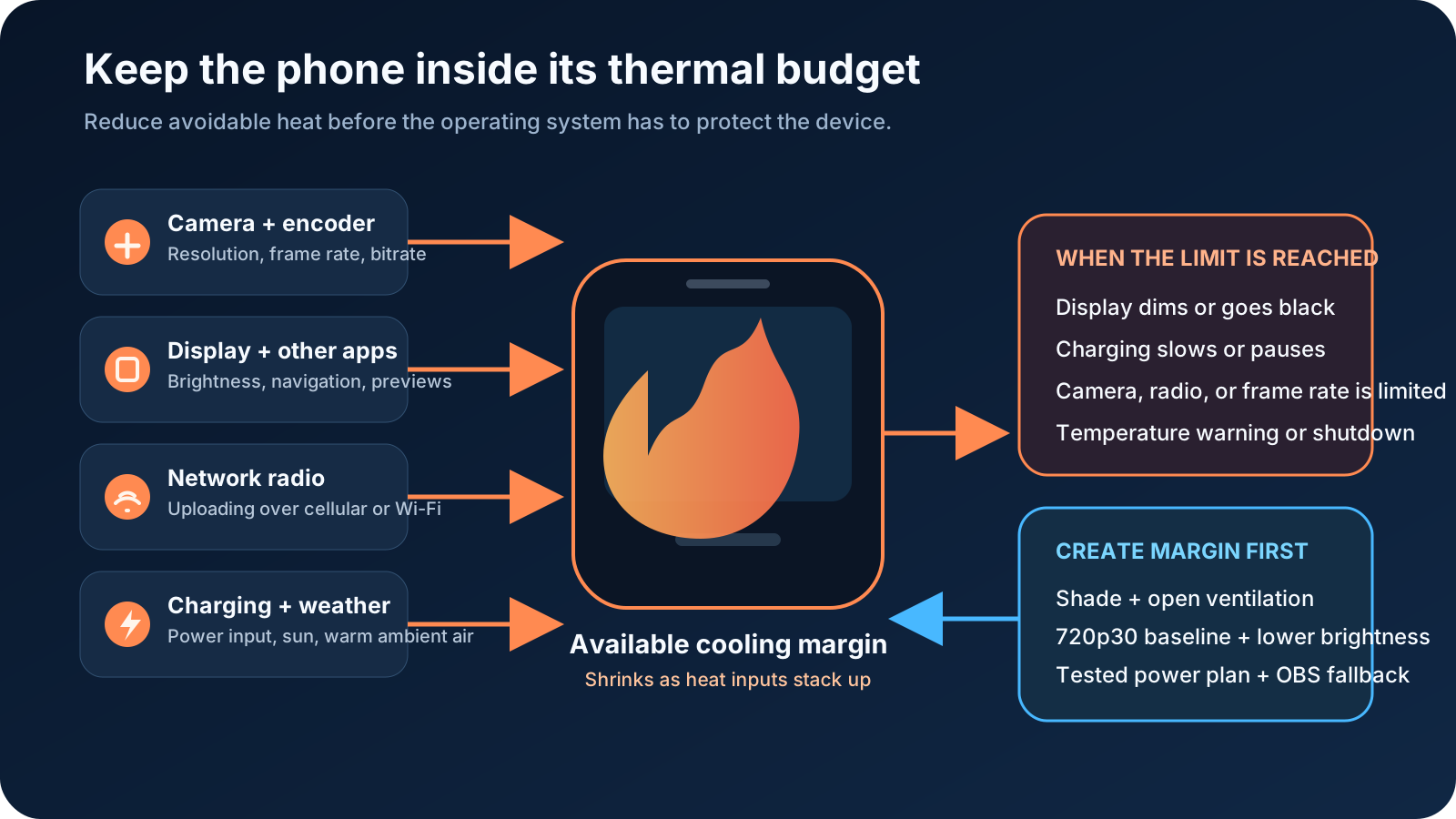
A warm phone is not automatically failing. Apple says camera apps, high-quality video streaming, and wireless charging can normally make an iPhone warm. Google lists high-definition recording, large uploads, mobile data, and doing those jobs while charging among the reasons a Pixel may heat up. The production problem begins when the device has to protect itself by limiting charging, performance, the camera, the display, or the network connection.
Understand what the phone is doing
In every VISP workflow, the field phone performs the first video encode. The VISP app captures the selected camera and microphone, encodes H.264 video and AAC audio, and sends one contribution feed over SRT. With Direct, the default output, the relay then encodes that feed for Twitch, Kick, or YouTube. In the optional OBS workflow this guide focuses on, the relay forwards the feed and OBS decodes it, builds the finished program, and sends the broadcast from the home computer.
Either way, the platform encode and the platform stream key stay off the phone, and with OBS so do scenes, browser sources, alerts, and recording. It does not make phone capture free. During an outdoor broadcast, one device may be:
- running the camera and hardware video encoder continuously;
- keeping a bright preview and chat visible;
- uploading the contribution feed over a mobile radio;
- running maps, Bluetooth audio, or another production app;
- charging from a power bank;
- absorbing heat from the sun and warm air.
Each task may work alone. Heat becomes a problem when they run together faster than the phone can release it.
Apple's current temperature guidance documents the resulting protections: charging can slow or stop, the display can dim or go black, cellular signal can weaken as radios enter a low-power state, camera features can be disabled, and some workloads can run at lower frame rates. Google's Pixel heat guidance similarly says a hot phone may reduce CPU and charging performance, disable the camera, limit mobile data or Wi-Fi, enter low-power mode, or shut down.
Those protections are safety features. Do not try to defeat them during a live show.
Start with a cooler video baseline
Use the lowest format that meets the production need, then move upward only after a full-duration test. The VISP phone app starts at 1080p30 when the camera supports it, so pick the Reliable · 720p30 quality preset for a cooler start. That is a useful IRL baseline: it asks the camera and encoder to process fewer pixels and frames than 1080p60, while OBS can still place the feed inside a normal scene.
Do not increase resolution, frame rate, and bitrate together. Change one variable, run the phone for the expected show duration, and observe whether the device remains stable. A ten-minute indoor check cannot validate a two-hour walk in afternoon sun.
Use this order:
- begin at 720p30;
- select a bitrate the real field upload can sustain with margin;
- test camera motion, fine detail, and OBS composition;
- raise resolution only when the picture genuinely needs it;
- test the new setting outdoors for the full planned duration.
Lowering bitrate alone is not guaranteed to solve heat on every model. Camera capture, scaling, frame rate, screen brightness, radios, ambient temperature, and charging all remain in the budget. Treat each change as a measured experiment, not a universal cure.
The mobile IRL bitrate guide helps choose a contribution setting without confusing it with the separate OBS upload to Twitch or Kick.
Keep direct heat away and let warm air escape
Shade is the highest-value physical change because it removes an external heat source without reducing picture quality. Position the operator, mount, or a small sun hood so the phone body stays out of direct sunlight. Do not leave it against a sun-heated window, vehicle dashboard, or dark enclosed bag between shots.
Apple specifies an ambient operating range of 0–35°C for iPhone and warns that extended camera use in hot conditions or direct sunlight can change device performance. Google also says to keep a Pixel out of direct sunlight and away from enclosed or poorly ventilated areas.
Build the rig around airflow:
- leave the back and edges of the phone open rather than pressed against fabric;
- avoid wrapping the phone and power bank together in one insulated pouch;
- keep the power bank separate so its heat does not warm the phone;
- check that the mount does not cover the whole rear surface;
- test the final rig, not the bare phone on a desk.
A purpose-built mount can be safer than improvising a sealed weather cover. If rain protection is required, account for its loss of ventilation and test it under the same weather and charging conditions.
Reduce display and app load
The preview does not need maximum brightness in shade. Reduce brightness until the operator can still judge framing, status, and chat safely. Google explicitly recommends lowering display brightness when a Pixel gets too warm.
Remove avoidable foreground work too. Do not run a public Twitch or Kick playback on the same phone just to confirm that OBS is live; that adds video decoding and download activity while the device is already capturing and uploading. Use VISP's stream status and chat view on the camera phone, and check the public program from a second muted device when possible.
Navigation may be essential during an IRL stream, but it is still part of the heat budget. Apple's guidance specifically names extended GPS navigation in hot conditions. If the route needs maps, test camera, navigation, screen brightness, Bluetooth, and charging together rather than validating each app separately.
Treat charging as another heat input
A power bank solves runtime, not cooling. Charging adds heat at the same time the phone is capturing and transmitting. Apple lists wireless charging among the normal causes of warmth, while Google calls out resource-heavy use during charging and instructs users to disconnect power if the phone becomes too hot.
Use a practical power plan:
- start with the phone charged rather than recovering a nearly empty battery at maximum speed during the show;
- use a known-good cable and charger appropriate for the device;
- keep the power bank physically separate from the phone;
- rehearse while charging, because a battery-only test proves a different rig;
- watch for a charging-paused or temperature warning;
- if the device reports excessive heat, cut to fallback, stop capture, unplug it, move it to a cooler shaded place, and let it cool.
Do not promise an uninterrupted show by forcing the phone to keep charging. Apple and Google both describe charging limits as part of the device's thermal protection. Respecting that limit is safer than protecting the current shot.
Tell heat apart from a bad network
Heat and network congestion can both look like a stuttering remote camera, but the first checks differ.
| Symptom | Check first |
|---|---|
| The whole phone is hot, display dims, charging pauses, or an OS warning appears | Stop the camera and cool the device |
| VISP reports rising packet loss or RTT while the phone otherwise behaves normally | Lower bitrate or improve the route |
| Camera or frame rate becomes limited after a long warm run | Treat it as thermal protection |
| OBS drops frames on its platform connection while the phone feed is stable | Troubleshoot the home OBS uplink |
| The feed stops immediately when the app leaves the foreground | Return to the VISP app and keep it active |
| The phone feed stops but OBS and local sources continue | Use the fallback scene while the phone recovers |
Do not keep raising SRT latency to solve a hot device. SRT latency gives packet retransmissions time to arrive; it does not cool the camera or encoder. The VISP encoder guide explains how to tune that network recovery window from measured round-trip time.
Rehearse the failure, not only the happy path
Run a thermal rehearsal before an important Twitch or Kick broadcast:
- assemble the exact mount, case, cable, power bank, microphone, and headset;
- choose 720p30 and the planned bitrate;
- start the phone feed and receive it in OBS;
- run any chat, maps, and Bluetooth equipment you will use live;
- place the rig in shade under realistic ambient conditions;
- let it run for at least the planned segment length;
- record whether the display dims, charging changes, the camera stutters, or the operating system warns;
- stop and restart the phone feed, then confirm the same OBS source recovers;
- force one failure and verify OBS switches to local fallback;
- keep the coolest settings that still produce an acceptable picture.
VISP's generated OBS Media Source reconnects to the same device path after the phone returns. The home OBS broadcast can remain live throughout, showing a local slate, studio camera, recap video, or other planned scene. Follow the bad-mobile-network guide for the full fallback and reconnection workflow.
What to do during a temperature warning
Treat the warning as a stop signal:
- switch OBS to the local fallback scene;
- stop the VISP camera stream if the interface still responds;
- disconnect charging;
- move the phone away from sunlight into a cooler, ventilated place;
- allow it to cool before restarting;
- resume at a lower format or with fewer simultaneous tasks;
- verify stable video and audio in OBS before cutting back.
Apple tells users who see its temperature warning to turn off the device, move it to a cooler environment away from direct sunlight, and allow it to cool. Google likewise says to unplug a phone that is too hot, move it somewhere cooler, and stop using it until it cools down. Follow the instructions shown by your own device rather than a live-production shortcut.
Know what VISP changes—and what it does not
VISP keeps the phone as a contribution source and moves final production to OBS. That removes the need to render OBS scenes, browser alerts, and the final platform encode on the field phone. The Twitch or Kick stream key stays in OBS.
On the normal relay-to-OBS path, VISP does not transcode the contribution. If the phone sends an unnecessarily demanding format, the relay will not turn it into a cooler one. Change resolution, frame rate, and bitrate at the phone.
Network bonding in the VISP app is optional and off by default. Its SRTLA mode keeps Wi-Fi and cellular radios both transmitting, and its Broadcast mode sends duplicate packets over both, which may increase radio work and data use. Neither mode is extra cooling. Leave bonding out of the first thermal baseline, then test it separately only if the route requires it.
For the complete source setup, use the VISP phone app documentation and phone-as-a-remote-camera guide.
Frequently asked questions
Is it normal for a phone to feel warm while streaming?
Yes. Continuous camera use, encoding, network upload, display use, and charging can make a device warm. The actionable boundary is changed behavior or an operating-system warning: dimming, paused charging, limited camera or radio functions, reduced performance, or shutdown.
Should I lower bitrate or resolution first?
Start with a complete 720p30 baseline and a bitrate the route can sustain. Resolution and frame rate change camera and encoding work; bitrate changes the encoder target and network load. The thermal result varies by phone, so change one setting and repeat the same full-duration test.
Is Wi-Fi always cooler than cellular?
Not always, but Google recommends Wi-Fi instead of mobile data when possible for a Pixel that runs hot. For a moving IRL stream, stability and coverage still matter. Test the actual radio, signal conditions, and route rather than assuming the network label decides the temperature.
Will sending the camera to OBS stop overheating?
It can reduce the work compared with building and distributing the whole show on the phone, because OBS handles scenes and final output at home. The phone still captures, encodes, displays, and uploads its contribution, so it still needs a thermal plan.
Should I keep streaming after the phone shows a temperature warning?
No. Switch OBS to fallback, follow the device's warning, disconnect power if instructed, and let the phone cool before restarting.
Sources and next steps
- Apple: If your iPhone or iPad gets too hot or too cold
- Google: Help keep your Pixel phone from feeling too warm or hot
- VISP phone and browser app
- VISP encoders and fallback
If you want the phone to remain a managed camera while the home studio owns the Twitch or Kick production, try VISP, start with the 720p30 baseline above, and run the full thermal rehearsal before the next long outdoor stream.
Bring the field into your OBS studio
Try VISP free during beta. You never have to paste a stream key anywhere.
Try VISP free